Learning Path:
- Complete REL-ID Initialization Flow Codelab
- Complete REL-ID Complete Activation & Login Flow Codelab
- Complete REL-ID Complete IDV Activation Flow Codelab
- You are here → Post-Login Additional Document Scan Implementation
Welcome to the REL-ID IDV Post-Login Additional Document Scan Flow codelab! This tutorial teaches you how to implement a streamlined additional document verification workflow for activated customers using document scanning and validation.
What You'll Build
You'll implement a complete additional document scan flow that:
- Initiates Additional Document Scan → Customer submits supplementary identity documents
- Document Capture → SDK captures document using native camera UI
- OCR & Validation → SDK extracts document data and validates authenticity
- Results Display → Application displays extracted document information
What You'll Learn
- Understanding additional document scan workflow architecture
- Using
initiateIDVAdditionalDocumentScanAPI for supplementary verification - Handling
onIDVAdditionalDocumentScanevent for OCR results - Dual validation pattern (error code + status code) for robust error handling
- Managing event-driven IDV flows with global and screen-level handlers
- Building result screens to display OCR-extracted document data
- Implementing user-friendly error handling for document scan operations
Technology Stack
This implementation uses:
- Cordova: Apache Cordova for cross-platform mobile development
- cordova-plugin-rdna: REL-ID native SDK plugin (LOCAL plugin)
- JavaScript (ES6+): Modern JavaScript for business logic
- HTML5: Structure and semantic markup
- CSS3: Styling and responsive design
- Single Page Application (SPA): Navigation without page reloads
- Event-driven architecture: Document-based event handling
Prerequisites
Before you begin, ensure you have:
- Completed REL-ID Initialization Flow Codelab
- Completed REL-ID Activation & Login Flow Codelab
- Completed REL-ID IDV Activation Flow Codelab
- Basic understanding of Cordova development
- Knowledge of JavaScript event handling
- Understanding of Document Object Model (DOM) manipulation
- Familiarity with Promise-based APIs
- Apache Cordova CLI installed
- Android Studio or Xcode for native builds
- REL-ID SDK credentials and configuration
Key Concepts
Concept | Description |
Additional Document Scan | Supplementary identity verification for activated customers |
OCR Extraction | Optical Character Recognition to extract document text |
Document Validation | Authenticity checks performed by SDK |
Workflow 7 | IDV workflow type for additional document scan |
Challenge Mode 10 | Challenge mode for document scan operations |
Event-driven Flow | SDK events trigger navigation and state updates |
Dual Validation | Error code + status code pattern for comprehensive error handling |
Workflow Overview
┌─────────────────────────────────────────────────────────────────┐
│                     Customer Journey                              │
├─────────────────────────────────────────────────────────────────┤
│                                                                   │
│  1. Tap "Start Additional Document Scan"                        │
│     ↓                                                             │
│  2. API: initiateIDVAdditionalDocumentScan("reason")            │
│     ↓                                                             │
│  3. SDK Event: getIDVDocumentScanProcessStartConfirmation       │
│     ↓                                                             │
│  4. User confirms → Document scan UI launched                    │
│     ↓                                                             │
│  5. User scans document with native camera                       │
│     ↓                                                             │
│  6. SDK extracts data via OCR                                    │
│     ↓                                                             │
│  7. SDK Event: onIDVAdditionalDocumentScan (OCR results)        │
│     ↓                                                             │
│  8. Application displays extracted document data                 │
│     ↓                                                             │
│  9. User reviews and completes workflow                          │
│                                                                   │
└─────────────────────────────────────────────────────────────────┘
Error Handling Strategy
This implementation uses a dual validation pattern:
- Error Code Validation (
error.longErrorCode)- 0 = Success
- 146 = User canceled (suppressed)
- 241 = Document scan canceled (suppressed)
- Other non-zero = Real error (display modal)
- Status Code Validation (
status.statusCode)- 100 = Success
- 0 = In progress/partial success
- Other values = Backend error (display modal)
Architecture Pattern
┌───────────────────────────────────────────────────────────────┐
│                      Event Handler Strategy                    │
├───────────────────────────────────────────────────────────────┤
│                                                                 │
│  Global Provider (SDKIDVEventProvider):                       │
│  - Handles getIDVDocumentScanProcessStartConfirmation         │
│  - Navigates to document scan start screen                    │
│  - Manages document scan confirmation flow                    │
│                                                                 │
│  Screen-Level Handler (AdditionalDocumentScanScreen):         │
│  - Handles onIDVAdditionalDocumentScan final result           │
│  - Navigates to result screen with OCR data                   │
│  - Displays success/error modals                              │
│                                                                 │
│  Both handlers coexist for complete flow coverage             │
│                                                                 │
└───────────────────────────────────────────────────────────────┘
Let's get started!
What is Additional Document Scan?
Additional Document Scan is a streamlined REL-ID IDV workflow (Workflow 7) designed for already activated customers who need to provide supplementary identity documents beyond the initial KYC process.
Key Differences from Full IDV Activation
Feature | Full IDV Activation | Additional Document Scan |
Target User | New/unverified customers | Already activated customers |
Workflow Type | Complete verification | Supplementary verification |
Document Scan | ✅ Required | ✅ Required |
Selfie Capture | ✅ Required | ❌ Not required |
Biometric Matching | ✅ Required | ❌ Not required |
Workflow ID | 1 (Activation) | 7 (Additional Scan) |
API Method |
|
|
Result Event |
|
|
When to Use Additional Document Scan
Use this workflow when:
- ✅ Customer is already activated and logged in
- ✅ Application needs supplementary identity documents
- ✅ Compliance requires additional document verification
- ✅ Customer wants to update document information
- ✅ Backend requests document re-verification
Do NOT use for:
- ❌ Initial customer activation (use full IDV activation)
- ❌ New customer onboarding (use full IDV activation)
- ❌ Biometric verification (use selfie-based workflows)
Workflow Architecture
┌─────────────────────────────────────────────────────────────────┐
│                  Additional Document Scan Flow                   │
├─────────────────────────────────────────────────────────────────┤
│                                                                   │
│  Step 1: Initiate Workflow                                      │
│  ┌──────────────────────────────────────────────────────────┐  │
│  │ initiateIDVAdditionalDocumentScan(reason)                │  │
│  │ - API called with reason string                          │  │
│  │ - Returns sync validation response                       │  │
│  │ - SDK workflow triggered if successful                   │  │
│  └──────────────────────────────────────────────────────────┘  │
│                           ↓                                      │
│  Step 2: Document Scan Confirmation                             │
│  ┌──────────────────────────────────────────────────────────┐  │
│  │ Event: getIDVDocumentScanProcessStartConfirmation        │  │
│  │ - Global provider handles event                          │  │
│  │ - Navigates to confirmation screen                       │  │
│  │ - User confirms or cancels                               │  │
│  │ API: setIDVDocumentScanProcessStartConfirmation          │  │
│  └──────────────────────────────────────────────────────────┘  │
│                           ↓                                      │
│  Step 3: Native Document Capture                                │
│  ┌──────────────────────────────────────────────────────────┐  │
│  │ SDK launches native camera UI                            │  │
│  │ - User captures document (front/back)                    │  │
│  │ - SDK performs real-time quality checks                  │  │
│  │ - SDK extracts text via OCR                              │  │
│  └──────────────────────────────────────────────────────────┘  │
│                           ↓                                      │
│  Step 4: Final Result Event                                     │
│  ┌──────────────────────────────────────────────────────────┐  │
│  │ Event: onIDVAdditionalDocumentScan                       │  │
│  │ - Screen-level handler receives OCR data                 │  │
│  │ - Validation: error code + status code                   │  │
│  │ - Navigate to result screen on success                   │  │
│  │ - Display error modal on failure                         │  │
│  └──────────────────────────────────────────────────────────┘  │
│                                                                   │
└─────────────────────────────────────────────────────────────────┘
Challenge Mode Context
The additional document scan workflow uses Challenge Mode 10:
Challenge Mode | Operation | Used In |
9 | Document scan during activation | Full IDV activation |
10 | Additional document scan | Post-login supplementary verification |
Before You Begin
Ensure you have completed these requirements:
1. Previous Codelabs Completed
- ✅ REL-ID Initialization Flow (Cordova)
- ✅ REL-ID MFA Activation & Login Flow (Cordova)
- ✅ REL-ID IDV Post-Login KYC Flow (Cordova) - Recommended for IDV understanding
2. Development Environment
# Required tools
Node.js >= 16
Cordova CLI >= 11
Xcode (for iOS) or Android Studio (for Android)
Verify your Cordova installation:
# Check Cordova CLI version
cordova --version

# Install Cordova globally if needed
npm install -g cordova
3. REL-ID SDK Credentials
- Connection profile configuration (agent_info.json)
- Valid REL-ID SDK license
- Document scanning license (Regula)
Get the Code from GitHub
The code to get started can be found in a GitHub repository.
You can clone the repository using the following command:
git clone https://github.com/uniken-team/relid-codelab-cordova.git
Navigate to the relid-IDV-post-login-additional-document-scan folder in the repository you cloned:
cd relid-codelab-cordova/relid-IDV-post-login-additional-document-scan
Project Structure
The post-login additional document scan codelab follows this structure:
relid-IDV-post-login-additional-document-scan/
├── www/
│   ├── index.html                                                      # SPA root with all templates
│   ├── css/
│   │   └── index.css                                                   # Global styles
│   ├── js/
│   │   └── app.js                                                      # App bootstrap (deviceready)
│   └── src/
│       ├── uniken/
│       │   ├── services/
│       │   │   └── idv/
│       │   │       ├── rdnaIDVService.js                               # 🆕 initiateIDVAdditionalDocumentScan()
│       │   │       └── rdnaIDVEventManager.js                          # 🆕 onIDVAdditionalDocumentScan event
│       │   ├── providers/
│       │   │   └── idv/
│       │   │       └── SDKIDVEventProvider.js                          # 🆕 Additional document scan handler
│       │   ├── utils/
│       │   │   └── connectionProfileParser.js                          # Loads agent_info.json
│       │   └── cp/
│       │       └── agent_info.json                                     # Connection profile
│       └── tutorial/
│           ├── screens/
│           │   └── idv/
│           │       ├── additionalDocumentScan/                         # 🆕 Additional Document Scan Screens
│           │       │   ├── AdditionalDocumentScanScreen.js             # Entry point with scan initiation
│           │       │   └── IDVAdditionalDocumentScanResultScreen.js    # Validation result display
│           │       ├── IDVDocumentProcessStartConfirmationScreen.js   # Document scan confirmation (reused)
│           │       ├── IDVConfirmDocumentDetailsScreen.js             # (Not used in additional scan)
│           │       ├── IDVSelfieProcessStartConfirmationScreen.js     # (Not used in additional scan)
│           │       ├── IDVSelfieConfirmationScreen.js                 # (Not used in additional scan)
│           │       ├── IDVBiometricOptInConsentScreen.js              # (Not used in additional scan)
│           │       └── activatedCustomerKyc/
│           │           └── ActivatedCustomerKYCScreen.js               # (KYC flow entry, not used here)
│           └── navigation/
│               └── NavigationService.js                                # SPA navigation service
├── platforms/
│   ├── android/
│   └── ios/
├── plugins/
│   └── cordova-plugin-rdna/                                            # SDK plugin (after install)
├── RdnaClient/                                                         # 🆕 LOCAL plugin directory
│   ├── plugin.xml
│   ├── src/
│   └── www/
├── config.xml                                                          # Cordova configuration
└── package.json
IDV Assets Configuration
The project uses an automated Cordova hook to configure IDV assets for document verification and biometric capture. Unlike React Native which requires manual asset placement, Cordova handles this automatically during the build process.
Required Project Structure:
To use this automated hook in your own Cordova projects, you need the following structure at your project root:
your-cordova-project/
├── idv-native-resources/          # ⚠️ Required folder at project root
│   ├── common/                    # Shared files (copied to both platforms)
│   │   ├── regula.license         # License file (shared)
│   │   └── db.dat                 # 110.5MB document database (shared)
│   ├── ios/                       # iOS-only files
│   │   └── Certificates.bundle/
│   │       └── icaopkd-002-complete-000325.ldif
│   └── android/                   # Android-only files
│       └── assets/
│           └── Regula/
│               └── certificates/
│                   └── icaopkd-002-complete-000325.ldif
├── hooks/
│   └── after_prepare/
│       └── copy_idv_native_resources.js   # ⚠️ Automated hook script
├── platforms/
├── www/
└── config.xml
Key Design: The common/ folder holds shared resources (db.dat, regula.license) used by both platforms, while ios/ and android/ folders contain only platform-specific files.
How the Hook Works:
Hook Script: hooks/after_prepare/copy_idv_native_resources.js
When you run cordova prepare or cordova build, this hook automatically copies assets from idv-native-resources/ to platform-specific directories:
iOS Destinations (Automated by Hook):
common/regula.license→platforms/ios//Resources/regula.license common/db.dat→platforms/ios//Resources/db.dat ios/Certificates.bundle/→platforms/ios//Resources/Certificates.bundle/
Android Destinations (Automated by Hook):
common/regula.license→platforms/android/app/src/main/res/raw/regula.licensecommon/db.dat→platforms/android/app/src/main/assets/Regula/db.datandroid/assets/Regula/certificates/→platforms/android/app/src/main/assets/Regula/certificates/
Important:
- The
idv-native-resources/folder must exist at your project root with the exact structure shown above - The hook
copy_idv_native_resources.jsmust be inhooks/after_prepare/directory - Shared resources (db.dat, regula.license) go in
common/folder - Platform-specific files go in
ios/orandroid/folders - Assets are automatically copied during
cordova prepare- no manual setup needed - If assets are missing, the hook will log warnings but won't fail the build
- The hook also registers resources in Xcode project for iOS automatically
Install Cordova Plugins
Install the required plugins:
# Install local RdnaClient plugin
cordova plugin add ./RdnaClient

# Install file plugin for agent_info.json loading
cordova plugin add cordova-plugin-file

# Install device plugin
cordova plugin add cordova-plugin-device
Service Architecture Overview
The IDV service layer provides a clean abstraction over the Cordova plugin's native APIs:
┌────────────────────────────────────────────────────────┐
│                   Service Layer Architecture            │
├────────────────────────────────────────────────────────┤
│                                                          │
│  Application Code (Screens)                            │
│         ↕                                                │
│  rdnaIDVService (Promise-based API wrapper)            │
│         ↕                                                │
│  rdnaIDVEventManager (Event listener registration)     │
│         ↕                                                │
│  com.uniken.rdnaplugin.RdnaClient (Cordova Plugin)     │
│         ↕                                                │
│  Native SDK (Android/iOS)                               │
│                                                          │
└────────────────────────────────────────────────────────┘
rdnaIDVService.js - API Wrapper
This service wraps the Cordova plugin's callback-based APIs into Promise-based methods:
Key Method for Additional Document Scan:
/**
 * Initiates additional document scan for supplementary verification
 *
 * Response Flow:
 * 1. This method returns sync validation response immediately
 * 2. SDK auto-triggers getIDVDocumentScanProcessStartConfirmation event
 * 3. User scans document using native SDK UI
 * 4. SDK fires onIDVAdditionalDocumentScan event with extracted data
 * 5. Screen-level handler processes result and navigates to result screen
 *
 * @param {string} reason - Reason for additional document scan
 * @returns {Promise<Object>} Promise that resolves with sync response
 */
async initiateIDVAdditionalDocumentScan(reason) {
  return new Promise((resolve, reject) => {
    console.log('RdnaIDVService - Initiating IDV additional document scan:', JSON.stringify({
      reason
    }, null, 2));

    com.uniken.rdnaplugin.RdnaClient.initiateIDVAdditionalDocumentScan(
      (response) => {
        console.log('RdnaIDVService - InitiateIDVAdditionalDocumentScan sync callback received');

        const result = JSON.parse(response);
        console.log('RdnaIDVService - Sync response:', JSON.stringify({
          longErrorCode: result.error?.longErrorCode,
          shortErrorCode: result.error?.shortErrorCode,
          errorString: result.error?.errorString
        }, null, 2));
        resolve(result);
      },
      (error) => {
        console.error('RdnaIDVService - Error callback');
        const result = JSON.parse(error);
        reject(result);
      },
      [reason]
    );
  });
}
Service Method Signature:
// Cordova Plugin Syntax (callback-based)
com.uniken.rdnaplugin.RdnaClient.methodName(
  successCallback,  // Called with success response
  errorCallback,    // Called with error response
  [param1, param2]  // Parameters array
);

// Service Wrapper Syntax (Promise-based)
const response = await rdnaIDVService.methodName(param1, param2);
rdnaIDVEventManager.js - Event Registration
This manager centralizes all IDV event handling using document.addEventListener:
Event Registration Pattern:
class RdnaIDVEventManager {
  registerEventListeners() {
    if (this._initialized) {
      console.log('RdnaIDVEventManager - Already initialized');
      return;
    }

    console.log('RdnaIDVEventManager - Registering native IDV event listeners');

    // Additional Document Scan Event
    document.addEventListener(
      'onIDVAdditionalDocumentScan',
      this.onAdditionalDocumentScan.bind(this),
      false
    );

    this._initialized = true;
  }

  /**
   * Handles additional document scan response event
   *
   * @param event Event object containing document scan results
   */
  onAdditionalDocumentScan(event) {
    console.log('RdnaIDVEventManager - Additional document scan event received');

    try {
      const response = event.response || event.detail || event;
      const data = typeof response === 'string' ? JSON.parse(response) : response;

      console.log('RdnaIDVEventManager - User ID:', data.userID);
      console.log('RdnaIDVEventManager - Status Code:', data.status?.statusCode);
      console.log('RdnaIDVEventManager - Error Code:', data.error?.longErrorCode);
      console.log('RdnaIDVEventManager - Document Type:', data.idvResponse?.document_type);

      if (this.additionalDocumentScanHandler) {
        this.additionalDocumentScanHandler(data);
      }
    } catch (error) {
      console.error('RdnaIDVEventManager - Failed to parse:', error);
    }
  }

  // Public API for setting event handlers
  setAdditionalDocumentScanHandler(callback) {
    this.additionalDocumentScanHandler = callback;
  }
}

// Auto-instantiate singleton
const rdnaIDVEventManager = RdnaIDVEventManager.getInstance();
Event Handler Registration Flow
┌──────────────────────────────────────────────────────────────┐
│              Event Handler Registration Timeline              │
├──────────────────────────────────────────────────────────────┤
│                                                                │
│  1. Script Load (index.html)                                 │
│     rdnaIDVEventManager.js loads                             │
│     ↓                                                          │
│  2. Auto-Initialization                                       │
│     const rdnaIDVEventManager = getInstance()                │
│     constructor() calls registerEventListeners()             │
│     ↓                                                          │
│  3. Native Event Listeners Registered                         │
│     document.addEventListener('onIDVAdditionalDocumentScan')  │
│     ↓                                                          │
│  4. Screen-Level Handler Registration                         │
│     Screen calls setAdditionalDocumentScanHandler(callback)   │
│     ↓                                                          │
│  5. SDK Event Fired                                           │
│     Native SDK triggers 'onIDVAdditionalDocumentScan'        │
│     ↓                                                          │
│  6. Event Manager Receives Event                              │
│     onAdditionalDocumentScan(event) called                   │
│     ↓                                                          │
│  7. Screen-Level Handler Invoked                              │
│     this.additionalDocumentScanHandler(data) executed        │
│                                                                │
└──────────────────────────────────────────────────────────────┘
Service Singleton Pattern
Both service and event manager use singleton pattern to ensure only one instance exists:
class RdnaIDVService {
  constructor() {
    if (RdnaIDVService.instance) {
      return RdnaIDVService.instance;
    }

    this.eventManager = rdnaIDVEventManager;
    RdnaIDVService.instance = this;
  }

  static getInstance() {
    if (!RdnaIDVService.instance) {
      RdnaIDVService.instance = new RdnaIDVService();
    }
    return RdnaIDVService.instance;
  }

  getEventManager() {
    return this.eventManager;
  }
}

// Auto-instantiate (runs when script loads)
const rdnaIDVService = RdnaIDVService.getInstance();
Benefits:
- ✅ Only one instance across entire application
- ✅ No duplicate event listeners
- ✅ Consistent state management
- ✅ Easy access via global constant
Accessing the Service from Screens
Screens can access the service directly:
// In any screen file
const AdditionalDocumentScanScreen = {
  async handleStartAdditionalDocumentScan() {
    try {
      // Access global singleton directly
      const syncResponse = await rdnaIDVService.initiateIDVAdditionalDocumentScan(
        'Additional Document Verification'
      );

      console.log('Sync response:', syncResponse);
    } catch (error) {
      console.error('Error:', error);
    }
  },

  setupEventListeners() {
    // Register screen-level event handler
    const eventManager = rdnaIDVService.getEventManager();
    eventManager.setAdditionalDocumentScanHandler(
      this.handleAdditionalDocumentScanResponse.bind(this)
    );
  }
};
Complete Service API Reference
IDV Service Methods (relevant to additional document scan):
// Document Scan APIs
await rdnaIDVService.setIDVDocumentScanProcessStartConfirmation(isConfirm, idvWorkflow);
await rdnaIDVService.setIDVConfirmDocumentDetails(isConfirm, challengeMode);

// Post-Login KYC APIs
await rdnaIDVService.initiateIDVAdditionalDocumentScan(reason);  // ← Used in this workflow

// Event Manager Access
const eventManager = rdnaIDVService.getEventManager();
Event Manager Methods:
// Event Handler Setters
eventManager.setGetDocumentScanStartConfirmationHandler(callback);
eventManager.setGetConfirmDocumentDetailsHandler(callback);
eventManager.setAdditionalDocumentScanHandler(callback);  // ← Used in this workflow

// Cleanup
eventManager.cleanup();
Understanding Service Auto-Initialization
Unlike React Native which uses ES6 imports, Cordova requires manual service initialization. The service and event manager use an auto-initialization pattern to ensure they're ready before any SDK events fire.
Auto-Initialization Pattern:
// rdnaIDVService.js
class RdnaIDVService {
  constructor() {
    if (RdnaIDVService.instance) {
      return RdnaIDVService.instance;
    }

    console.log('RdnaIDVService - Initializing service (auto-initialization on module load)');
    this.eventManager = rdnaIDVEventManager;
    RdnaIDVService.instance = this;
  }

  static getInstance() {
    if (!RdnaIDVService.instance) {
      RdnaIDVService.instance = new RdnaIDVService();
    }
    return RdnaIDVService.instance;
  }
}

// Auto-instantiate singleton when script loads
const rdnaIDVService = RdnaIDVService.getInstance();
Why Auto-Initialize?
- Race Condition Prevention: Event listeners register BEFORE SDK fires any events
- Singleton Pattern: Guarantees only one instance exists globally
- Immediate Availability: Service ready as soon as JavaScript loads
- No Manual Setup: Screens can use service immediately without initialization calls
Script Loading Order in index.html
Cordova uses synchronous script loading, so order is CRITICAL. Load scripts in the wrong order and you'll get ReferenceError: rdnaIDVService is not defined.
Correct Loading Order:
<!-- CRITICAL: Load in this exact order! -->

<!-- 1. Core Services (must load FIRST) -->
<script type="text/javascript" src="src/uniken/services/idv/rdnaIDVEventManager.js"></script>
<script type="text/javascript" src="src/uniken/services/idv/rdnaIDVService.js"></script>

<!-- 2. Global Providers (depends on services) -->
<script type="text/javascript" src="src/uniken/providers/idv/SDKIDVEventProvider.js"></script>

<!-- 3. App Initializer (initializes providers - MUST load before screens) -->
<script type="text/javascript" src="src/uniken/AppInitializer.js"></script>

<!-- 4. Screens (load LAST - they use services) -->
<script type="text/javascript" src="src/tutorial/screens/idv/additionalDocumentScan/AdditionalDocumentScanScreen.js"></script>
<script type="text/javascript" src="src/tutorial/screens/idv/additionalDocumentScan/IDVAdditionalDocumentScanResultScreen.js"></script>
Loading Order Rationale:
1. rdnaIDVEventManager.js loads
   → Registers document.addEventListener listeners
   → Auto-creates singleton instance

2. rdnaIDVService.js loads
   → Gets reference to event manager
   → Wraps SDK APIs in Promise-based methods
   → Auto-creates singleton instance

3. SDKIDVEventProvider.js loads
   → Accesses rdnaIDVService (already loaded)
   → Registers global event handlers
   → Auto-creates singleton instance

4. AppInitializer.js loads
   → Calls SDKIDVEventProvider.initialize()
   → Sets up navigation service references

5. Screen files load
   → Access rdnaIDVService (safe - already loaded)
   → Register screen-level event handlers
   → Export to window object
What is the Global IDV Event Provider?
The SDKIDVEventProvider is a singleton that handles global IDV events that aren't tied to any specific screen. It provides centralized navigation logic for IDV workflows.
Provider Responsibilities
Global Provider Handles:
- ✅
getIDVDocumentScanProcessStartConfirmation→ Navigates to document scan start screen - ✅
getIDVConfirmDocumentDetails→ Navigates to document details confirmation screen - ✅
getIDVSelfieProcessStartConfirmation→ Navigates to selfie start screen - ✅
getIDVSelfieConfirmation→ Navigates to selfie confirmation screen - ✅
getIDVBiometricOptInConsent→ Navigates to biometric consent screen
Screen-Level Handlers Handle:
- ✅
onIDVAdditionalDocumentScan→ Final result event (handled by AdditionalDocumentScanScreen)
Provider Architecture
┌────────────────────────────────────────────────────────────┐
│               Global vs Screen-Level Handlers               │
├────────────────────────────────────────────────────────────┤
│                                                              │
│  GLOBAL PROVIDER (SDKIDVEventProvider):                    │
│  ┌────────────────────────────────────────────────────┐   │
│  │ - Handles SDK events that require navigation       │   │
│  │ - Not tied to any specific screen                  │   │
│  │ - Initialized once in AppInitializer               │   │
│  │ - Persists for app lifetime                        │   │
│  └────────────────────────────────────────────────────┘   │
│                                                              │
│  SCREEN-LEVEL HANDLERS:                                     │
│  ┌────────────────────────────────────────────────────┐   │
│  │ - Handles workflow-specific final result events    │   │
│  │ - Tied to specific screen lifecycle                │   │
│  │ - Registered in onContentLoaded()                  │   │
│  │ - Persists even when user navigates away          │   │
│  └────────────────────────────────────────────────────┘   │
│                                                              │
└────────────────────────────────────────────────────────────┘
SDKIDVEventProvider.js Implementation
Core Provider Structure:
/**
 * SDK IDV Event Provider
 *
 * Centralized singleton for REL-ID IDV event handling in Cordova.
 * Handles document scanning and validation events.
 */
const SDKIDVEventProvider = {
  // Initialization state
  _initialized: false,

  // Current IDV workflow being executed
  currentIDVWorkflow: null,

  /**
   * Initializes the SDK IDV Event Provider
   *
   * Should be called once during app initialization in AppInitializer.js
   */
  initialize() {
    if (this._initialized) {
      console.log('SDKIDVEventProvider - Already initialized, skipping');
      return;
    }

    console.log('SDKIDVEventProvider - Initializing IDV event provider');

    try {
      const eventManager = rdnaIDVService.getEventManager();

      // Register document scan event handlers
      eventManager.setGetDocumentScanStartConfirmationHandler(
        this.handleGetDocumentScanStartConfirmation.bind(this)
      );
      eventManager.setGetConfirmDocumentDetailsHandler(
        this.handleGetConfirmDocumentDetails.bind(this)
      );

      // Register selfie capture event handlers (not used in additional doc scan)
      eventManager.setGetSelfieProcessStartConfirmationHandler(
        this.handleGetSelfieProcessStartConfirmation.bind(this)
      );
      eventManager.setGetSelfieConfirmationHandler(
        this.handleGetSelfieConfirmation.bind(this)
      );

      // Register biometric consent event handlers (not used in additional doc scan)
      eventManager.setGetBiometricOptInConsentHandler(
        this.handleGetBiometricOptInConsent.bind(this)
      );

      this._initialized = true;
      console.log('SDKIDVEventProvider - IDV event handlers registered successfully');
    } catch (error) {
      console.error('SDKIDVEventProvider - Failed to initialize:', error);
      throw error;
    }
  },

  // =============================================================================
  // DOCUMENT SCAN EVENT HANDLERS
  // =============================================================================

  /**
   * Handles document scan process start confirmation request event
   *
   * Navigates to IDV document scan start screen where user can:
   * - View informative message about document requirements
   * - Start document scan or cancel IDV flow
   *
   * @param {Object} data - Event data containing idvWorkflow
   */
  handleGetDocumentScanStartConfirmation(data) {
    console.log('SDKIDVEventProvider - Document scan start confirmation requested');
    console.log('SDKIDVEventProvider - IDV Workflow:', data.idvWorkflow);

    // Store current workflow
    this.currentIDVWorkflow = data.idvWorkflow;

    // Navigate to document scan start screen
    NavigationService.navigate('IDVDocumentScanStart', {
      idvWorkflow: data.idvWorkflow,
      eventData: data
    });
  },

  /**
   * Handles document details confirmation request event
   *
   * Navigates to IDV confirm document details screen where user can:
   * - Review OCR-extracted document information
   * - View document validation status (OK, ERROR, WARNING)
   * - Confirm document details or recapture document
   *
   * @param {Object} data - Event data containing challengeMode and response_data
   */
  handleGetConfirmDocumentDetails(data) {
    console.log('SDKIDVEventProvider - Document details confirmation requested');
    console.log('SDKIDVEventProvider - Challenge Mode:', data.challengeMode);

    // Navigate to confirm document details screen
    NavigationService.navigate('IDVConfirmDocumentDetails', {
      challengeMode: data.challengeMode,
      eventData: data
    });
  }

  // ... other handlers omitted for brevity
};

// Expose to global scope
window.SDKIDVEventProvider = SDKIDVEventProvider;
Provider Initialization in AppInitializer.js
The provider must be initialized when the app starts:
// AppInitializer.js
document.addEventListener('deviceready', function() {
  console.log('AppInitializer - Device ready');

  // Initialize SDK IDV Event Provider (registers global event handlers)
  SDKIDVEventProvider.initialize();

  console.log('AppInitializer - Initialization complete');
}, false);
Event Flow with Global Provider
┌──────────────────────────────────────────────────────────────┐
│         Additional Document Scan Event Flow                   │
├──────────────────────────────────────────────────────────────┤
│                                                                │
│  1. User Action                                               │
│     User taps "Start Additional Document Scan" button        │
│     ↓                                                          │
│  2. API Call (Screen-Level)                                   │
│     AdditionalDocumentScanScreen calls:                       │
│     await rdnaIDVService.initiateIDVAdditionalDocumentScan()  │
│     ↓                                                          │
│  3. Sync Response                                             │
│     API returns immediate validation response                 │
│     ↓                                                          │
│  4. SDK Event Fired (Global)                                  │
│     SDK triggers: getIDVDocumentScanProcessStartConfirmation  │
│     ↓                                                          │
│  5. Global Provider Handles Event                             │
│     SDKIDVEventProvider.handleGetDocumentScanStartConfirmation│
│     ↓                                                          │
│  6. Navigation                                                 │
│     Navigate to 'IDVDocumentScanStart' screen                │
│     ↓                                                          │
│  7. User Confirms                                              │
│     User confirms document scan start                         │
│     ↓                                                          │
│  8. Native Camera UI                                           │
│     SDK launches document capture interface                   │
│     ↓                                                          │
│  9. SDK Event Fired (Screen-Level)                            │
│     SDK triggers: onIDVAdditionalDocumentScan                 │
│     ↓                                                          │
│  10. Screen-Level Handler Handles Event                        │
│      AdditionalDocumentScanScreen.handleAdditionalDocumentScan│
│      Response(data)                                            │
│      ↓                                                          │
│  11. Result Navigation                                         │
│      Navigate to 'IDVAdditionalDocumentScanResult' screen    │
│                                                                │
└──────────────────────────────────────────────────────────────┘
Why Two Handler Types?
Global Provider Advantages:
- ✅ Handles events that occur during navigation (user might be on different screen)
- ✅ Consistent navigation logic across all IDV workflows
- ✅ Single source of truth for IDV event routing
- ✅ Prevents duplicate navigation logic in screens
Screen-Level Handler Advantages:
- ✅ Handles workflow-specific final results
- ✅ Can access screen state and UI elements
- ✅ Workflow-specific error handling and modals
- ✅ Preserves context for result display
Provider Lifecycle
App Startup
    ↓
deviceready event fires
    ↓
AppInitializer.js executes
    ↓
SDKIDVEventProvider.initialize() called
    ↓
Global event handlers registered
    ↓
Provider active for app lifetime
    ↓
Handles ALL global IDV events
Navigation Service Integration
The provider relies on NavigationService for screen transitions:
// Provider navigates using NavigationService
NavigationService.navigate('IDVDocumentScanStart', {
  idvWorkflow: data.idvWorkflow,
  eventData: data
});

// NavigationService loads screen HTML and calls onContentLoaded
// Screen's onContentLoaded receives params and sets up UI
Screen Overview
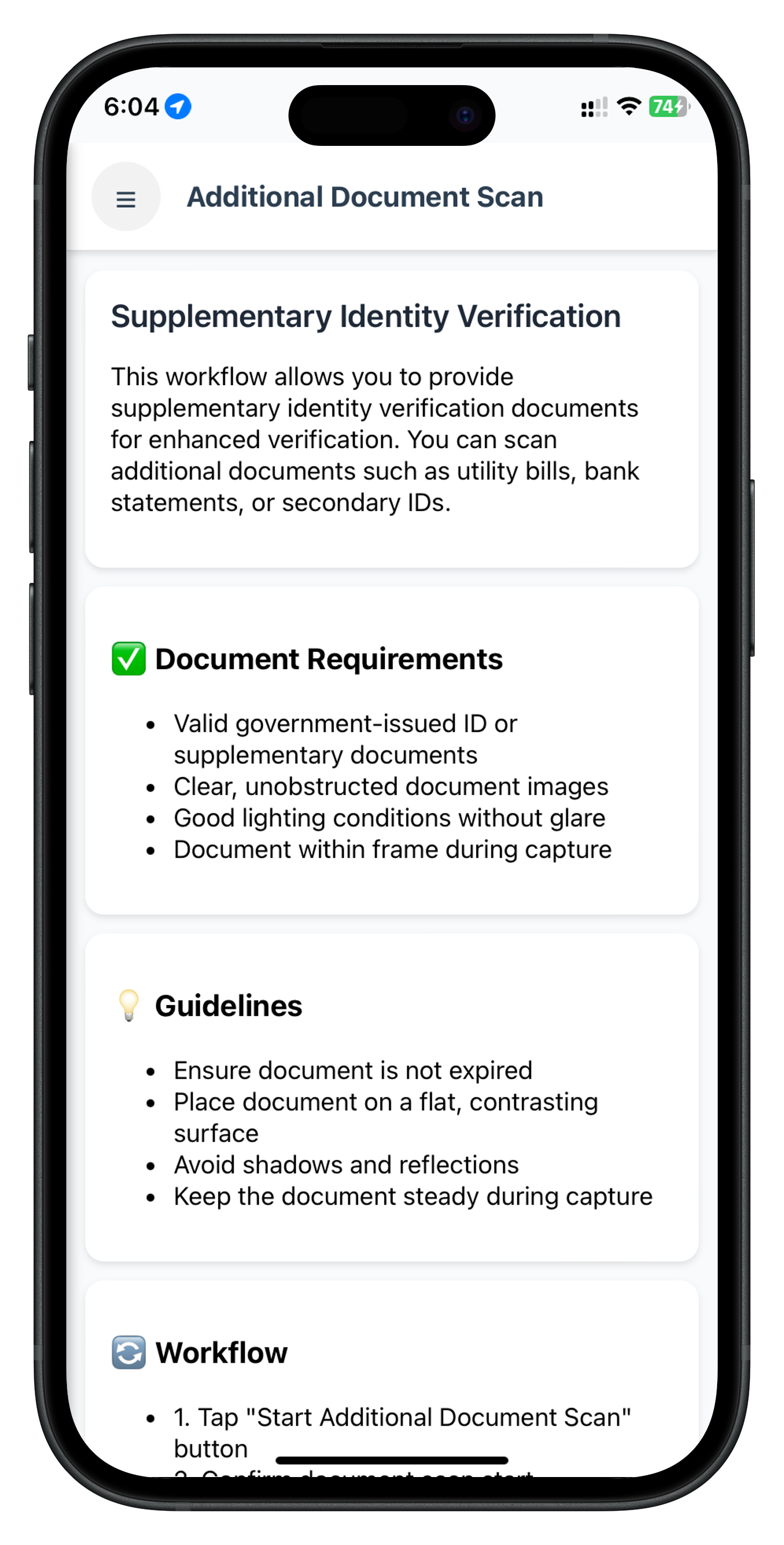
The AdditionalDocumentScanScreen is the entry point for the additional document scan workflow. It initiates the scan and handles the final result event.
Screen Responsibilities
- Initiate Workflow → Call
initiateIDVAdditionalDocumentScanAPI - Handle Sync Response → Process immediate API validation
- Register Event Handler → Listen for
onIDVAdditionalDocumentScanevent - Process Final Result → Navigate to result screen or show error modal
- Error Handling → Implement dual validation pattern
Screen Architecture
┌────────────────────────────────────────────────────────────┐
│           AdditionalDocumentScanScreen Architecture         │
├────────────────────────────────────────────────────────────┤
│                                                              │
│  User Interface (HTML)                                      │
│  ┌────────────────────────────────────────────────────┐   │
│  │ - Information about additional document scan       │   │
│  │ - Guidelines on acceptable document types          │   │
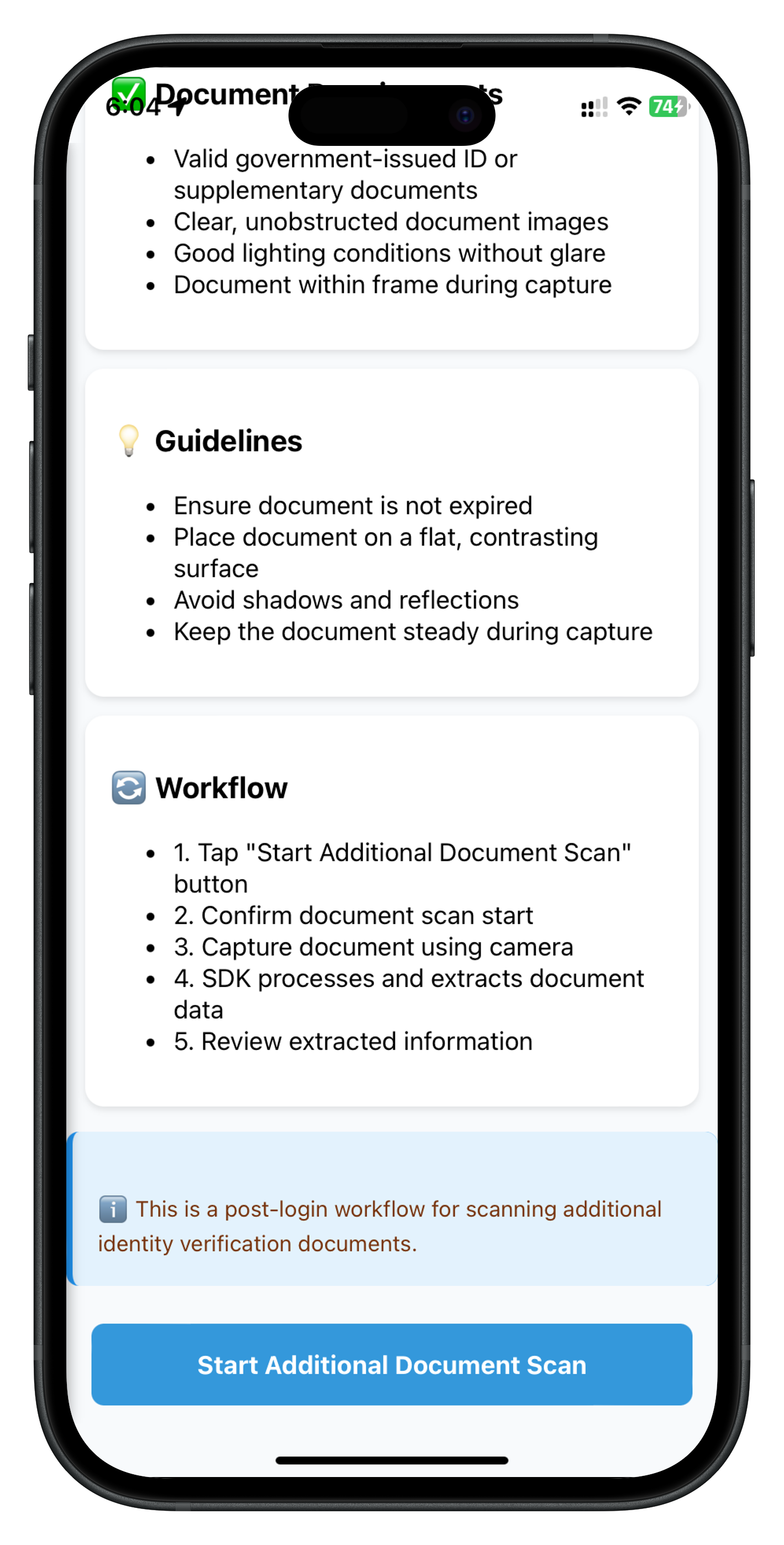
│  │ - "Start Additional Document Scan" button         │   │
│  │ - Loading state during API call                   │   │
│  │ - Success/error modal for workflow results         │   │
│  └────────────────────────────────────────────────────┘   │
│                          ↕                                   │
│  Screen Logic (JavaScript)                                  │
│  ┌────────────────────────────────────────────────────┐   │
│  │ - State management (isInitiating, modal state)    │   │
│  │ - Event listeners (button clicks)                 │   │
│  │ - API integration (initiateIDVAdditionalDocumentScan)│ │
│  │ - Screen-level event handler (onIDVAdditionalDocumentScan)│
│  │ - Dual validation logic                           │   │
│  │ - Navigation to result screen                     │   │
│  └────────────────────────────────────────────────────┘   │
│                                                              │
└────────────────────────────────────────────────────────────┘
AdditionalDocumentScanScreen.js Implementation
Complete Screen Module:
/**
 * Additional Document Scan Screen
 *
 * Entry point screen for initiating additional document scan workflow.
 * Allows users to provide supplementary identity verification documents.
 *
 * Workflow Steps:
 * 1. User taps "Start Additional Document Scan" button
 * 2. initiateIDVAdditionalDocumentScan API is called
 * 3. SDK triggers getIDVDocumentScanProcessStartConfirmation (handled by global provider)
 * 4. User scans document using native SDK UI
 * 5. SDK triggers onIDVAdditionalDocumentScan (handled by this screen's event handler)
 * 6. Screen-level handler navigates to result screen or shows error modal
 */

const AdditionalDocumentScanScreen = {
  // Local state management
  state: {
    isInitiating: false,
    showModal: false,
    modalTitle: '',
    modalMessage: '',
    isSuccess: false
  },

  /**
   * Lifecycle hook called when screen content is loaded
   *
   * @param {Object} params - Navigation parameters
   */
  onContentLoaded(params) {
    console.log('AdditionalDocumentScanScreen - Content loaded');

    // Reset state for fresh start
    this.state = {
      isInitiating: false,
      showModal: false,
      modalTitle: '',
      modalMessage: '',
      isSuccess: false
    };

    // Setup event listeners
    this.setupEventListeners();

    // Hide any existing modal
    this.hideModal();
  },

  /**
   * Setup event listeners
   * - Button click handlers
   * - Screen-level SDK event handler for onIDVAdditionalDocumentScan
   */
  setupEventListeners() {
    console.log('AdditionalDocumentScanScreen - Setting up event listeners');

    // Menu button click handler
    const menuBtn = document.getElementById('additional-doc-scan-menu-btn');
    if (menuBtn) {
      menuBtn.onclick = () => {
        NavigationService.openDrawer();
      };
    }

    // Start button click handler
    const startBtn = document.getElementById('start-additional-document-scan-btn');
    if (startBtn) {
      startBtn.onclick = () => this.handleStartAdditionalDocumentScan();
    }

    // Modal close button handler
    const modalCloseBtn = document.getElementById('additional-document-scan-modal-close-btn');
    if (modalCloseBtn) {
      modalCloseBtn.onclick = () => this.handleModalClose();
    }

    // Register screen-level event handler for onIDVAdditionalDocumentScan
    // This handler persists even when user navigates away from this screen
    console.log('AdditionalDocumentScanScreen - Registering screen-level event handler');
    const eventManager = rdnaIDVService.getEventManager();
    eventManager.setAdditionalDocumentScanHandler(
      this.handleAdditionalDocumentScanResponse.bind(this)
    );
  },

  /**
   * Initiates additional document scan workflow
   */
  async handleStartAdditionalDocumentScan() {
    console.log('AdditionalDocumentScanScreen - Starting additional document scan');
    this.setInitiating(true);

    try {
      const reason = 'Additional Document Verification';
      console.log('AdditionalDocumentScanScreen - Calling API with reason:', reason);

      const syncResponse = await rdnaIDVService.initiateIDVAdditionalDocumentScan(reason);
      console.log('AdditionalDocumentScanScreen - Sync response successful');

      // Sync success means API accepted the request
      // Workflow continues via SDK events
      console.log('AdditionalDocumentScanScreen - Workflow initiated, waiting for SDK events');

    } catch (error) {
      console.error('AdditionalDocumentScanScreen - Sync error:', error);

      const errorMessage = error.error?.errorString || 'Failed to initiate scan';
      alert(`Additional Document Scan Error\n\n${errorMessage}`);

    } finally {
      this.setInitiating(false);
    }
  },

  /**
   * Handles additional document scan response event
   *
   * Dual Validation Strategy:
   * 1. Error Code Validation (error.longErrorCode)
   * 2. Status Code Validation (status.statusCode)
   *
   * @param {Object} data - Event data from onIDVAdditionalDocumentScan
   */
  handleAdditionalDocumentScanResponse(data) {
    console.log('AdditionalDocumentScanScreen - Response received');
    console.log('AdditionalDocumentScanScreen - Error Code:', data.error?.longErrorCode);
    console.log('AdditionalDocumentScanScreen - Status Code:', data.status?.statusCode);

    const errorCode = data.error?.longErrorCode;
    const statusCode = data.status?.statusCode;
    const statusMessage = data.status?.statusMessage || 'Unknown status';
    const errorString = data.error?.errorString || 'Unknown error';

    // DUAL VALIDATION PATTERN

    if (errorCode !== 0) {
      // Sync error - API call failed (SHOW MODAL)
      console.log('AdditionalDocumentScanScreen - Error detected:', errorCode);

      NavigationService.navigate('AdditionalDocumentScan');

      setTimeout(() => {
        this.state.modalTitle = 'Document Scan Failed';
        this.state.modalMessage = `Unable to complete document scan.\n\n${errorString}\n\n(Error Code: ${errorCode})`;
        this.state.isSuccess = false;
        this.showModal();
      }, 300);

    } else if (statusCode && statusCode !== 100 && statusCode !== 0) {
      // Backend error - workflow failed (SHOW MODAL)
      console.log('AdditionalDocumentScanScreen - Backend error:', statusCode);

      NavigationService.navigate('AdditionalDocumentScan');

      setTimeout(() => {
        this.state.modalTitle = 'Verification Failed';
        this.state.modalMessage = `Document scan could not be completed.\n\n${statusMessage}\n\n(Status Code: ${statusCode})`;
        this.state.isSuccess = false;
        this.showModal();
      }, 300);

    } else {
      // Success - navigate to result screen
      console.log('AdditionalDocumentScanScreen - Success, navigating to result screen');
      console.log('AdditionalDocumentScanScreen - Document Type:', data.idvResponse?.document_type);

      NavigationService.navigate('IDVAdditionalDocumentScanResult', {
        challengeMode: data.challengeMode,
        eventData: data
      });
    }
  },

  /**
   * Sets initiating state and updates button UI
   */
  setInitiating(isInitiating) {
    this.state.isInitiating = isInitiating;

    const btn = document.getElementById('start-additional-document-scan-btn');
    const btnText = document.getElementById('start-additional-document-scan-btn-text');
    const btnLoader = document.getElementById('start-additional-document-scan-btn-loader');

    if (btn) {
      btn.disabled = isInitiating;
      btn.classList.toggle('loading', isInitiating);
    }

    if (btnText) {
      btnText.style.display = isInitiating ? 'none' : 'inline';
    }

    if (btnLoader) {
      btnLoader.style.display = isInitiating ? 'inline' : 'none';
    }
  },

  /**
   * Shows the modal
   */
  showModal() {
    this.state.showModal = true;

    const modal = document.getElementById('additional-document-scan-modal');
    const title = document.getElementById('additional-document-scan-modal-title');
    const message = document.getElementById('additional-document-scan-modal-message');

    if (modal) modal.style.display = 'flex';
    if (title) title.textContent = this.state.modalTitle;
    if (message) message.textContent = this.state.modalMessage;
  },

  /**
   * Hides the modal
   */
  hideModal() {
    this.state.showModal = false;

    const modal = document.getElementById('additional-document-scan-modal');
    if (modal) modal.style.display = 'none';
  },

  /**
   * Handles modal close button
   */
  handleModalClose() {
    console.log('AdditionalDocumentScanScreen - Modal closed, navigating to Dashboard');
    this.hideModal();
    NavigationService.navigate('Dashboard');
  }
};

// Expose to global scope for NavigationService
window.AdditionalDocumentScanScreen = AdditionalDocumentScanScreen;
State Management Pattern
Cordova uses object properties for state management:
// State object holds all screen state
state: {
  isInitiating: false,
  showModal: false,
  modalTitle: '',
  modalMessage: ''
}

// Update state by directly modifying properties
this.state.isInitiating = true;

// Manually update DOM to reflect state changes
const btn = document.getElementById('start-btn');
if (btn) {
  btn.disabled = this.state.isInitiating;
}
Event Handler Persistence
Key insight: Screen-level event handlers persist across navigation.
// Handler registered in setupEventListeners()
eventManager.setAdditionalDocumentScanHandler(
  this.handleAdditionalDocumentScanResponse.bind(this)
);

// This handler will receive events even if user navigates to:
// - IDVDocumentScanStart (global provider navigation)
// - Native camera UI (SDK-managed)
// - Any other screen during the workflow

// When event fires, handler executes and navigates back to result screen
Dual Validation Logic
// 1st Validation: Error Code
if (errorCode !== 0) {
  // Real error occurred during API call or SDK processing
  // Example: Network error, SDK configuration error, etc.
  // Action: Show error modal
}

// 2nd Validation: Status Code
else if (statusCode && statusCode !== 100 && statusCode !== 0) {
  // Backend validation error
  // Example: Document expired, validation failed, etc.
  // Action: Show error modal
}

// Success
else {
  // Both validations passed
  // Action: Navigate to result screen
}
Button Loading State Implementation
setInitiating(isInitiating) {
  // Update state
  this.state.isInitiating = isInitiating;

  // Get DOM elements
  const btn = document.getElementById('start-additional-document-scan-btn');
  const btnText = document.getElementById('start-additional-document-scan-btn-text');
  const btnLoader = document.getElementById('start-additional-document-scan-btn-loader');

  // Toggle button disabled state
  if (btn) {
    btn.disabled = isInitiating;
    btn.classList.toggle('loading', isInitiating);
  }

  // Toggle text visibility
  if (btnText) {
    btnText.style.display = isInitiating ? 'none' : 'inline';
  }

  // Toggle loader visibility
  if (btnLoader) {
    btnLoader.style.display = isInitiating ? 'inline' : 'none';
  }
}
Corresponding HTML:
<button id="start-additional-document-scan-btn" class="primary-btn">
  <span id="start-additional-document-scan-btn-text">Start Additional Document Scan</span>
  <span id="start-additional-document-scan-btn-loader" class="btn-loader" style="display: none;">
    Loading...
  </span>
</button>
Modal Implementation
// Show modal with dynamic content
showModal() {
  this.state.showModal = true;

  const modal = document.getElementById('additional-document-scan-modal');
  const title = document.getElementById('additional-document-scan-modal-title');
  const message = document.getElementById('additional-document-scan-modal-message');

  if (modal) modal.style.display = 'flex';
  if (title) title.textContent = this.state.modalTitle;
  if (message) message.textContent = this.state.modalMessage;
}

// Hide modal
hideModal() {
  this.state.showModal = false;
  const modal = document.getElementById('additional-document-scan-modal');
  if (modal) modal.style.display = 'none';
}
AdditionalDocumentScan Screen UI Preview
Top Portion - Header & Guidelines |
Bottom Portion - Action Button |
Screen Overview
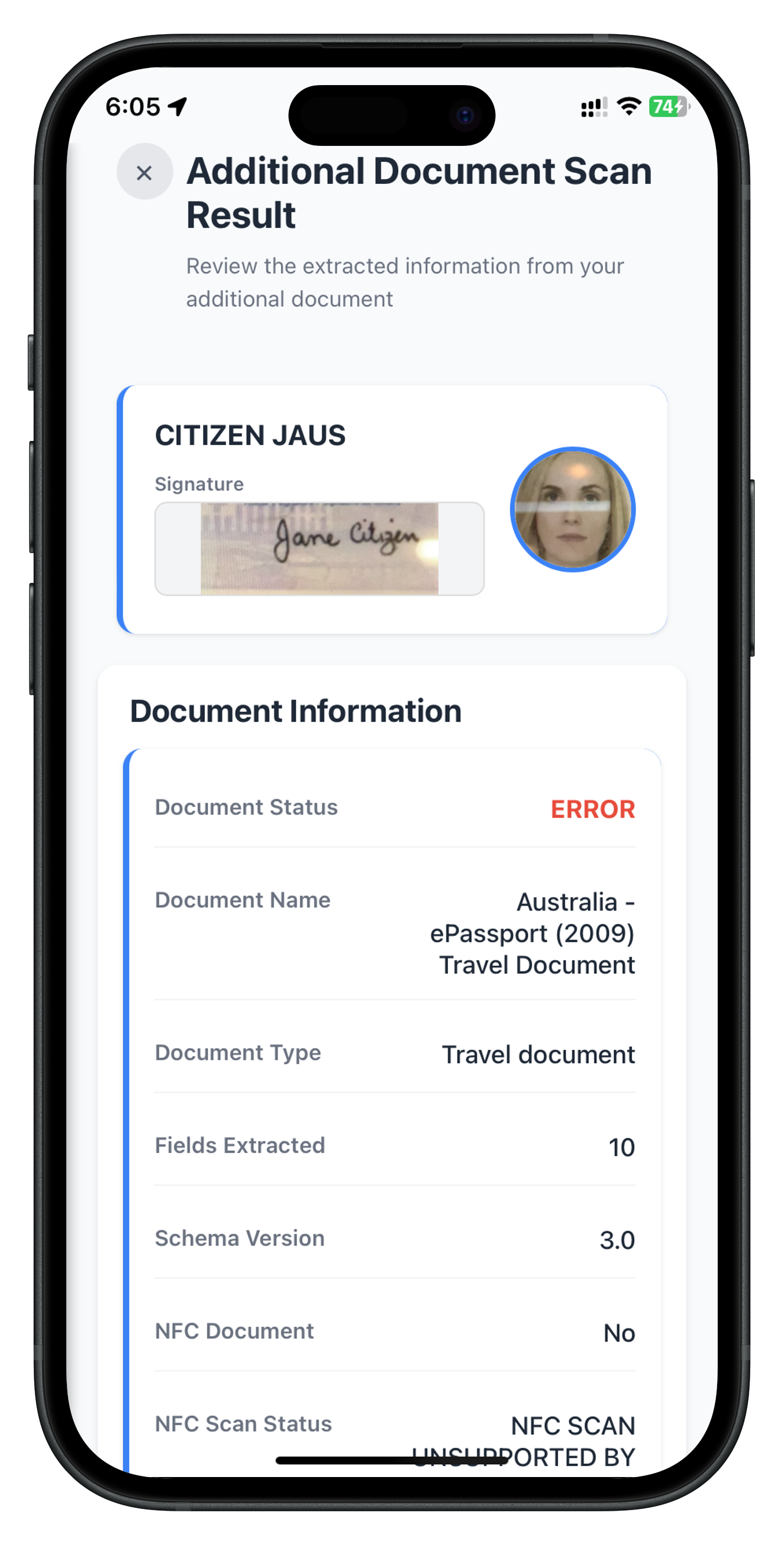
The IDVAdditionalDocumentScanResultScreen displays the OCR-extracted document information from the additional document scan workflow.
Screen Responsibilities
- Display Document Data → Show all extracted OCR information
- Render Images → Display portrait, document front/back, signature
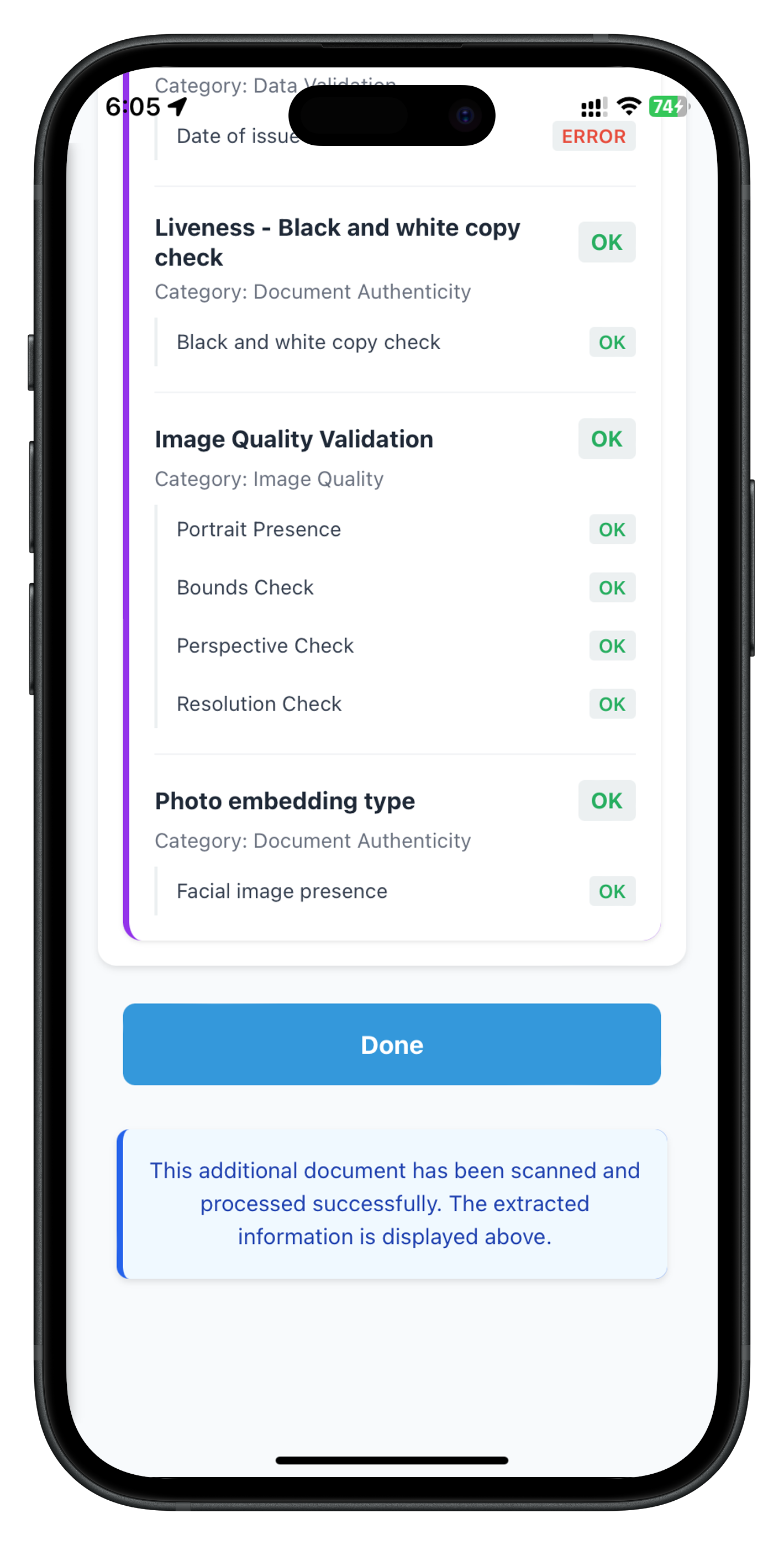
- Show Validation Results → Display confidence scores and validation status
- Format Data → Present document fields in user-friendly format
- Handle Navigation → Return to AdditionalDocumentScan screen when done
Data Structure Overview
The onIDVAdditionalDocumentScan event provides rich OCR data:
{
  userID: "user123",
  sessionID: "session456",
  reason: "Additional Document Verification",
  status: {
    statusCode: 100,
    statusMessage: "Success"
  },
  error: {
    longErrorCode: 0,
    errorString: "Success"
  },
  idvResponse: {
    document_type: "Passport",
    version: "1.0",

    // Confidence scores
    confidence_scores: {
      overall_confidence: 95,
      authenticity_score: 98,
      ocr_quality_score: 92
    },

    // Validation results
    validation_results: {
      document_authenticity: "PASS",
      data_consistency: "PASS",
      expiry_validation: "PASS",
      mrz_validation: "PASS"
    },

    // Extracted identity data
    identity_data: {
      "Surname and given names": "DOE, JOHN",
      "Date of birth": "1990-01-15",
      "Nationality": "USA",
      "Document number": "AB1234567",
      "Expiry date": "2030-12-31"
      // ... other fields
    },

    // Document metadata
    document_info: {
      document_type: ["Passport"],
      document_names: ["US Passport"],
      field_count: 12,

      // Document images (base64)
      document_images: {
        front_page: "base64_image_data...",
        back_page: "base64_image_data...",
        portrait_image: "base64_image_data...",
        signature_image: "base64_image_data..."
      }
    },

    // Document status
    document_status: {
      overall_document_status: "OK",
      is_nfc_document: true,
      nfc_scan_status: "SUCCESS",
      error_list: [],
      warning_list: [],

      // Detailed validation checks
      checks_performed: [
        {
          check_name: "Document Authenticity",
          check_category: "Security",
          check_status: "OK",
          check_detail: [
            { element: "Hologram", status: "OK" },
            { element: "UV Features", status: "OK" }
          ]
        }
        // ... more checks
      ]
    }
  }
}
IDVAdditionalDocumentScanResultScreen.js Implementation
Complete Screen Module:
/**
 * IDV Additional Document Scan Result Screen
 *
 * Displays OCR-extracted document information from additional document scan.
 * Shows extracted data, validation results, and confidence scores.
 */

const IDVAdditionalDocumentScanResultScreen = {
  // Local state
  state: {
    challengeMode: null,
    eventData: null,
    idvResponse: null
  },

  /**
   * Lifecycle hook called when screen content is loaded
   *
   * @param {Object} params - Navigation parameters
   * @param {number} params.challengeMode - Challenge operation mode
   * @param {Object} params.eventData - Full event data from onIDVAdditionalDocumentScan
   */
  onContentLoaded(params) {
    console.log('IDVAdditionalDocumentScanResult - Content loaded');

    // Store params in state
    this.state.challengeMode = params.challengeMode;
    this.state.eventData = params.eventData;
    this.state.idvResponse = params.eventData?.idvResponse;

    // Setup event listeners
    this.setupEventListeners();

    // Render document information
    this.renderDocumentInformation();
  },

  /**
   * Setup event listeners
   */
  setupEventListeners() {
    // Done button
    const doneBtn = document.getElementById('additional-document-scan-result-done-btn');
    if (doneBtn) {
      doneBtn.onclick = () => this.handleDone();
    }

    // Close button
    const closeBtn = document.getElementById('additional-doc-result-close-btn');
    if (closeBtn) {
      closeBtn.onclick = () => this.handleDone();
    }
  },

  /**
   * Handle Done Button - Navigate back to AdditionalDocumentScan screen
   */
  handleDone() {
    console.log('IDVAdditionalDocumentScanResult - Navigating to AdditionalDocumentScan');
    NavigationService.navigate('AdditionalDocumentScan');
  },

  /**
   * Get status color based on status value
   */
  getStatusColor(status) {
    switch (status) {
      case 'OK': return '#27ae60';
      case 'ERROR': return '#e74c3c';
      case 'WARNING': return '#f39c12';
      case 'NOT DONE': return '#f39c12';
      default: return '#7f8c8d';
    }
  },

  /**
   * Render all document information
   */
  renderDocumentInformation() {
    this.renderPersonalInfoHeader();
    this.renderDocumentMetadata();
    this.renderErrorList();
    this.renderWarningList();
    this.renderIdentityData();
    this.renderDocumentImages();
    this.renderChecksPerformed();
  },

  /**
   * Render personal info header with portrait and signature
   */
  renderPersonalInfoHeader() {
    const container = document.getElementById('personal-info-container');
    if (!container) return;

    const idvResponse = this.state.idvResponse;
    if (!idvResponse) return;

    const fullName = idvResponse.identity_data?.['Surname and given names'] ||
                     `${idvResponse.identity_data?.['Given name'] || ''} ${idvResponse.identity_data?.Surname || ''}`.trim();
    const portraitImage = idvResponse.document_info?.document_images?.portrait_image;
    const signatureImage = idvResponse.document_info?.document_images?.signature_image;

    if (!fullName && !portraitImage && !signatureImage) {
      container.style.display = 'none';
      return;
    }

    let html = '<div class="personal-info-content">';
    html += '<div class="personal-info-text">';

    if (fullName) {
      html += `<div class="name-text">${this.escapeHtml(fullName)}</div>`;
    }

    if (signatureImage) {
      html += '<div class="signature-container">';
      html += '<div class="image-label">Signature</div>';
      html += `<img src="data:image/jpg;base64,${signatureImage}" class="signature-image" />`;
      html += '</div>';
    }

    html += '</div>';

    if (portraitImage) {
      html += '<div class="portrait-container">';
      html += `<img src="data:image/jpg;base64,${portraitImage}" class="portrait-image" />`;
      html += '</div>';
    }

    html += '</div>';

    container.innerHTML = html;
    container.style.display = 'block';
  },

  /**
   * Render document metadata and overall status
   */
  renderDocumentMetadata() {
    const container = document.getElementById('document-metadata-container');
    if (!container) return;

    const idvResponse = this.state.idvResponse;
    if (!idvResponse) return;

    const documentInfo = idvResponse.document_info;
    const documentStatus = idvResponse.document_status;
    const version = idvResponse.version;

    const overallStatus = documentStatus?.overall_document_status;
    const statusColor = this.getStatusColor(overallStatus || '');

    let html = '<div class="data-container">';

    if (overallStatus) {
      html += '<div class="data-row">';
      html += '<div class="data-label">Document Status</div>';
      html += `<div class="data-value" style="color: ${statusColor}; font-weight: bold;">${this.escapeHtml(overallStatus)}</div>`;
      html += '</div>';
    }

    if (documentInfo?.document_names && documentInfo.document_names[0]) {
      html += '<div class="data-row">';
      html += '<div class="data-label">Document Name</div>';
      html += `<div class="data-value">${this.escapeHtml(documentInfo.document_names[0])}</div>`;
      html += '</div>';
    }

    if (documentInfo?.document_type && documentInfo.document_type[0]) {
      html += '<div class="data-row">';
      html += '<div class="data-label">Document Type</div>';
      html += `<div class="data-value">${this.escapeHtml(documentInfo.document_type[0])}</div>`;
      html += '</div>';
    }

    if (documentInfo?.field_count !== undefined) {
      html += '<div class="data-row">';
      html += '<div class="data-label">Fields Extracted</div>';
      html += `<div class="data-value">${documentInfo.field_count}</div>`;
      html += '</div>';
    }

    html += '</div>';

    container.innerHTML = html;
    container.style.display = 'block';
  },

  /**
   * Render error list
   */
  renderErrorList() {
    const container = document.getElementById('error-list-container');
    if (!container) return;

    const errorList = this.state.idvResponse?.document_status?.error_list;
    if (!errorList || errorList.length === 0) {
      container.style.display = 'none';
      return;
    }

    let html = '<div class="list-container" style="border-left-color: #e74c3c;">';
    errorList.forEach(error => {
      html += '<div class="list-item">';
      html += '<span class="list-bullet">•</span>';
      html += `<span class="list-text">${this.escapeHtml(error)}</span>`;
      html += '</div>';
    });
    html += '</div>';

    container.innerHTML = html;
    container.style.display = 'block';
  },

  /**
   * Render warning list
   */
  renderWarningList() {
    const container = document.getElementById('warning-list-container');
    if (!container) return;

    const warningList = this.state.idvResponse?.document_status?.warning_list;
    if (!warningList || warningList.length === 0) {
      container.style.display = 'none';
      return;
    }

    let html = '<div class="list-container" style="border-left-color: #f39c12;">';
    warningList.forEach(warning => {
      html += '<div class="list-item">';
      html += '<span class="list-bullet">•</span>';
      html += `<span class="list-text">${this.escapeHtml(warning)}</span>`;
      html += '</div>';
    });
    html += '</div>';

    container.innerHTML = html;
    container.style.display = 'block';
  },

  /**
   * Render identity data fields
   */
  renderIdentityData() {
    const container = document.getElementById('identity-data-container');
    if (!container) return;

    const identityData = this.state.idvResponse?.identity_data;
    if (!identityData || Object.keys(identityData).length === 0) {
      container.style.display = 'none';
      return;
    }

    let html = '<div class="data-container">';
    Object.entries(identityData).forEach(([key, value]) => {
      const label = key.replace(/_/g, ' ').replace(/\b\w/g, l => l.toUpperCase());
      html += '<div class="data-row">';
      html += `<div class="data-label">${this.escapeHtml(label)}</div>`;
      html += `<div class="data-value">${this.escapeHtml(String(value))}</div>`;
      html += '</div>';
    });
    html += '</div>';

    container.innerHTML = html;
    container.style.display = 'block';
  },

  /**
   * Render document images (front and back pages)
   */
  renderDocumentImages() {
    const container = document.getElementById('document-images-container');
    if (!container) return;

    const frontPage = this.state.idvResponse?.document_info?.document_images?.front_page;
    const backPage = this.state.idvResponse?.document_info?.document_images?.back_page;

    if (!frontPage && !backPage) {
      container.style.display = 'none';
      return;
    }

    let html = '';

    if (frontPage) {
      html += '<div class="document-image-wrapper">';
      html += '<div class="image-label">Front Page</div>';
      html += `<img src="data:image/jpg;base64,${frontPage}" class="document-image" />`;
      html += '</div>';
    }

    if (backPage) {
      html += '<div class="document-image-wrapper">';
      html += '<div class="image-label">Back Page</div>';
      html += `<img src="data:image/jpg;base64,${backPage}" class="document-image" />`;
      html += '</div>';
    }

    container.innerHTML = html;
    container.style.display = 'block';
  },

  /**
   * Render detailed checks performed
   */
  renderChecksPerformed() {
    const container = document.getElementById('checks-performed-container');
    if (!container) return;

    const checksPerformed = this.state.idvResponse?.document_status?.checks_performed;
    if (!checksPerformed || checksPerformed.length === 0) {
      container.style.display = 'none';
      return;
    }

    let html = '<div class="checks-container">';

    checksPerformed.forEach(check => {
      const checkStatusColor = this.getStatusColor(check.check_status);

      html += '<div class="check-group">';
      html += '<div class="check-header">';
      html += `<div class="check-name">${this.escapeHtml(check.check_name)}</div>`;
      html += `<div class="check-status" style="color: ${checkStatusColor};">${this.escapeHtml(check.check_status)}</div>`;
      html += '</div>';
      html += `<div class="check-category">Category: ${this.escapeHtml(check.check_category)}</div>`;

      if (check.check_detail && check.check_detail.length > 0) {
        html += '<div class="check-details-container">';
        check.check_detail.forEach(detail => {
          const detailStatusColor = this.getStatusColor(detail.status);
          html += '<div class="check-detail">';
          html += `<div class="check-detail-element">${this.escapeHtml(detail.element || 'Check')}</div>`;
          html += `<div class="check-detail-status" style="color: ${detailStatusColor};">${this.escapeHtml(detail.status)}</div>`;
          html += '</div>';
        });
        html += '</div>';
      }

      html += '</div>';
    });

    html += '</div>';

    container.innerHTML = html;
    container.style.display = 'block';
  },

  /**
   * Escape HTML to prevent XSS
   */
  escapeHtml(text) {
    if (!text) return '';
    const div = document.createElement('div');
    div.textContent = text;
    return div.innerHTML;
  }
};

// Expose to global scope for NavigationService
window.IDVAdditionalDocumentScanResultScreen = IDVAdditionalDocumentScanResultScreen;
Screen Rendering Pattern
The result screen uses dynamic HTML rendering:
- onContentLoaded → Stores event data in state
- renderDocumentInformation → Calls all render methods
- Individual render methods → Build HTML strings and inject into containers
- DOM manipulation → Uses
innerHTMLandstyle.display
Base64 Image Display
Document images are provided as base64 strings:
const portraitImage = idvResponse.document_info?.document_images?.portrait_image;

// Display in HTML
html += `<img src="data:image/jpg;base64,${portraitImage}" class="portrait-image" />`;
Image Types:
portrait_image→ Face photo from documentsignature_image→ Signature from documentfront_page→ Front side of documentback_page→ Back side of document
XSS Prevention
Always escape user-provided data before rendering:
escapeHtml(text) {
  if (!text) return '';
  const div = document.createElement('div');
  div.textContent = text;  // Automatically escapes HTML entities
  return div.innerHTML;
}

// Usage
html += `<div>${this.escapeHtml(userProvidedData)}</div>`;
Conditional Rendering
Only show sections with data:
renderPersonalInfoHeader() {
  const container = document.getElementById('personal-info-container');

  // Check if data exists
  if (!fullName && !portraitImage && !signatureImage) {
    container.style.display = 'none';  // Hide section
    return;
  }

  // Build HTML
  let html = '...';
  container.innerHTML = html;
  container.style.display = 'block';  // Show section
}
Navigation Flow
AdditionalDocumentScanScreen
    ↓
User initiates scan
    ↓
SDK captures document
    ↓
onIDVAdditionalDocumentScan event fires
    ↓
Screen-level handler receives data
    ↓
NavigationService.navigate('IDVAdditionalDocumentScanResult', { eventData })
    ↓
Result screen receives params in onContentLoaded
    ↓
Result screen renders all document data
    ↓
User clicks "Done"
    ↓
NavigationService.navigate('AdditionalDocumentScan')
IDVAdditionalDocumentScanResult Screen UI Preview
Top Portion - Identity Information |
Bottom Portion - Document Details & Status |
Dual Validation Pattern
The additional document scan workflow requires two-level validation to handle all success and error scenarios correctly.
Why Two Validations?
The SDK uses a sync+async callback pattern with two independent success indicators:
- Sync Error Code (
error.longErrorCode)- Validates immediate API call success
- Returned synchronously in API response
- Checks SDK configuration, parameters, session validity
- Async Status Code (
status.statusCode)- Validates backend workflow completion
- Returned asynchronously in event payload
- Checks document validation, backend processing, business logic
Validation Matrix
Error Code | Status Code | Meaning | Action |
0 | 100 | Complete success | Navigate to result screen |
0 | 0 | In progress/partial success | Navigate to result screen |
0 | Other | Backend validation error | Show error modal |
146 | Any | User canceled IDV flow | Silent (no modal) |
241 | Any | User canceled document scan | Silent (no modal) |
Other non-zero | Any | SDK/API error | Show error modal |
Complete Validation Implementation
/**
 * Handles additional document scan response event
 *
 * Implements dual validation pattern for comprehensive error handling
 */
handleAdditionalDocumentScanResponse(data) {
  console.log('AdditionalDocumentScanScreen - Response received');
  console.log('AdditionalDocumentScanScreen - User ID:', data.userID);
  console.log('AdditionalDocumentScanScreen - Session ID:', data.sessionID);
  console.log('AdditionalDocumentScanScreen - Error Code:', data.error?.longErrorCode);
  console.log('AdditionalDocumentScanScreen - Status Code:', data.status?.statusCode);
  console.log('AdditionalDocumentScanScreen - Status Message:', data.status?.statusMessage);

  const errorCode = data.error?.longErrorCode;
  const statusCode = data.status?.statusCode;
  const statusMessage = data.status?.statusMessage || 'Unknown status';
  const errorString = data.error?.errorString || 'Unknown error';

  // =============================================================================
  // 1ST VALIDATION: ERROR CODE (Sync API Validation)
  // =============================================================================

  if (errorCode !== 0) {
    // Sync error - API call failed
    console.log('AdditionalDocumentScanScreen - Error detected:', errorCode);
    console.log('AdditionalDocumentScanScreen - Error message:', errorString);

    // Navigate back to this screen
    NavigationService.navigate('AdditionalDocumentScan');

    // Show error modal after navigation
    setTimeout(() => {
      this.state.modalTitle = 'Document Scan Failed';
      this.state.modalMessage = `Unable to complete document scan.\n\n${errorString}\n\n(Error Code: ${errorCode})`;
      this.state.isSuccess = false;
      this.showModal();
      console.log('AdditionalDocumentScanScreen - Error modal displayed');
    }, 300);

    return;
  }

  // =============================================================================
  // 2ND VALIDATION: STATUS CODE (Backend Workflow Validation)
  // =============================================================================

  if (statusCode && statusCode !== 100 && statusCode !== 0) {
    // Backend error - workflow failed
    console.log('AdditionalDocumentScanScreen - Backend error:', statusCode);
    console.log('AdditionalDocumentScanScreen - Status message:', statusMessage);

    // Navigate back to this screen
    NavigationService.navigate('AdditionalDocumentScan');

    // Show error modal after navigation
    setTimeout(() => {
      this.state.modalTitle = 'Verification Failed';
      this.state.modalMessage = `Document scan could not be completed.\n\n${statusMessage}\n\n(Status Code: ${statusCode})`;
      this.state.isSuccess = false;
      this.showModal();
      console.log('AdditionalDocumentScanScreen - Error modal displayed');
    }, 300);

    return;
  }

  // =============================================================================
  // SUCCESS: Both Validations Passed
  // =============================================================================

  console.log('AdditionalDocumentScanScreen - Success, navigating to result screen');
  console.log('AdditionalDocumentScanScreen - Document Type:', data.idvResponse?.document_type);
  console.log('AdditionalDocumentScanScreen - Overall Confidence:', data.idvResponse?.confidence_scores?.overall_confidence);

  // Navigate to result screen with document data
  NavigationService.navigate('IDVAdditionalDocumentScanResult', {
    challengeMode: data.challengeMode,
    eventData: data
  });
}
Understanding Error and Status Codes
The dual validation pattern uses two different code systems:
Error Codes (SDK/API Level):
error.longErrorCode === 0: SDK/API call successfulerror.longErrorCode !== 0: SDK/API error occurrederror.errorString: Contains human-readable error message
Status Codes (Backend Validation Level):
status.statusCode === 100orstatus.statusCode === 0: Backend validation successfulstatus.statusCode !== 100 && status.statusCode !== 0: Backend validation failedstatus.statusMessage: Contains human-readable status message
Error Modal Implementation
/**
 * Shows error modal with custom title and message
 */
showErrorModal(title, message) {
  this.state.modalTitle = title;
  this.state.modalMessage = message;
  this.state.isSuccess = false;
  this.showModal();
}

/**
 * Shows the modal with current state values
 */
showModal() {
  this.state.showModal = true;

  const modal = document.getElementById('additional-document-scan-modal');
  const title = document.getElementById('additional-document-scan-modal-title');
  const message = document.getElementById('additional-document-scan-modal-message');

  if (modal) modal.style.display = 'flex';
  if (title) title.textContent = this.state.modalTitle;
  if (message) message.textContent = this.state.modalMessage;
}
Corresponding HTML:
<!-- Error Modal -->
<div id="additional-document-scan-modal" class="modal-overlay" style="display: none;">
  <div class="modal-container">
    <div class="modal-header">
      <h2 id="additional-document-scan-modal-title" class="modal-title"></h2>
    </div>
    <div class="modal-body">
      <p id="additional-document-scan-modal-message" class="modal-message"></p>
    </div>
    <div class="modal-footer">
      <button id="additional-document-scan-modal-close-btn" class="primary-btn">
        Close
      </button>
    </div>
  </div>
</div>
Sync Error Handling
Handle errors from the initial API call:
async handleStartAdditionalDocumentScan() {
  this.setInitiating(true);

  try {
    const reason = 'Additional Document Verification';
    const syncResponse = await rdnaIDVService.initiateIDVAdditionalDocumentScan(reason);

    // Check sync response
    if (syncResponse.error?.longErrorCode !== 0) {
      throw new Error(syncResponse.error?.errorString || 'API call failed');
    }

    console.log('Workflow initiated, waiting for SDK events');

  } catch (error) {
    // This catch block handles sync response errors
    console.error('Sync error:', error);

    const errorMessage = error.error?.errorString ||
                        error.message ||
                        'Failed to initiate additional document scan';

    // Show immediate error alert
    alert(`Additional Document Scan Error\n\n${errorMessage}`);

  } finally {
    this.setInitiating(false);
  }
}
Error Flow Diagram
┌────────────────────────────────────────────────────────────┐
│                    Error Handling Flow                      │
├────────────────────────────────────────────────────────────┤
│                                                              │
│  API Call                                                   │
│  ↓                                                           │
│  Sync Response                                              │
│  ├─ Error Code !== 0 → Show alert, stop workflow          │
│  └─ Error Code === 0 → Continue to SDK events             │
│      ↓                                                       │
│  SDK Events (document scan, etc.)                           │
│      ↓                                                       │
│  onIDVAdditionalDocumentScan Event                          │
│  ↓                                                           │
│  Dual Validation:                                           │
│  ├─ Error Code !== 0 → Show modal, navigate back          │
│  ├─ Status Code !== 100/0 → Show modal, navigate back     │
│  └─ Both valid → Navigate to result screen                 │
│                                                              │
└────────────────────────────────────────────────────────────┘
Logging Best Practices
// Always log key validation points
console.log('AdditionalDocumentScanScreen - Response received');
console.log('AdditionalDocumentScanScreen - User ID:', data.userID);
console.log('AdditionalDocumentScanScreen - Error Code:', data.error?.longErrorCode);
console.log('AdditionalDocumentScanScreen - Status Code:', data.status?.statusCode);

// Log decision points
if (errorCode !== 0) {
  console.log('AdditionalDocumentScanScreen - Error detected:', errorCode);
  console.log('AdditionalDocumentScanScreen - Error message:', errorString);
  console.log('AdditionalDocumentScanScreen - WILL SHOW ERROR MODAL');
}

// Log success path
console.log('AdditionalDocumentScanScreen - Success, navigating to result screen');
console.log('AdditionalDocumentScanScreen - Document Type:', data.idvResponse?.document_type);
Overview
Error 240 is a special error code that occurs when users click the close button (X) on the document scan confirmation screen. It's not a system error but rather expected user behavior that should be handled gracefully.
When Error 240 Occurs
User Flow Leading to Error 240:
1. User clicks "Start Additional Document Scan"
2. initiateIDVAdditionalDocumentScan() called successfully
3. SDK triggers getIDVDocumentScanProcessStartConfirmation event (workflow 7)
4. User navigated to IDVDocumentProcessStartConfirmationScreen
5. User clicks close button (X) instead of "Start Scan"
6. setIDVDocumentScanProcessStartConfirmation(false, 7) called
7. SDK cancels workflow
8. onIDVAdditionalDocumentScan event triggered with error 240
Error 240 Event Structure
// Event data when error 240 occurs
{
  userID: "user@example.com",
  sessionID: "session-12345",
  challengeMode: 10,  // Still challenge mode 10
  reason: "Additional Document Verification",
  documentType: "PASSPORT",
  error: {
    longErrorCode: 240,  // User cancelled
    errorString: "User Cancelled"
  },
  idvResponse: undefined  // No document data when cancelled
}
Current Implementation
The current implementation in AdditionalDocumentScanScreen treats error 240 the same as other errors (shows error modal). While this works functionally, best practice would be to handle error 240 specially with friendly "Cancelled" messaging.
Current Behavior:
if (errorCode !== 0) {
  // Shows error modal for ALL non-zero errors including 240
  this.state.modalTitle = 'Document Scan Failed';
  this.state.modalMessage = `Unable to complete document scan.\n\n${errorString}\n\n(Error Code: ${errorCode})`;
  this.showModal();
}
Improved Approach (optional enhancement):
handleAdditionalDocumentScanResponse(data) {
  const errorCode = data.error?.longErrorCode;
  const errorString = data.error?.errorString;

  // Check for error 240 specifically
  if (errorCode === 240) {
    console.log('User cancelled document scan (error 240) - expected behavior');

    NavigationService.navigate('AdditionalDocumentScan');

    setTimeout(() => {
      this.state.modalTitle = 'Cancelled';  // Friendly title
      this.state.modalMessage = 'Document scan was cancelled. Click "Start Additional Document Scan" to retry.';
      this.state.isSuccess = false;
      this.showModal();
    }, 300);
    return;
  }

  // Handle actual errors
  if (errorCode !== 0) {
    console.error('Actual error detected:', errorCode);
    // ... error handling
  }
}
Key Takeaways
- Error 240 = User Cancellation: Not a system failure, but expected behavior when user clicks X button
- Current Implementation: Treats error 240 same as other errors (functional but not ideal UX)
- Best Practice: Special handling with friendly messaging (can be added as improvement)
- Workflow Continues: User can retry by clicking "Start Additional Document Scan" button again
Navigation Service Pattern
Cordova uses a custom NavigationService for Single Page Application (SPA) navigation without page reloads.
Navigation Service Architecture
┌────────────────────────────────────────────────────────────┐
│                  NavigationService Pattern                  │
├────────────────────────────────────────────────────────────┤
│                                                              │
│  NavigationService.navigate('ScreenName', params)           │
│      ↓                                                       │
│  1. Load HTML file via fetch                                │
│  2. Inject HTML into #app-content container                 │
│  3. Call ScreenName.onContentLoaded(params)                 │
│  4. Screen initializes and renders                          │
│                                                              │
└────────────────────────────────────────────────────────────┘
Screen Registration
All screens must be exposed to global scope:
// At bottom of screen file
window.AdditionalDocumentScanScreen = AdditionalDocumentScanScreen;
window.IDVAdditionalDocumentScanResultScreen = IDVAdditionalDocumentScanResultScreen;
Why? NavigationService looks up screens by name in the window object:
// NavigationService.js (conceptual)
navigate(screenName, params) {
  const screen = window[screenName];  // Lookup by name
  if (screen && screen.onContentLoaded) {
    screen.onContentLoaded(params);  // Call lifecycle hook
  }
}
Navigation Examples
Basic Navigation:
// Navigate to screen without parameters
NavigationService.navigate('Dashboard');
Navigation with Parameters:
// Navigate with data
NavigationService.navigate('IDVAdditionalDocumentScanResult', {
  challengeMode: 10,
  eventData: data
});

// Receiving screen accesses params in onContentLoaded
onContentLoaded(params) {
  console.log('Received params:', params);
  this.state.challengeMode = params.challengeMode;
  this.state.eventData = params.eventData;
}
Navigation After Timeout (for modal transitions):
// Navigate back to screen
NavigationService.navigate('AdditionalDocumentScan');

// Show modal after navigation completes
setTimeout(() => {
  this.state.modalTitle = 'Document Scan Failed';
  this.state.modalMessage = errorString;
  this.showModal();
}, 300);  // Wait for DOM to settle
Drawer Menu Integration
The drawer menu provides navigation to major screens:
Drawer Menu Configuration (in index.html):
<nav id="drawer-menu" class="drawer-menu">
  <div class="drawer-header">
    <h2 class="drawer-title">REL-ID MFA</h2>
    <button id="drawer-close-btn" class="drawer-close-btn">✕</button>
  </div>
  <div class="drawer-content">
    <ul class="drawer-nav">
      <li><a href="#" id="drawer-dashboard-link" class="drawer-link">🏠 Dashboard</a></li>
      <li><a href="#" id="drawer-kyc-link" class="drawer-link">🆔 Activated Customer KYC</a></li>
      <li><a href="#" id="drawer-additional-doc-scan-link" class="drawer-link">📄 Additional Document Scan</a></li>
      <!-- ... other menu items ... -->
    </ul>
  </div>
</nav>
Drawer Menu UI Preview
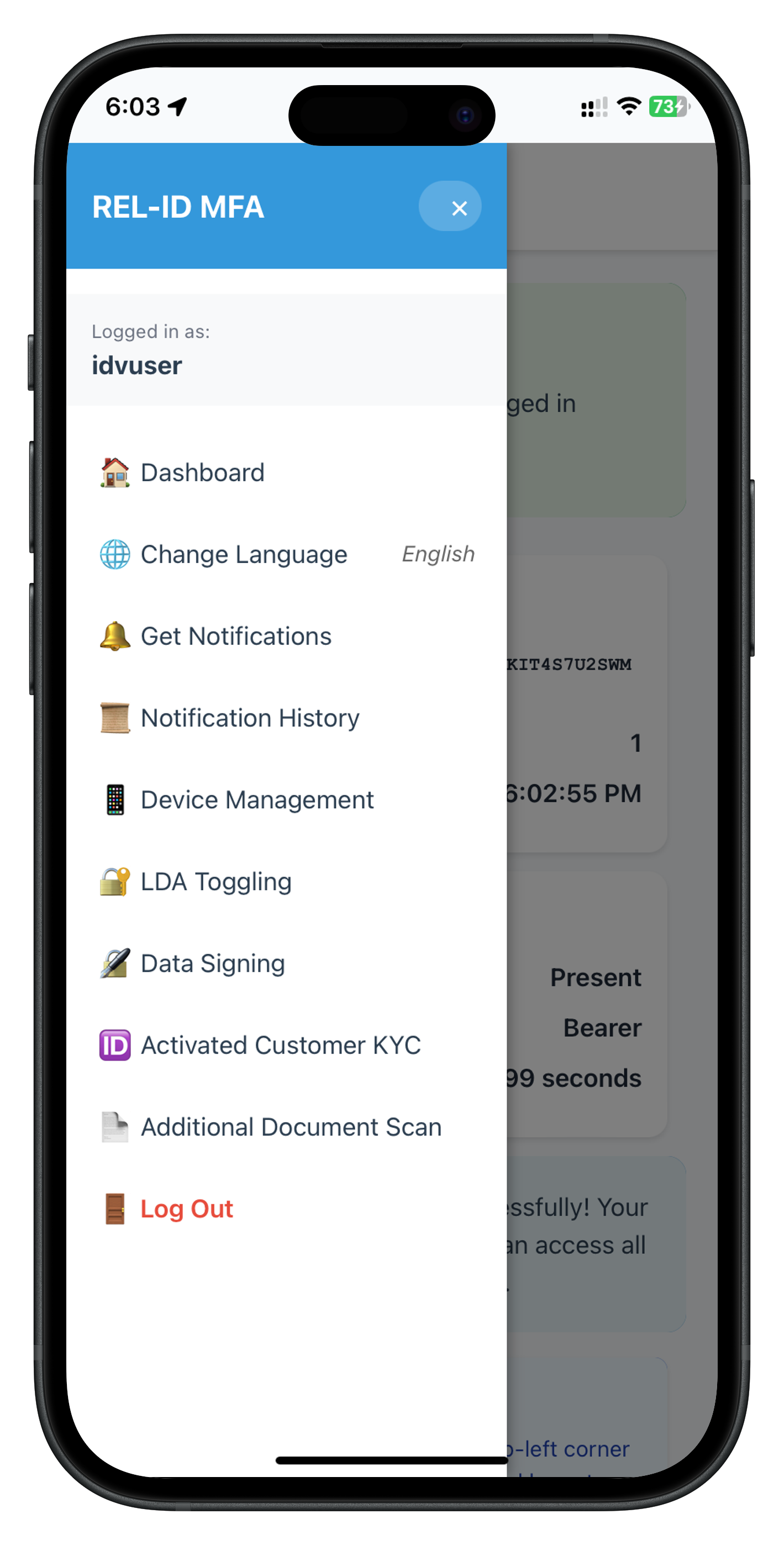
Drawer Menu Event Handlers (in NavigationService or AppInitializer):
// Setup drawer menu navigation
document.getElementById('drawer-additional-doc-scan-link').onclick = () => {
  NavigationService.closeDrawer();
  NavigationService.navigate('AdditionalDocumentScan');
};
Opening Drawer from Screen:
// In screen file
const menuBtn = document.getElementById('additional-doc-scan-menu-btn');
if (menuBtn) {
  menuBtn.onclick = () => {
    NavigationService.openDrawer();
  };
}
Screen Lifecycle
┌────────────────────────────────────────────────────────────┐
│                     Screen Lifecycle                         │
├────────────────────────────────────────────────────────────┤
│                                                              │
│  1. NavigationService.navigate('ScreenName', params)        │
│     ↓                                                        │
│  2. Fetch screen HTML from www/src/tutorial/screens/...     │
│     ↓                                                        │
│  3. Inject HTML into <div id="app-content"></div>          │
│     ↓                                                        │
│  4. Call ScreenName.onContentLoaded(params)                 │
│     ↓                                                        │
│  5. Screen initializes state                                │
│     ↓                                                        │
│  6. Screen calls setupEventListeners()                      │
│     ↓                                                        │
│  7. Screen renders dynamic content                          │
│     ↓                                                        │
│  8. Screen is interactive                                   │
│                                                              │
│  User navigates away                                        │
│     ↓                                                        │
│  9. New screen HTML replaces old HTML                       │
│     ↓                                                        │
│  10. Previous screen's event handlers persist               │
│      (screen-level SDK event handlers still active)         │
│                                                              │
└────────────────────────────────────────────────────────────┘
HTML File Organization
Each screen typically has an HTML file containing the template:
AdditionalDocumentScanScreen.html (conceptual):
<!-- Additional Document Scan Screen Template -->
<div class="screen-container">
  <!-- Header -->
  <div class="screen-header">
    <button id="additional-doc-scan-menu-btn" class="menu-btn">☰</button>
    <h1 class="screen-title">Additional Document Scan</h1>
  </div>

  <!-- Content -->
  <div class="screen-content">
    <div class="info-card">
      <h2>Supplementary Document Verification</h2>
      <p>Provide additional identity documents for enhanced verification.</p>
    </div>

    <div class="guidelines-section">
      <h3>Acceptable Documents</h3>
      <ul>
        <li>Passport</li>
        <li>Driver's License</li>
        <li>National ID Card</li>
      </ul>
    </div>

    <button id="start-additional-document-scan-btn" class="primary-btn">
      <span id="start-additional-document-scan-btn-text">Start Additional Document Scan</span>
      <span id="start-additional-document-scan-btn-loader" class="btn-loader" style="display: none;">
        Loading...
      </span>
    </button>
  </div>

  <!-- Error Modal -->
  <div id="additional-document-scan-modal" class="modal-overlay" style="display: none;">
    <div class="modal-container">
      <div class="modal-header">
        <h2 id="additional-document-scan-modal-title" class="modal-title"></h2>
      </div>
      <div class="modal-body">
        <p id="additional-document-scan-modal-message" class="modal-message"></p>
      </div>
      <div class="modal-footer">
        <button id="additional-document-scan-modal-close-btn" class="primary-btn">
          Close
        </button>
      </div>
    </div>
  </div>
</div>
Modal Overlay Pattern
Modals use overlay pattern for full-screen focus:
CSS (conceptual):
.modal-overlay {
  position: fixed;
  top: 0;
  left: 0;
  right: 0;
  bottom: 0;
  background: rgba(0, 0, 0, 0.5);
  display: flex;
  justify-content: center;
  align-items: center;
  z-index: 1000;
}

.modal-container {
  background: white;
  border-radius: 8px;
  padding: 24px;
  max-width: 400px;
  width: 90%;
  box-shadow: 0 4px 12px rgba(0, 0, 0, 0.15);
}
JavaScript:
// Show modal
showModal() {
  const modal = document.getElementById('additional-document-scan-modal');
  if (modal) modal.style.display = 'flex';  // Flex for centering
}

// Hide modal
hideModal() {
  const modal = document.getElementById('additional-document-scan-modal');
  if (modal) modal.style.display = 'none';
}
Navigation Flow for Additional Document Scan
Dashboard
    ↓
User taps "Additional Document Scan" in drawer menu
    ↓
NavigationService.navigate('AdditionalDocumentScan')
    ↓
AdditionalDocumentScanScreen loads
    ↓
User taps "Start Additional Document Scan"
    ↓
SDK Event: getIDVDocumentScanProcessStartConfirmation
    ↓
SDKIDVEventProvider navigates to IDVDocumentScanStart
    ↓
User confirms → Native camera UI
    ↓
SDK Event: onIDVAdditionalDocumentScan
    ↓
Screen-level handler navigates to IDVAdditionalDocumentScanResult
    ↓
User reviews document data
    ↓
User taps "Done"
    ↓
NavigationService.navigate('AdditionalDocumentScan')
    ↓
Back to entry screen
Testing Strategy
Comprehensive testing ensures the additional document scan workflow functions correctly across all scenarios.
Test Environment Setup
Prerequisites:
# Install Cordova globally
npm install -g cordova

# Add platforms
cordova platform add android
cordova platform add ios

# Build project
cordova build android
cordova build ios

# Run on device or emulator
cordova run android --device
cordova run ios --device
Testing Requirements:
- ✅ Physical device (camera required for document scanning)
- ✅ Valid REL-ID SDK credentials
- ✅ Backend server configured for IDV
- ✅ Test user account (activated and logged in)
- ✅ Physical identity document (passport, license, etc.)
Test Cases
Test Case 1: Successful Additional Document Scan
Objective: Verify complete workflow from initiation to result display.
Steps:
- Log in with activated user account
- Navigate to "Additional Document Scan" from drawer menu
- Tap "Start Additional Document Scan" button
- Verify button shows loading state
- Confirm document scan start when prompted
- Scan document using native camera UI
- Verify navigation to result screen
- Verify all document data displayed correctly
- Tap "Done" button
- Verify navigation back to entry screen
Expected Results:
- ✅ No console errors
- ✅ Smooth navigation between screens
- ✅ OCR data extracted and displayed
- ✅ Images rendered correctly (portrait, document pages)
- ✅ Validation status shows "OK"
- ✅ Confidence scores displayed
Validation Points:
// Check sync response
console.log('Sync response:', syncResponse);
// Expected: { error: { longErrorCode: 0, errorString: "Success" } }

// Check event data
console.log('Event data:', eventData);
// Expected: {
//   error: { longErrorCode: 0 },
//   status: { statusCode: 100 },
//   idvResponse: { /* OCR data */ }
// }
Test Case 2: User Cancels Document Scan
Objective: Verify graceful handling of user cancellation.
Steps:
- Navigate to "Additional Document Scan"
- Tap "Start Additional Document Scan"
- When SDK shows document scan start confirmation, tap "Cancel"
- Verify no error modal displayed
- Verify user remains on entry screen
Expected Results:
- ✅ Error code 146 or 241 (user canceled)
- ✅ No error modal shown (expected cancellation)
- ✅ User can retry if desired
Validation Points:
// Event handler should suppress cancellation errors
if (errorCode === 146 || errorCode === 241) {
  console.log('User canceled (expected), no modal shown');
  // No modal, just return to entry screen
}
Test Case 3: Network Error Handling
Objective: Verify error handling when network issues occur.
Steps:
- Disable network connection
- Navigate to "Additional Document Scan"
- Tap "Start Additional Document Scan"
- Verify error modal displayed
- Verify error message indicates network problem
Expected Results:
- ✅ Error code !== 0 (network error)
- ✅ Error modal displayed with descriptive message
- ✅ User can close modal and retry
Test Case 4: Invalid Session Handling
Objective: Verify handling when session expires.
Steps:
- Log in and initiate additional document scan
- Wait for session timeout
- Complete document scan
- Verify error handling for invalid session
Expected Results:
- ✅ Error code 148 (invalid session)
- ✅ Error modal displayed
- ✅ User prompted to re-login
Test Case 5: Document Validation Failure
Objective: Verify handling when document fails backend validation.
Steps:
- Use expired or invalid document
- Complete document scan
- Verify error modal displayed with validation failure message
Expected Results:
- ✅ Status code !== 100 (validation failed)
- ✅ Error modal displayed
- ✅ Error message indicates validation issue
Console Logging Checklist
Service Layer Logs:
// RdnaIDVService logs
✅ "RdnaIDVService - Initiating IDV additional document scan"
✅ "RdnaIDVService - Sync response: { longErrorCode: 0 }"

// RdnaIDVEventManager logs
✅ "RdnaIDVEventManager - Additional document scan event received"
✅ "RdnaIDVEventManager - User ID: user123"
✅ "RdnaIDVEventManager - Status Code: 100"
Screen Logs:
// AdditionalDocumentScanScreen logs
✅ "AdditionalDocumentScanScreen - Content loaded"
✅ "AdditionalDocumentScanScreen - Setting up event listeners"
✅ "AdditionalDocumentScanScreen - Starting additional document scan"
✅ "AdditionalDocumentScanScreen - Workflow initiated"
✅ "AdditionalDocumentScanScreen - Response received"
✅ "AdditionalDocumentScanScreen - Success, navigating to result screen"

// IDVAdditionalDocumentScanResultScreen logs
✅ "IDVAdditionalDocumentScanResult - Content loaded"
✅ "IDVAdditionalDocumentScanResult - Rendering document information"
Event Flow Validation
Use console logs to trace complete event flow:
✅ AppInitializer - Device ready
✅ SDKIDVEventProvider - Initializing IDV event provider
✅ SDKIDVEventProvider - IDV event handlers registered
✅ NavigationService - Navigating to AdditionalDocumentScan
✅ AdditionalDocumentScanScreen - Content loaded
✅ AdditionalDocumentScanScreen - Registering screen-level event handler
✅ AdditionalDocumentScanScreen - Starting additional document scan
✅ RdnaIDVService - Initiating IDV additional document scan
✅ RdnaIDVService - Sync response successful
✅ RdnaIDVEventManager - Get document scan start confirmation event received
✅ SDKIDVEventProvider - Document scan start confirmation requested
✅ NavigationService - Navigating to IDVDocumentScanStart
✅ [User confirms and scans document]
✅ RdnaIDVEventManager - Additional document scan event received
✅ AdditionalDocumentScanScreen - Response received
✅ AdditionalDocumentScanScreen - Success, navigating to result screen
✅ NavigationService - Navigating to IDVAdditionalDocumentScanResult
✅ IDVAdditionalDocumentScanResult - Content loaded
✅ IDVAdditionalDocumentScanResult - Rendering document information
Common Issues & Solutions
Issue | Symptom | Solution |
Event not received | No navigation after scan | Check event handler registration order |
ReferenceError: rdnaIDVService is not defined | Script error on load | Verify script loading order in index.html |
Modal not showing | No error feedback | Check modal DOM element IDs match JavaScript |
Images not displaying | Broken image icons | Verify base64 data and img src format |
Navigation not working | Screen doesn't change | Check screen exposed to window object |
Drawer menu not opening | Menu button unresponsive | Verify NavigationService.openDrawer() available |
Debugging Tools
Chrome Remote Debugging (Android):
# Enable USB debugging on device
# Connect device via USB
# Open Chrome: chrome://inspect
# Select your app's WebView
Safari Web Inspector (iOS):
# Enable Web Inspector on device: Settings > Safari > Advanced
# Connect device via USB
# Open Safari > Develop > [Device Name] > [App]
Cordova Console Logging:
# View logs in real-time
cordova run android --device --verbose

# iOS logs
cordova run ios --device --verbose
Performance Testing
Metrics to Monitor:
- Time from button tap to API response: < 1 second
- Time from scan completion to result display: < 2 seconds
- Image loading time: < 1 second per image
- Modal animation smoothness: 60 FPS
Memory Testing:
- Check for memory leaks after multiple workflow iterations
- Verify event handlers cleaned up when not needed
- Monitor base64 image memory usage
Regression Testing Checklist
After code changes, verify:
- [ ] Workflow completes successfully
- [ ] Error codes handled correctly
- [ ] Status codes handled correctly
- [ ] User cancellation doesn't show error
- [ ] Navigation flow works correctly
- [ ] Images display correctly
- [ ] Modals show/hide correctly
- [ ] Console logs are clean (no errors)
- [ ] All UI elements responsive to taps
- [ ] Drawer menu navigation works
- [ ] Back navigation works
Plugin Not Found Errors
Error:
ReferenceError: com is not defined
Cause: Cordova plugin not loaded or deviceready event not fired.
Solution:
// Ensure all code runs after deviceready
document.addEventListener('deviceready', function() {
  console.log('Device ready - Plugin available');

  // Now safe to use plugin
  SDKIDVEventProvider.initialize();
}, false);
Verification:
# Check plugin installed
cordova plugin list
# Should show: cordova-plugin-rdna 8.1.0 "RdnaClient"

# Reinstall if missing
cordova plugin remove cordova-plugin-rdna
cordova plugin add ./RdnaClient
Event Handler Not Receiving Events
Error: SDK events fire but screen-level handler never executes.
Cause: Event handler registered after event already fired, or handler overwritten.
Solution:
// BAD: Handler registered too late
setTimeout(() => {
  eventManager.setAdditionalDocumentScanHandler(this.handleResponse.bind(this));
}, 5000);  // Event might fire before this

// GOOD: Handler registered immediately in onContentLoaded
onContentLoaded(params) {
  const eventManager = rdnaIDVService.getEventManager();
  eventManager.setAdditionalDocumentScanHandler(
    this.handleAdditionalDocumentScanResponse.bind(this)
  );
}
Verification:
// Log when handler is set
console.log('AdditionalDocumentScanScreen - Registering event handler');
eventManager.setAdditionalDocumentScanHandler(callback);
console.log('AdditionalDocumentScanScreen - Event handler registered');

// Log in event manager when event fires
onAdditionalDocumentScan(event) {
  console.log('RdnaIDVEventManager - Event received');
  if (this.additionalDocumentScanHandler) {
    console.log('RdnaIDVEventManager - Calling screen handler');
    this.additionalDocumentScanHandler(data);
  } else {
    console.error('RdnaIDVEventManager - NO HANDLER SET!');
  }
}
Script Loading Order Issues
Error:
ReferenceError: rdnaIDVService is not defined
Cause: Screen script loaded before service script.
Solution: Verify script order in index.html:
<!-- CORRECT ORDER -->
<script src="src/uniken/services/idv/rdnaIDVEventManager.js"></script>
<script src="src/uniken/services/idv/rdnaIDVService.js"></script>
<script src="src/uniken/providers/idv/SDKIDVEventProvider.js"></script>
<script src="src/tutorial/screens/idv/additionalDocumentScan/AdditionalDocumentScanScreen.js"></script>

<!-- WRONG ORDER - Will cause errors -->
<script src="src/tutorial/screens/idv/additionalDocumentScan/AdditionalDocumentScanScreen.js"></script>
<script src="src/uniken/services/idv/rdnaIDVService.js"></script>  <!-- Too late! -->
Modal Not Displaying
Error: Modal doesn't show when error occurs.
Cause: Incorrect element ID or display property not set.
Solution:
// Verify element exists
showModal() {
  const modal = document.getElementById('additional-document-scan-modal');

  if (!modal) {
    console.error('Modal element not found!');
    return;
  }

  console.log('Showing modal');
  modal.style.display = 'flex';  // Use 'flex' for centering
}
HTML Verification:
<!-- Ensure ID matches JavaScript -->
<div id="additional-document-scan-modal" class="modal-overlay">
  <!-- Modal content -->
</div>
Navigation Not Working
Error: NavigationService.navigate() doesn't change screen.
Cause: Screen not exposed to global scope or HTML file not found.
Solution:
// REQUIRED: Expose screen to window object
window.AdditionalDocumentScanScreen = AdditionalDocumentScanScreen;

// Verify screen registration
console.log('Screen registered:', window.AdditionalDocumentScanScreen);
// Should log: Screen registered: { onContentLoaded: function, ... }
File Path Verification:
www/
└── src/
    └── tutorial/
        └── screens/
            └── idv/
                └── additionalDocumentScan/
                    ├── AdditionalDocumentScanScreen.js     ✅ Exists
                    └── IDVAdditionalDocumentScanResultScreen.js  ✅ Exists
Image Not Rendering
Error: Document images show broken icon.
Cause: Incorrect base64 format or missing data.
Solution:
// Verify base64 data exists
const portraitImage = idvResponse?.document_info?.document_images?.portrait_image;

if (!portraitImage) {
  console.error('Portrait image data missing');
  return;
}

// Correct format with data URI scheme
html += `<img src="data:image/jpg;base64,${portraitImage}" />`;

// WRONG: Missing data URI prefix
// html += `<img src="${portraitImage}" />`;
Dual Validation Not Working
Error: Success case navigates but shows error modal, or vice versa.
Cause: Validation logic checks wrong codes or uses wrong operators.
Solution:
// CORRECT: Check error code first
if (errorCode !== 0) {
  // Show error modal
  return;
}

// CORRECT: Check status code second (AND condition)
if (statusCode && statusCode !== 100 && statusCode !== 0) {
  // Show error modal
  return;
}

// WRONG: Using OR instead of AND
// if (errorCode !== 0 || statusCode !== 100) {
//   // This triggers error for status code 0 (valid)!
// }
Event Handler Context Lost
Error: this is undefined in event handler.
Cause: Handler not bound to screen context.
Solution:
// CORRECT: Use .bind(this)
eventManager.setAdditionalDocumentScanHandler(
  this.handleAdditionalDocumentScanResponse.bind(this)
);

// WRONG: No binding
// eventManager.setAdditionalDocumentScanHandler(
//   this.handleAdditionalDocumentScanResponse
// );

// Handler will now have correct context
handleAdditionalDocumentScanResponse(data) {
  console.log('this:', this);  // Logs: { state: {...}, setupEventListeners: function, ... }
  this.state.modalTitle = 'Success';  // Works!
}
Timeout Issues with Modal Display
Error: Modal shows before navigation completes, causing visual glitch.
Cause: Modal shown synchronously while DOM is updating.
Solution:
// Navigate first
NavigationService.navigate('AdditionalDocumentScan');

// Show modal after DOM settles (300ms delay)
setTimeout(() => {
  this.state.modalTitle = 'Error';
  this.state.modalMessage = errorString;
  this.showModal();
}, 300);  // Critical delay for smooth transition
Console Log Filtering
Problem: Too many logs make debugging difficult.
Solution: Use prefixes and log levels:
// Use consistent prefixes for filtering
console.log('AdditionalDocumentScanScreen - Starting scan');  // Can filter by screen name

// Use log levels
console.log('Info: Normal operation');
console.warn('Warning: Non-critical issue');
console.error('Error: Critical failure');

// Chrome DevTools: Filter by level or search term
Debug Checklist
When troubleshooting, verify in order:
- [ ] deviceready event fired
- [ ] Plugin loaded (
com.uniken.rdnaplugin.RdnaClientexists) - [ ] Scripts loaded in correct order
- [ ] Event manager initialized
- [ ] Global provider initialized
- [ ] Screen registered to window object
- [ ] Event handler registered
- [ ] Event handler receives data
- [ ] Validation logic correct
- [ ] Navigation executes
- [ ] DOM elements exist (correct IDs)
- [ ] State updates reflected in UI
What You've Learned
Congratulations! You've successfully implemented the REL-ID IDV Post-Login Additional Document Scan Flow in Cordova. Let's recap what you've accomplished:
Core Concepts:
✅ Understanding additional document scan workflow (Workflow 7) ✅ Distinguishing between full IDV activation and supplementary document scan ✅ Working with LOCAL Cordova plugin installation ✅ Implementing dual validation pattern (error code + status code)
Technical Implementation: ✅ Created IDV service layer (rdnaIDVService, rdnaIDVEventManager) ✅ Implemented global IDV event provider (SDKIDVEventProvider) ✅ Built additional document scan entry screen ✅ Created document scan result screen with OCR data display ✅ Implemented comprehensive error handling
Architecture Patterns: ✅ Singleton pattern for services and providers ✅ Event-driven architecture with document.addEventListener ✅ Global vs screen-level event handlers ✅ SPA navigation with NavigationService ✅ Manual DOM manipulation for state updates
Best Practices: ✅ Script loading order management ✅ Event handler binding with .bind(this) ✅ XSS prevention with HTML escaping ✅ Dual validation for robust error handling ✅ Comprehensive console logging for debugging
Next Steps
Immediate Actions:
- Test on Device → Deploy to physical device with camera
- Test All Scenarios → Success, cancellation, errors
- Review Console Logs → Verify event flow traces correctly
- Test Error Handling → Network errors, invalid sessions
Related Workflows to Implement:
- Activated Customer KYC → Complete post-login KYC with selfie
- Document Re-verification → Allow customers to update expired documents
Additional Resources
REL-ID Documentation:
Cordova Documentation:
Workflow Comparison Reference
Feature | Additional Document Scan | Activated Customer KYC |
API |
|
|
Event |
|
|
Workflow | 7 | 1 |
Document Scan | ✅ Yes | ✅ Yes |
Selfie Capture | ❌ No | ✅ Yes |
Biometric Matching | ❌ No | ✅ Yes |
Use Case | Supplementary documents | Complete KYC verification |
Congratulations!
You've mastered the REL-ID IDV Post-Login Additional Document Scan Flow in Cordova! You now have a production-ready implementation that:
- ✅ Securely captures and validates supplementary identity documents
- ✅ Provides robust error handling for all scenarios
- ✅ Delivers excellent user experience with smooth navigation
- ✅ Follows Cordova and REL-ID best practices
- ✅ Maintains clean, maintainable code architecture
Happy Coding!