🎯 Learning Path:
- Complete REL-ID Initialization Flow Codelab
- Complete REL-ID Complete IDV MFA Activation & Login Flow Codelab
- Optional: Complete other IDV flows if you need to create a biometric template first
- You are here → Post-Login Server Biometric Authentication Implementation
Welcome to the REL-ID IDV Post-Login Server Biometric Authentication Flow codelab! This tutorial teaches you how to implement secure server-side biometric verification using stored biometric templates with liveness detection for activated customers.
What You'll Build
In this codelab, you'll implement a complete post-login server biometric authentication workflow:
- 🔍 Template Status Check: Verify biometric template availability on server
- 🆕 Server Biometric Authentication Screen: Entry point for authentication initiation
- 📸 Selfie Capture Process: Live selfie capture with liveness detection (reused from IDV MFA flow)
- ✅ Authentication Result Display: Comprehensive audit data with success/failure status
- 🔄 Screen-Level Event Handlers: Persistent event handlers during native UI workflows
- 🔔 Navigate-Back-Before-Modal Pattern: Proper navigation maintaining drawer context
- 🔐 Status Code Validation: Template existence verification (100=exists, 600=no template)
Key Difference: Server Biometric Auth vs KYC Flow
This codelab demonstrates post-login server biometric authentication, which is different from KYC:
KYC Flow (Workflow 6, Challenge Mode 9):
Document Scan → Selfie Capture → Biometric Consent → Complete KYC
(Creates new biometric template)

Server Biometric Auth Flow (Workflow 8, Challenge Mode 25 - This Codelab):
Template Check → Start Authentication → Selfie Capture → View Result
(Uses existing biometric template for verification)
Critical Differences:
- Workflow: 8 (selfie capture) instead of 6 (complete KYC)
- Challenge Mode: 25 (server biometric auth result) instead of 9 (KYC)
- Template Requirement: Requires pre-existing template (status check first)
- Flow Simplicity: Selfie capture only (no document scanning or consent)
- Entry Point: ServerBiometricAuthenticationScreen (drawer menu) instead of KYC screen
- Result Event:
onIDVServerBiometricAuthenticationResultinstead ofonActivatedCustomerKYCResponse - Status Codes: 100=template exists, 600=no template (validation before authentication)
What You'll Learn
- ✅ How to check biometric template status before authentication
- ✅ Using workflow 8 (selfie capture) and challenge mode 25 (server biometric auth)
- ✅ Implementing template status validation with status codes 100/600
- ✅ Handling server biometric authentication result events with audit data
- ✅ Managing drawer menu navigation for biometric authentication access
- ✅ Implementing screen-level event handlers for persistent event handling
- ✅ Using navigate-back-before-modal pattern for result display
- ✅ Parsing authentication audit info (status, use case, transaction ID, attempts)
- ✅ Handling error 240 (user cancellation) gracefully
Prerequisites
- Completion of REL-ID Initialization codelab
- Completion of REL-ID IDV MFA Activation & Login codelab
- Biometric template on server (from KYC flow or other biometric opt-in process)
- Basic understanding of Cordova and JavaScript
- REL-ID SDK integration credentials
- Understanding of liveness detection concepts
Technology Stack
- Cordova: 12.0.0
- JavaScript: ES6+
- REL-ID SDK: cordova-plugin-rdna (Local Plugin)
- Aware FaceCapture: For selfie capture and liveness detection
- Navigation: Custom NavigationService (SPA Pattern)
Post-Login Server Biometric Authentication Flow Diagram
Understanding the complete flow is crucial before implementation:
1. User Login (Activated Customer with Biometric Template)
   ↓ (Existing credentials authenticated)

2. Dashboard → Open Drawer Menu
   ↓ (User navigates to Biometric Authentication option)

3. 🆕 Server Biometric Authentication Screen
   ├─ Screen loaded → onContentLoaded() triggers
   ├─ Automatic template status check
   ├─ checkIDVUserBiometricTemplateStatus() API called
   └─ Wait for onIDVCheckUserBiometricTemplateStatus event
   ↓

4. Template Status Validation
   ├─ onIDVCheckUserBiometricTemplateStatus event received
   ├─ Screen-level handler processes event
   ├─ Parse status code:
   │  ├─ statusCode === 100: Template exists → Enable button
   │  └─ statusCode === 600: No template → Disable button, show message
   └─ Display template status on screen
   ↓

5. Start Authentication (only if template exists)
   ├─ User clicks "Start Authentication" button
   ├─ initiateIDVServerBiometricAuthentication("Server Biometric Authentication") API called
   └─ SDK initiates server biometric authentication workflow
   ↓

6. 📸 Selfie Capture Process (Reused from IDV MFA Flow)
   ├─ getIDVSelfieProcessStartConfirmation event
   │  • idvWorkFlow: 8 (selfie capture)
   ├─ Navigate to IDVSelfieProcessStartConfirmationScreen
   ├─ User clicks "Start Selfie Capture" OR Close button (X)
   │  ├─ "Start Selfie Capture": setIDVSelfieProcessStartConfirmation(true, 8) → Opens camera
   │  └─ Close button: setIDVSelfieProcessStartConfirmation(false, 8) → Triggers result event with error 240
   └─ Native Selfie Capture (Aware FaceCapture) with liveness detection
   ↓

7. ✅ Server Biometric Authentication Result
   ├─ onIDVServerBiometricAuthenticationResult event triggered
   │  • challengeMode: 25 (server biometric authentication)
   ├─ Screen-level handler receives event (even if on different screen)
   ├─ Navigate back to ServerBiometricAuthentication screen
   │  • NavigationService.navigate('ServerBiometricAuthentication')
   ├─ 300ms delay for navigation to complete
   ├─ Parse idvResponse for audit data:
   │  ├─ Authentication Status (SUCCESS/FAILURE from idv_audit_info.status)
   │  ├─ Orchestration Use Case (RDNA_IDV_POSTLOGIN_IDV_SELFIE_BIOMETRIC)
   │  ├─ Transaction ID (idv_audit_transaction_id)
   │  └─ Attempts Left (attempts_left)
   ├─ Display result modal with audit data
   └─ User clicks "Back to Dashboard" or "OK"
   ↓

8. Completion
   ├─ Navigate to Dashboard or stay on screen
   └─ User can perform another authentication (template check happens on load)
UI Preview: Dashboard Drawer Menu
The biometric authentication flow is accessed from the drawer menu:
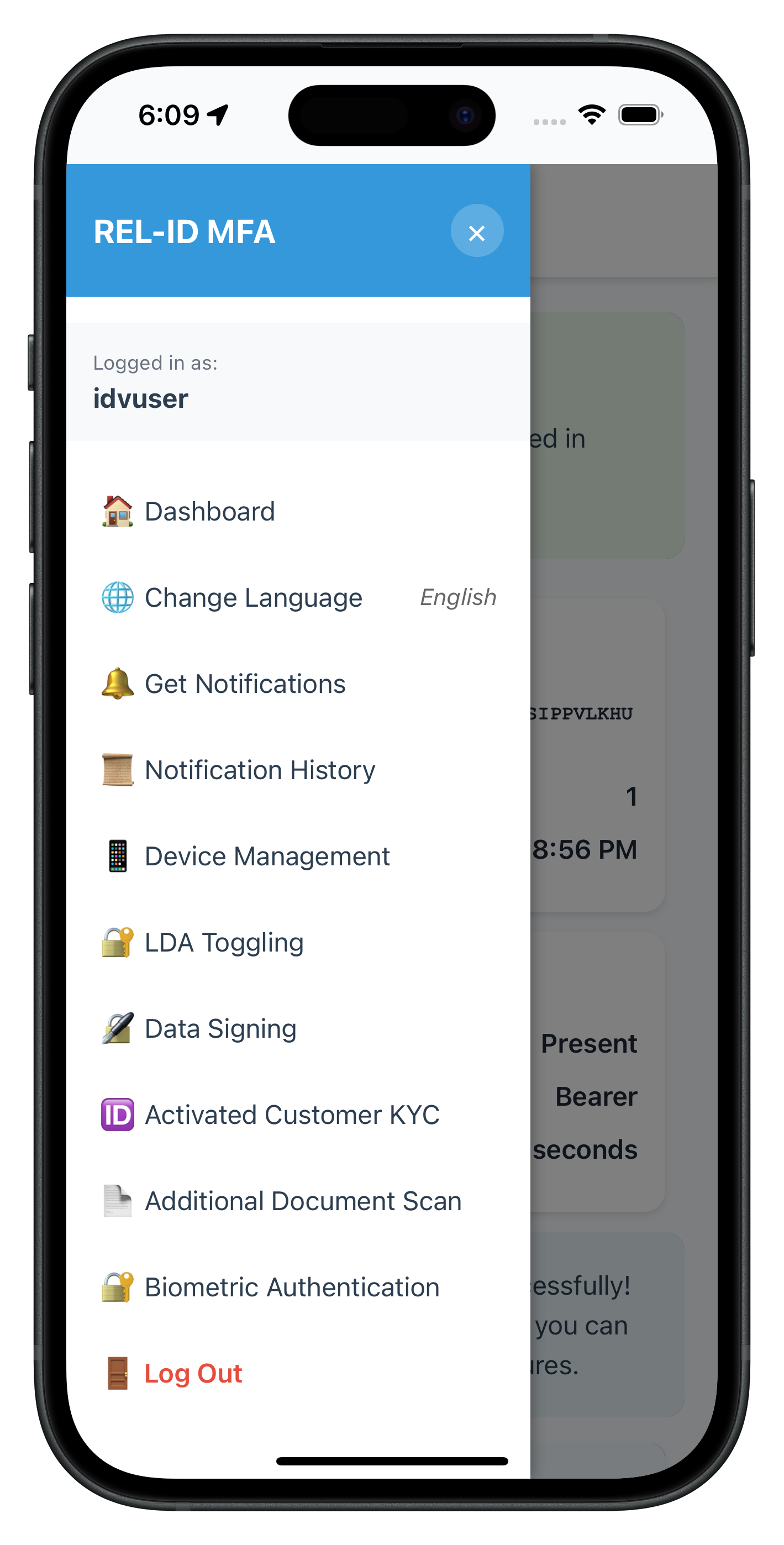
The drawer menu includes a new "🔐 Biometric Authentication" menu item that navigates to the ServerBiometricAuthenticationScreen.
IDV Workflow and Challenge Mode Values
For post-login server biometric authentication, you'll use these specific values:
Parameter | Value | Description |
idvWorkflow |
| Selfie capture for server biometric authentication |
challengeMode |
| Server biometric authentication result event |
Status Codes |
| Template exists / No template |
Comparison with Other IDV Flows:
Aspect | KYC Flow | Additional Document Scan | Server Biometric Auth |
Workflow | 6 | 7 | 8 |
Challenge Mode | 9 | 10 | 25 |
Template Check | No | No | Yes (required) |
Document Scan | Yes | Yes | No |
Selfie Capture | Yes | No | Yes |
Biometric Consent | Yes | No | No |
Template Creation | Yes (new) | No | No (uses existing) |
Entry Point | ActivatedCustomerKYCScreen | AdditionalDocumentScanScreen | ServerBiometricAuthenticationScreen |
API | initiateActivatedCustomerKYC | initiateIDVAdditionalDocumentScan | initiateIDVServerBiometricAuthentication and checkIDVUserBiometricTemplateStatus |
Result Event | onActivatedCustomerKYCResponse | onIDVAdditionalDocumentScanResult | onIDVServerBiometricAuthenticationResult |
Before You Begin
Ensure you have completed these requirements:
1. Previous Codelabs Completed
- ✅ REL-ID Initialization Flow
- ✅ REL-ID MFA Activation & Login Flow
- ✅ Biometric Template: User must have biometric template on server (from KYC or other IDV flow)
2. Development Environment
# Required tools
Node.js >= 16
Cordova CLI
Xcode (for iOS) or Android Studio (for Android)
3. REL-ID SDK Credentials
- Connection profile configuration
- Valid REL-ID SDK license
- No document scanning license needed (selfie only)
Get the Code from GitHub
The code to get started can be found in a GitHub repository.
You can clone the repository using the following command:
git clone https://github.com/uniken-team/relid-codelab-cordova.git
Navigate to the relid-IDV-post-login-server-biometric-authentication folder:
cd relid-codelab-cordova/relid-IDV-post-login-server-biometric-authentication
Project Structure
The post-login server biometric authentication codelab follows this structure:
relid-IDV-post-login-server-biometric-authentication/
├── 📱 Cordova Single Page Application Architecture
│   ├── platforms/               # Platform-specific builds (iOS, Android)
│   ├── plugins/                 # Cordova plugins
│   │   ├── cordova-plugin-file/            # File system access plugin
│   │   └── cordova-plugin-rdna/            # REL-ID Native Bridge with Aware FaceCapture
│   ├── hooks/                   # Build hooks
│   ├── RdnaClient/              # 🆕 Local Cordova Plugin
│   └── www/                     # 🆕 SPA Application Root (see below)

├── 📦 SPA Application Structure (www/)
│   ├── index.html               # ⚠️ SINGLE HTML FILE with all templates
│   ├── css/
│   │   └── index.css            # Styles for all screens
│   ├── js/
│   │   └── app.js               # App initialization (deviceready, AppInitializer)
│   └── src/
│       ├── tutorial/            # Enhanced MFA + IDV flow
│       │   ├── navigation/      # Enhanced navigation with IDV support
│       │   │   └── NavigationService.js    # SPA navigation (template swapping)
│       │   └── screens/         # Enhanced screens with IDV
│       │       ├── mfa/         # 🔐 MFA screens (base authentication)
│       │       │   ├── CheckUserScreen.js       # User validation
│       │       │   ├── ActivationCodeScreen.js  # OTP verification
│       │       │   ├── SetPasswordScreen.js     # Password creation
│       │       │   ├── VerifyPasswordScreen.js  # Password verification
│       │       │   ├── DashboardScreen.js       # Main dashboard
│       │       │   └── ...                      # Other MFA screens
│       │       └── idv/         # 🆕 IDV Post-Login Server Biometric Authentication screens
│       │           ├── serverBiometricAuthentication/                     # 🆕 Post-Login Server Biometric Auth
│       │           │   └── ServerBiometricAuthenticationScreen.js        # Template check + authentication
│       │           └── IDVSelfieProcessStartConfirmationScreen.js       # Selfie capture initiation (workflow 8)
│       └── uniken/              # 🛡️ Enhanced REL-ID Integration
│           ├── providers/       # Enhanced providers
│           │   ├── SDKEventProvider.js          # Complete MFA event handling
│           │   └── idv/                          # 🆕 IDV event providers
│           │       └── SDKIDVEventProvider.js   # Complete IDV event handling
│           ├── services/        # 🆕 Enhanced SDK service layer
│           │   ├── rdnaService.js                # Base MFA service layer
│           │   └── idv/                          # 🆕 IDV service layer
│           │       ├── rdnaIDVService.js         # Complete IDV API methods
│           │       │                            # - 🆕 checkIDVUserBiometricTemplateStatus()
│           │       │                            # - 🆕 initiateIDVServerBiometricAuthentication()
│           │       │                            # - setIDVSelfieProcessStartConfirmation()
│           │       └── rdnaIDVEventManager.js    # Complete IDV event management
│           │                                    # - Event listener registration
│           │                                    # - Event handler setters
│           │                                    # - 🆕 Template status check event handling
│           │                                    # - 🆕 Server biometric auth result event handling
│           ├── utils/           # Utility functions
│           │   └── connectionProfileParser.js    # File loading with cordova-plugin-file
│           ├── MTDContext/      # MTD threat management
│           └── SessionContext/  # Session management

└── 📚 Production Configuration
    ├── config.xml               # Cordova configuration
    └── package.json             # Dependencies
IDV Assets Configuration
The project uses an automated Cordova hook for IDV asset management, but server biometric authentication does not require document scanning assets. Unlike document scanning flows (Additional Document Scan, KYC), this flow only needs the Aware FaceCapture library for biometric verification.
What This Project Does NOT Need:
Document Scanner Assets (Not Required):
- ❌
regula.license- Document reader license (only for document scanning) - ❌
db.dat- 110.5MB Regula document recognition database (only for document scanning) - ❌
Certificates.bundle/- ICAO PKD certificates (only for document scanning) - ❌
idv-native-resources/folder - Not needed for biometric authentication
Key Difference: This codelab demonstrates post-login server biometric authentication which only uses selfie capture with liveness detection. It does NOT scan identity documents, so document scanner assets are not required.
What This Project DOES Need:
Biometric Capture Library (Pre-configured):
- ✅ Aware FaceCapture Library - Embedded in
cordova-plugin-rdnaplugin- Provides liveness detection and face capture capabilities
- Automatically configured for iOS and Android platforms
- No manual asset placement required
Optional: Understanding the IDV Asset Hook (For Other Flows)
If you're building a document scanning flow (like KYC or Additional Document Scan), you'll need the automated hook structure:
your-cordova-project/
├── idv-native-resources/          # Only needed for document scanning flows
│   ├── common/                    # Shared files (regula.license, db.dat)
│   ├── ios/                       # iOS certificates
│   └── android/                   # Android certificates
├── hooks/
│   └── after_prepare/
│       └── copy_idv_native_resources.js   # Automated hook script
Hook Script: hooks/after_prepare/copy_idv_native_resources.js
When you run cordova prepare or cordova build, this hook automatically copies assets to platform-specific directories.
For This Server Biometric Authentication Codelab:
- The
idv-native-resources/folder is optional (can be empty or omitted) - The hook will skip copying if assets are not present
- Only the Aware FaceCapture library (in cordova-plugin-rdna) is required
Project Structure
This project includes a local Cordova plugin. Ensure the plugin directory exists in your project root:
# Verify plugin directory exists
ls -la ./RdnaClient
Add the SDK Plugin (Local)
The SDK plugin is included as a local plugin in the project. Install it from the local directory:
cordova plugin add ./RdnaClient
Platform Setup
# Add platforms
cordova platform add ios
cordova platform add android

# Prepare platforms
cordova prepare
Follow the Cordova platform setup guide for platform-specific configuration.
Overview
Before implementing the authentication screen, you need to add two API methods to the IDV service layer:
checkIDVUserBiometricTemplateStatus()- Check if user has biometric template on serverinitiateIDVServerBiometricAuthentication(reason)- Start authentication workflow
Implement Template Status Check API
Add the following method to rdnaIDVService.js:
// www/src/uniken/services/idv/rdnaIDVService.js

/**
 * Check IDV User Biometric Template Status
 *
 * Checks if the user has a biometric template stored on the server.
 * This should be called before allowing server biometric authentication.
 *
 * @returns {Promise} Promise that resolves with sync response on successful check initiation
 * @throws {Promise} Promise that rejects with sync response on failure
 *
 * Flow:
 * 1. SDK checks template availability on server
 * 2. SDK triggers onIDVCheckUserBiometricTemplateStatus event with status code:
 *    - 100 = Template present (user can authenticate)
 *    - 600 = Template does not exist (user must complete biometric opt-in first)
 *    - 400/500 = Error
 *
 * Success Response:
 * - error.longErrorCode = 0
 * - Wait for onIDVCheckUserBiometricTemplateStatus event
 *
 * Error Responses:
 * - Sync error: error.longErrorCode !== 0
 */
async checkIDVUserBiometricTemplateStatus() {
  return new Promise((resolve, reject) => {
    console.log('RdnaIDVService - Checking user biometric template status');

    com.uniken.rdnaplugin.RdnaClient.checkIDVUserBiometricTemplateStatus(
      (response) => {
        console.log('RdnaIDVService - checkIDVUserBiometricTemplateStatus sync callback received');
        const result = JSON.parse(response);

        if (result.error && result.error.longErrorCode === 0) {
          console.log('RdnaIDVService - checkIDVUserBiometricTemplateStatus sync response success');
          console.log('RdnaIDVService - Waiting for onIDVCheckUserBiometricTemplateStatus event');
          resolve(result);
        } else {
          console.error('RdnaIDVService - checkIDVUserBiometricTemplateStatus sync response error:', result);
          reject(result);
        }
      },
      (error) => {
        console.error('RdnaIDVService - checkIDVUserBiometricTemplateStatus error:', error);
        const result = JSON.parse(error);
        reject(result);
      },
      [] // No parameters for this API
    );
  });
}
Implement Server Biometric Authentication Initiation API
Add the following method to rdnaIDVService.js:
/**
 * Initiate IDV Server Biometric Authentication
 *
 * Initiates post-login server biometric authentication workflow for already activated
 * customers with stored biometric templates.
 *
 * @param {string} reason - Reason for authentication (e.g., "Server Biometric Authentication")
 * @returns {Promise} Promise that resolves with sync response on successful initiation
 * @throws {Promise} Promise that rejects with sync response on failure
 *
 * Flow:
 * 1. SDK initiates server biometric authentication workflow
 *    - workflow: 8 (selfie capture)
 *    - challengeMode: 25 (server biometric auth result)
 * 2. SDK automatically triggers:
 *    - getIDVSelfieProcessStartConfirmation event (idvWorkFlow: 8)
 * 3. After selfie capture, SDK triggers:
 *    - onIDVServerBiometricAuthenticationResult event (challengeMode: 25)
 *
 * Success Response:
 * - error.longErrorCode = 0
 *
 * Error Responses:
 * - Sync error: error.longErrorCode !== 0
 * - Backend error: Received in onIDVServerBiometricAuthenticationResult event
 */
async initiateIDVServerBiometricAuthentication(reason) {
  return new Promise((resolve, reject) => {
    console.log('RdnaIDVService - Initiating IDV server biometric authentication');
    console.log('RdnaIDVService - Reason:', reason);

    com.uniken.rdnaplugin.RdnaClient.initiateIDVServerBiometricAuthentication(
      (response) => {
        console.log('RdnaIDVService - initiateIDVServerBiometricAuthentication sync callback received');
        const result = JSON.parse(response);

        if (result.error && result.error.longErrorCode === 0) {
          console.log('RdnaIDVService - initiateIDVServerBiometricAuthentication sync response success');
          console.log('RdnaIDVService - Waiting for onIDVServerBiometricAuthenticationResult event');
          resolve(result);
        } else {
          console.error('RdnaIDVService - initiateIDVServerBiometricAuthentication sync response error:', result);
          reject(result);
        }
      },
      (error) => {
        console.error('RdnaIDVService - initiateIDVServerBiometricAuthentication error:', error);
        const result = JSON.parse(error);
        reject(result);
      },
      [reason] // Parameters array
    );
  });
}
Key Points
- Template Check First: Always check template status before allowing authentication
- Workflow 8: Authentication uses selfie capture workflow
- Challenge Mode 25: Result event uses server biometric auth challenge mode
- Sync Callback: Immediate response confirming API call accepted
- Async Event: Actual results come via events
- Promise Pattern: Easy async/await usage in screens
- Callback-First Order: Success callback, error callback, then parameters array
- JSON Parsing: All responses are JSON strings requiring
JSON.parse()
Overview
Implement event listeners and handlers for template status check and authentication result events in the IDV Event Manager.
Implement Event Listeners and Handlers
Add the following to rdnaIDVEventManager.js:
// www/src/uniken/services/idv/rdnaIDVEventManager.js

const RdnaIDVEventManager = {
  _initialized: false,
  checkUserBiometricTemplateStatusHandler: null,
  serverBiometricAuthenticationResultHandler: null,

  /**
   * Initialize event manager and register all IDV events
   */
  init() {
    if (this._initialized) {
      console.log('RdnaIDVEventManager - Already initialized');
      return;
    }

    console.log('RdnaIDVEventManager - Initializing');
    this.registerEventListeners();
    this._initialized = true;
  },

  /**
   * Register all IDV event listeners
   */
  registerEventListeners() {
    console.log('RdnaIDVEventManager - Registering event listeners');

    // Check User Biometric Template Status Event
    document.addEventListener(
      'onIDVCheckUserBiometricTemplateStatus',
      this.onCheckUserBiometricTemplateStatus.bind(this),
      false
    );

    // Server Biometric Authentication Result Event
    document.addEventListener(
      'onIDVServerBiometricAuthenticationResult',
      this.onServerBiometricAuthenticationResult.bind(this),
      false
    );
  },

  /**
   * Template Status Check Event Handler
   * Triggered after checkIDVUserBiometricTemplateStatus API call
   */
  onCheckUserBiometricTemplateStatus(event) {
    console.log('RdnaIDVEventManager - Check user biometric template status event received');

    try {
      // Handle multiple event object formats
      const response = event.response || event.detail || event;
      const data = typeof response === 'string' ? JSON.parse(response) : response;

      console.log('RdnaIDVEventManager - User ID:', data.userID);
      console.log('RdnaIDVEventManager - Attempts Left:', data.attemptsLeft);
      console.log('RdnaIDVEventManager - Challenge Mode:', data.challengeMode);
      console.log('RdnaIDVEventManager - Status Code:', data.status?.statusCode);
      console.log('RdnaIDVEventManager - Status Message:', data.status?.statusMessage);
      console.log('RdnaIDVEventManager - Error Code:', data.error?.longErrorCode);
      console.log('RdnaIDVEventManager - Error String:', data.error?.errorString);
      console.log('RdnaIDVEventManager - IDV Response:', data.idvResponse);

      if (this.checkUserBiometricTemplateStatusHandler) {
        this.checkUserBiometricTemplateStatusHandler(data);
      } else {
        console.warn('RdnaIDVEventManager - No handler registered for check user biometric template status');
      }
    } catch (error) {
      console.error('RdnaIDVEventManager - Failed to parse check user biometric template status:', error);
    }
  },

  /**
   * Server Biometric Authentication Result Event Handler
   * Triggered after selfie capture completes during server biometric authentication
   * Challenge Mode: 25
   */
  onServerBiometricAuthenticationResult(event) {
    console.log('RdnaIDVEventManager - Server biometric authentication result event received');

    try {
      // Handle multiple event object formats
      const response = event.response || event.detail || event;
      const data = typeof response === 'string' ? JSON.parse(response) : response;

      console.log('RdnaIDVEventManager - User ID:', data.userID);
      console.log('RdnaIDVEventManager - Attempts Left:', data.attemptsLeft);
      console.log('RdnaIDVEventManager - Challenge Mode:', data.challengeMode);
      console.log('RdnaIDVEventManager - Status Code:', data.status?.statusCode);
      console.log('RdnaIDVEventManager - Status Message:', data.status?.statusMessage);
      console.log('RdnaIDVEventManager - Error Code:', data.error?.longErrorCode);
      console.log('RdnaIDVEventManager - Error String:', data.error?.errorString);
      console.log('RdnaIDVEventManager - IDV Response:', data.idvResponse);

      if (this.serverBiometricAuthenticationResultHandler) {
        this.serverBiometricAuthenticationResultHandler(data);
      } else {
        console.warn('RdnaIDVEventManager - No handler registered for server biometric authentication result');
      }
    } catch (error) {
      console.error('RdnaIDVEventManager - Failed to parse server biometric authentication result:', error);
    }
  },

  /**
   * Set handler for template status check event
   * @param {Function|null} handler - Handler function or null to unregister
   */
  setCheckUserBiometricTemplateStatusHandler(handler) {
    console.log('RdnaIDVEventManager - Setting check user biometric template status handler');
    this.checkUserBiometricTemplateStatusHandler = handler;
  },

  /**
   * Set handler for server biometric authentication result event
   * @param {Function|null} handler - Handler function or null to unregister
   */
  setServerBiometricAuthenticationResultHandler(handler) {
    console.log('RdnaIDVEventManager - Setting server biometric authentication result handler');
    this.serverBiometricAuthenticationResultHandler = handler;
  },

  /**
   * Cleanup event manager
   */
  cleanup() {
    console.log('RdnaIDVEventManager - Cleaning up');

    // Remove event listeners
    document.removeEventListener(
      'onIDVCheckUserBiometricTemplateStatus',
      this.onCheckUserBiometricTemplateStatus.bind(this),
      false
    );
    document.removeEventListener(
      'onIDVServerBiometricAuthenticationResult',
      this.onServerBiometricAuthenticationResult.bind(this),
      false
    );

    // Clear handlers
    this.checkUserBiometricTemplateStatusHandler = null;
    this.serverBiometricAuthenticationResultHandler = null;

    this._initialized = false;
  }
};
Key Points
- Event Listeners: Registered using
document.addEventListener()for Cordova events - Handler Setters: Allow screens to register their handlers
- Logging: Comprehensive logging for debugging
- Error Handling: Try-catch for JSON parsing
- Event Data Access: Handles multiple event object formats (
event.response,event.detail,event) - Cleanup: Proper cleanup of handlers and listeners
Overview
Implement the main screen that handles template status check, authentication initiation, and result display. This screen uses screen-level event handlers for robust event handling.
Screen Setup and State Management
Create ServerBiometricAuthenticationScreen.js:
// www/src/tutorial/screens/idv/serverBiometricAuthentication/ServerBiometricAuthenticationScreen.js

const ServerBiometricAuthenticationScreen = {
  // Local state object (replaces React useState)
  state: {
    isCheckingStatus: false,
    isAuthenticating: false,
    templateStatus: {
      checked: false,
      exists: false,
      statusCode: 0,
      statusMessage: ''
    },
    showModal: false,
    modalTitle: '',
    modalMessage: '',
    isSuccess: false
  },

  /**
   * Lifecycle hook called when screen content is loaded
   */
  onContentLoaded(params) {
    console.log('ServerBiometricAuthenticationScreen - Content loaded with params:',
      JSON.stringify(params, null, 2));

    // Reset state for fresh start
    this.state = {
      isCheckingStatus: false,
      isAuthenticating: false,
      templateStatus: {
        checked: false,
        exists: false,
        statusCode: 0,
        statusMessage: ''
      },
      showModal: false,
      modalTitle: '',
      modalMessage: '',
      isSuccess: false
    };

    // Setup event listeners
    this.setupEventListeners();

    // Hide any existing modal
    this.hideModal();

    // Check template status on load
    this.checkTemplateStatus();
  },

  /**
   * Setup event listeners
   * Registers screen-level SDK event handlers that persist across navigation
   */
  setupEventListeners() {
    console.log('ServerBiometricAuthenticationScreen - Setting up event listeners');

    // Button click handlers
    const menuBtn = document.getElementById('server-biometric-menu-button');
    if (menuBtn) {
      menuBtn.onclick = () => {
        NavigationService.openDrawer();
      };
    }

    const startBtn = document.getElementById('start-authentication-button');
    if (startBtn) {
      startBtn.onclick = () => this.handleStartAuthentication();
    }

    const modalOkBtn = document.getElementById('server-biometric-modal-ok-btn');
    if (modalOkBtn) {
      modalOkBtn.onclick = () => this.handleModalOK();
    }

    const modalDashboardBtn = document.getElementById('server-biometric-modal-dashboard-btn');
    if (modalDashboardBtn) {
      modalDashboardBtn.onclick = () => this.handleModalDashboard();
    }

    // Screen-level SDK event handlers (persist across navigation)
    const eventManager = rdnaIDVService.getEventManager();
    eventManager.setCheckUserBiometricTemplateStatusHandler(
      this.handleCheckUserBiometricTemplateStatusResponse.bind(this)
    );
    eventManager.setServerBiometricAuthenticationResultHandler(
      this.handleServerBiometricAuthenticationResultResponse.bind(this)
    );
  },

  /**
   * Checks if user biometric template exists on server
   */
  async checkTemplateStatus() {
    console.log('ServerBiometricAuthenticationScreen - Checking biometric template status');
    this.setCheckingStatus(true);

    try {
      const syncResponse = await rdnaIDVService.checkIDVUserBiometricTemplateStatus();
      console.log('ServerBiometricAuthenticationScreen - checkIDVUserBiometricTemplateStatus sync response successful');
      // The actual result will come via onIDVCheckUserBiometricTemplateStatus event

    } catch (error) {
      console.error('ServerBiometricAuthenticationScreen - checkIDVUserBiometricTemplateStatus sync error:', error);

      const errorMessage = error.error?.errorString || 'Unknown error';

      this.state.templateStatus = {
        checked: true,
        exists: false,
        statusCode: 0,
        statusMessage: `Error: ${errorMessage}`
      };
      this.updateTemplateStatusUI();
      this.setCheckingStatus(false);

      alert(`Template Status Check Error\n\nFailed to check template status: ${errorMessage}`);
    }
  },

  /**
   * Handles check user biometric template status response event
   * Status Codes:
   * - 100 = Template present
   * - 600 = Template does not exist
   * - 400/500 = Error
   */
  handleCheckUserBiometricTemplateStatusResponse(data) {
    console.log('ServerBiometricAuthenticationScreen - Check user biometric template status response received');

    const errorCode = data.error?.longErrorCode;
    const statusCode = data.status?.statusCode;
    const statusMessage = data.status?.statusMessage || 'Unknown status';

    // First check: error code
    if (errorCode !== 0) {
      this.state.templateStatus = {
        checked: true,
        exists: false,
        statusCode: statusCode || 0,
        statusMessage: `Error: ${data.error?.errorString}`
      };
      this.updateTemplateStatusUI();
      this.setCheckingStatus(false);
      return;
    }

    // Second check: status code
    if (statusCode === 100) {
      // Template present
      this.state.templateStatus = {
        checked: true,
        exists: true,
        statusCode: statusCode,
        statusMessage: statusMessage
      };
    } else if (statusCode === 600) {
      // Template does not exist
      this.state.templateStatus = {
        checked: true,
        exists: false,
        statusCode: statusCode,
        statusMessage: statusMessage
      };
    } else {
      // Other status codes (400/500 = error)
      this.state.templateStatus = {
        checked: true,
        exists: false,
        statusCode: statusCode || 0,
        statusMessage: statusMessage
      };
    }

    this.updateTemplateStatusUI();
    this.setCheckingStatus(false);
  },

  /**
   * Initiates server biometric authentication workflow
   */
  async handleStartAuthentication() {
    console.log('ServerBiometricAuthenticationScreen - Starting server biometric authentication');
    this.setAuthenticating(true);

    try {
      const reason = 'Server Biometric Authentication';
      console.log('ServerBiometricAuthenticationScreen - Calling initiateIDVServerBiometricAuthentication');

      const syncResponse = await rdnaIDVService.initiateIDVServerBiometricAuthentication(reason);
      console.log('ServerBiometricAuthenticationScreen - initiateIDVServerBiometricAuthentication sync response successful');

      // Sync success means API accepted the request
      // The authentication result will come via onIDVServerBiometricAuthenticationResult event
      console.log('ServerBiometricAuthenticationScreen - Server biometric authentication initiated, waiting for result event');

    } catch (error) {
      console.error('ServerBiometricAuthenticationScreen - initiateIDVServerBiometricAuthentication sync error:', error);

      const errorMessage = error.error?.errorString || 'Unknown error';

      alert(`Authentication Error\n\nFailed to initiate authentication: ${errorMessage}`);
      this.setAuthenticating(false);
    }
  },

  /**
   * Handles server biometric authentication result event
   * Implements navigate-back-before-modal pattern
   * Challenge Mode: 25
   */
  handleServerBiometricAuthenticationResultResponse(data) {
    console.log('ServerBiometricAuthenticationScreen - Server biometric authentication result received');

    // Reset button state
    this.setAuthenticating(false);

    // Navigate back to ServerBiometricAuthentication screen
    console.log('ServerBiometricAuthenticationScreen - Navigating back to ServerBiometricAuthentication screen');
    NavigationService.navigate('ServerBiometricAuthentication');

    const errorCode = data.error?.longErrorCode;
    const statusCode = data.status?.statusCode;

    // Small delay to ensure navigation completes before showing modal
    setTimeout(() => {
      // First check: error code
      if (errorCode !== 0) {
        console.log('ServerBiometricAuthenticationScreen - Error in authentication:', errorCode);
        this.state.modalTitle = 'Authentication Error';
        this.state.modalMessage = `${data.error?.errorString}\n\n(Error Code: ${errorCode})`;
        this.state.isSuccess = false;
        this.showModal();
        return;
      }

      // Second check: status code
      if (statusCode !== 0) {
        console.log('ServerBiometricAuthenticationScreen - Status error:', statusCode);
        this.state.modalTitle = 'Authentication Failed';
        this.state.modalMessage = `Status: ${data.status?.statusMessage}\n\n(Status Code: ${statusCode})`;
        this.state.isSuccess = false;
        this.showModal();
        return;
      }

      // Success - parse idvResponse to check audit status
      try {
        const idvResponseObj = JSON.parse(data.idvResponse);
        console.log('ServerBiometricAuthenticationScreen - Parsed authentication result:', idvResponseObj);

        const auditStatus = idvResponseObj.idv_audit_info?.status;
        const orchestrationUseCase = idvResponseObj.idv_audit_info?.orchestration_use_case;
        const transactionId = idvResponseObj.idv_audit_info?.idv_audit_transaction_id;
        const attemptsLeft = idvResponseObj.attempts_left;

        if (auditStatus === 'SUCCESS') {
          this.state.modalTitle = '✅ Authentication Success';
          this.state.modalMessage = `Audit Status: ${auditStatus}\n\n` +
            `Use Case: ${orchestrationUseCase || 'N/A'}\n` +
            `Transaction ID: ${transactionId || 'N/A'}\n` +
            `Attempts Left: ${attemptsLeft}`;
          this.state.isSuccess = true;
        } else {
          this.state.modalTitle = '❌ Authentication Failed';
          this.state.modalMessage = `Audit Status: ${auditStatus || 'Unknown'}\n\n` +
            `Use Case: ${orchestrationUseCase || 'N/A'}\n` +
            `Transaction ID: ${transactionId || 'N/A'}\n` +
            `Attempts Left: ${attemptsLeft}`;
          this.state.isSuccess = false;
        }

        this.showModal();
      } catch (parseError) {
        console.error('ServerBiometricAuthenticationScreen - Failed to parse idvResponse:', parseError);
        this.state.modalTitle = 'Parse Error';
        this.state.modalMessage = 'Failed to parse authentication result';
        this.state.isSuccess = false;
        this.showModal();
      }
    }, 300);
  },

  /**
   * Update template status UI
   */
  updateTemplateStatusUI() {
    const statusSection = document.getElementById('template-status-section');
    if (!statusSection) return;

    if (this.state.templateStatus.checked) {
      statusSection.style.display = 'block';

      const statusTitle = document.getElementById('template-status-title');
      const statusText = document.getElementById('template-status-text');
      const statusCode = document.getElementById('template-status-code');

      if (statusTitle) {
        statusTitle.textContent = this.state.templateStatus.exists
          ? '✅ Biometric Template Status'
          : '⚠️ Biometric Template Status';
      }

      if (statusText) {
        statusText.textContent = this.state.templateStatus.exists
          ? 'Your biometric template is stored on the server. You can proceed with authentication.'
          : 'No biometric template found on the server. Please complete biometric opt-in first.';
      }

      if (statusCode) {
        statusCode.textContent = `Status: ${this.state.templateStatus.statusMessage} (Code: ${this.state.templateStatus.statusCode})`;
      }

      // Update button state
      const startButton = document.getElementById('start-authentication-button');
      if (startButton) {
        startButton.disabled = this.state.isAuthenticating ||
          this.state.isCheckingStatus ||
          !this.state.templateStatus.exists;
      }

      // Show/hide disabled note
      const disabledNote = document.getElementById('disabled-note');
      if (disabledNote) {
        disabledNote.style.display = !this.state.templateStatus.exists ? 'block' : 'none';
      }
    }
  },

  /**
   * Set checking status
   */
  setCheckingStatus(isChecking) {
    this.state.isCheckingStatus = isChecking;

    // Update button state
    const startButton = document.getElementById('start-authentication-button');
    if (startButton) {
      startButton.disabled = this.state.isAuthenticating ||
        this.state.isCheckingStatus ||
        !this.state.templateStatus.exists;

      if (isChecking) {
        startButton.textContent = 'Checking Template...';
      } else {
        startButton.textContent = this.state.isAuthenticating ? 'Authenticating...' : 'Start Authentication';
      }
    }
  },

  /**
   * Set authenticating status
   */
  setAuthenticating(isAuthenticating) {
    this.state.isAuthenticating = isAuthenticating;

    // Update button state
    const startButton = document.getElementById('start-authentication-button');
    if (startButton) {
      startButton.disabled = this.state.isAuthenticating ||
        this.state.isCheckingStatus ||
        !this.state.templateStatus.exists;

      startButton.textContent = isAuthenticating ? 'Authenticating...' : 'Start Authentication';
    }
  },

  /**
   * Show modal
   */
  showModal() {
    const modal = document.getElementById('server-biometric-modal');
    const title = document.getElementById('server-biometric-modal-title');
    const message = document.getElementById('server-biometric-modal-message');
    const okBtn = document.getElementById('server-biometric-modal-ok-btn');
    const dashboardBtn = document.getElementById('server-biometric-modal-dashboard-btn');

    if (modal && title && message) {
      title.textContent = this.state.modalTitle;
      message.textContent = this.state.modalMessage;

      // Show/hide buttons based on success state
      if (okBtn) {
        okBtn.style.display = this.state.isSuccess ? 'none' : 'inline-block';
      }

      if (dashboardBtn) {
        dashboardBtn.style.display = this.state.isSuccess ? 'inline-block' : 'none';
      }

      modal.style.display = 'flex';
    }
  },

  /**
   * Hide modal
   */
  hideModal() {
    const modal = document.getElementById('server-biometric-modal');
    if (modal) {
      modal.style.display = 'none';
    }
  },

  /**
   * Handle modal OK button
   */
  handleModalOK() {
    console.log('ServerBiometricAuthenticationScreen - Modal OK clicked');
    this.hideModal();
  },

  /**
   * Handle modal Dashboard button
   */
  handleModalDashboard() {
    console.log('ServerBiometricAuthenticationScreen - Modal Dashboard clicked');
    this.hideModal();
    NavigationService.navigate('Dashboard');
  }
};

// Expose screen to global scope for NavigationService
window.ServerBiometricAuthenticationScreen = ServerBiometricAuthenticationScreen;
UI Preview: Server Biometric Authentication Screen
State 1: Template Exists (Status Code 100) - Button Enabled
Biometric Authentication Screen |
Biometric Authentication Screen |
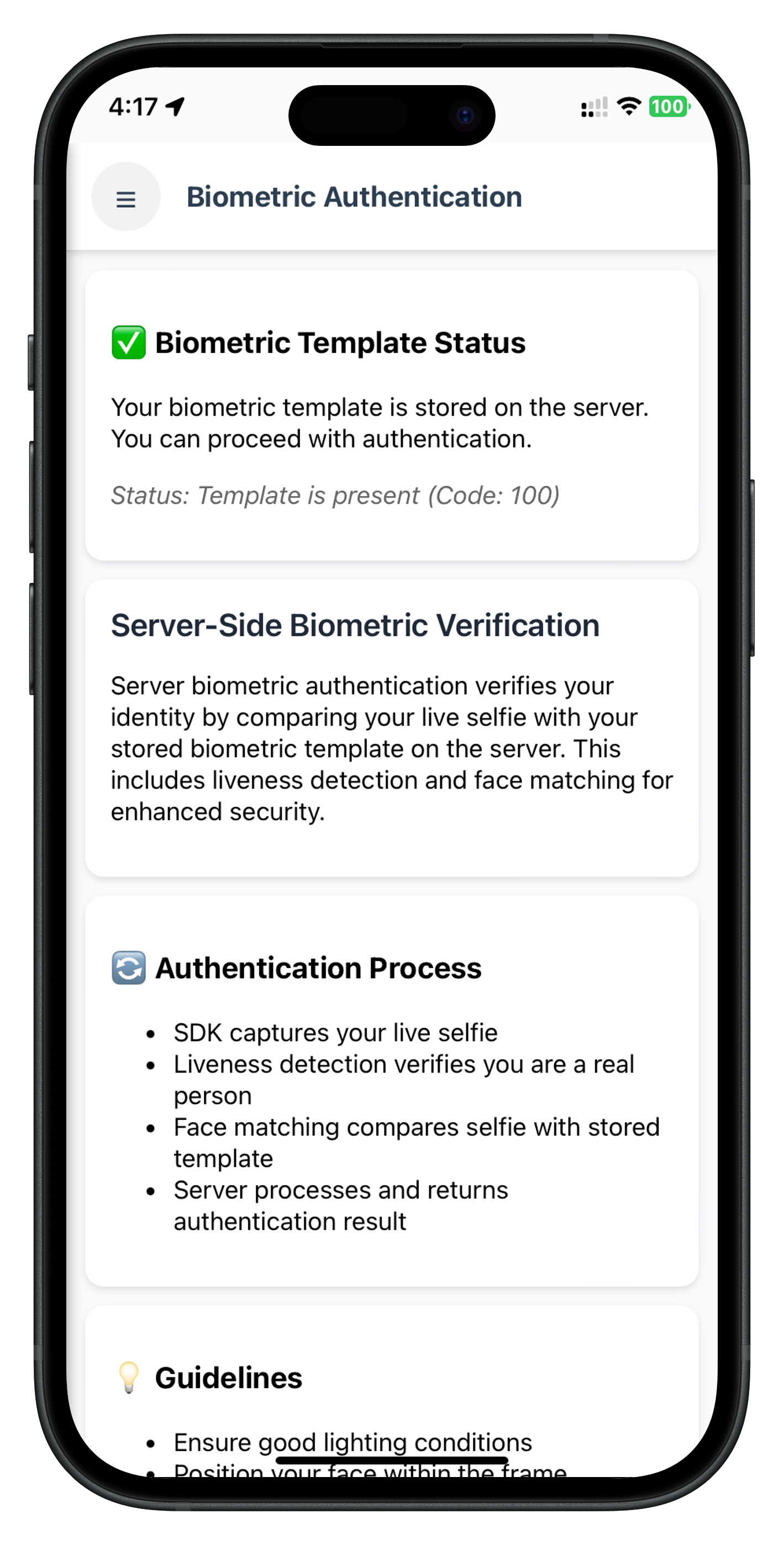
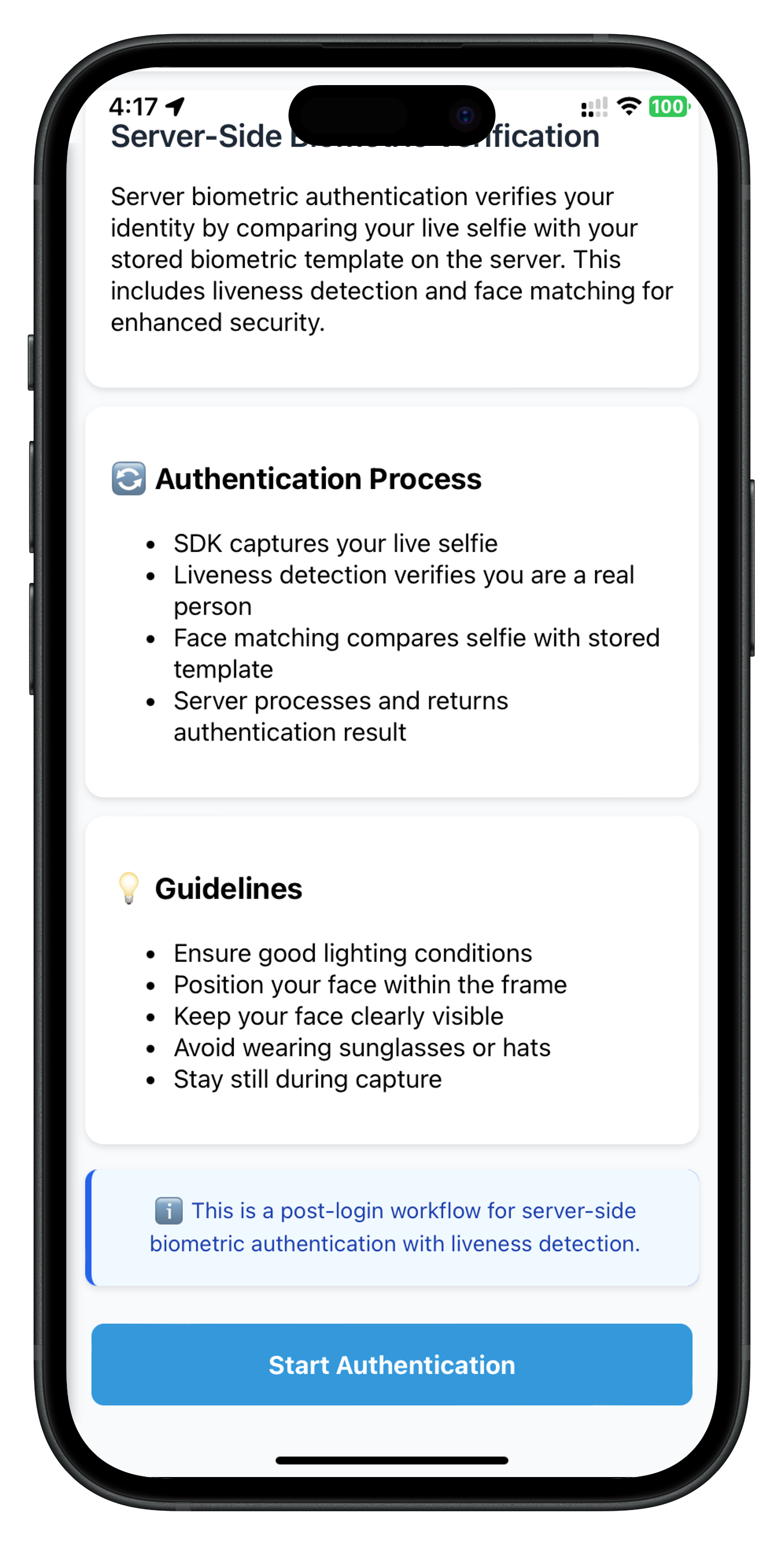
When the template exists (status code 100), a green banner displays "✅ Your biometric template is stored on the server" and the "Start Authentication" button is enabled (blue).
State 2: No Template (Status Code 600) - Button Disabled
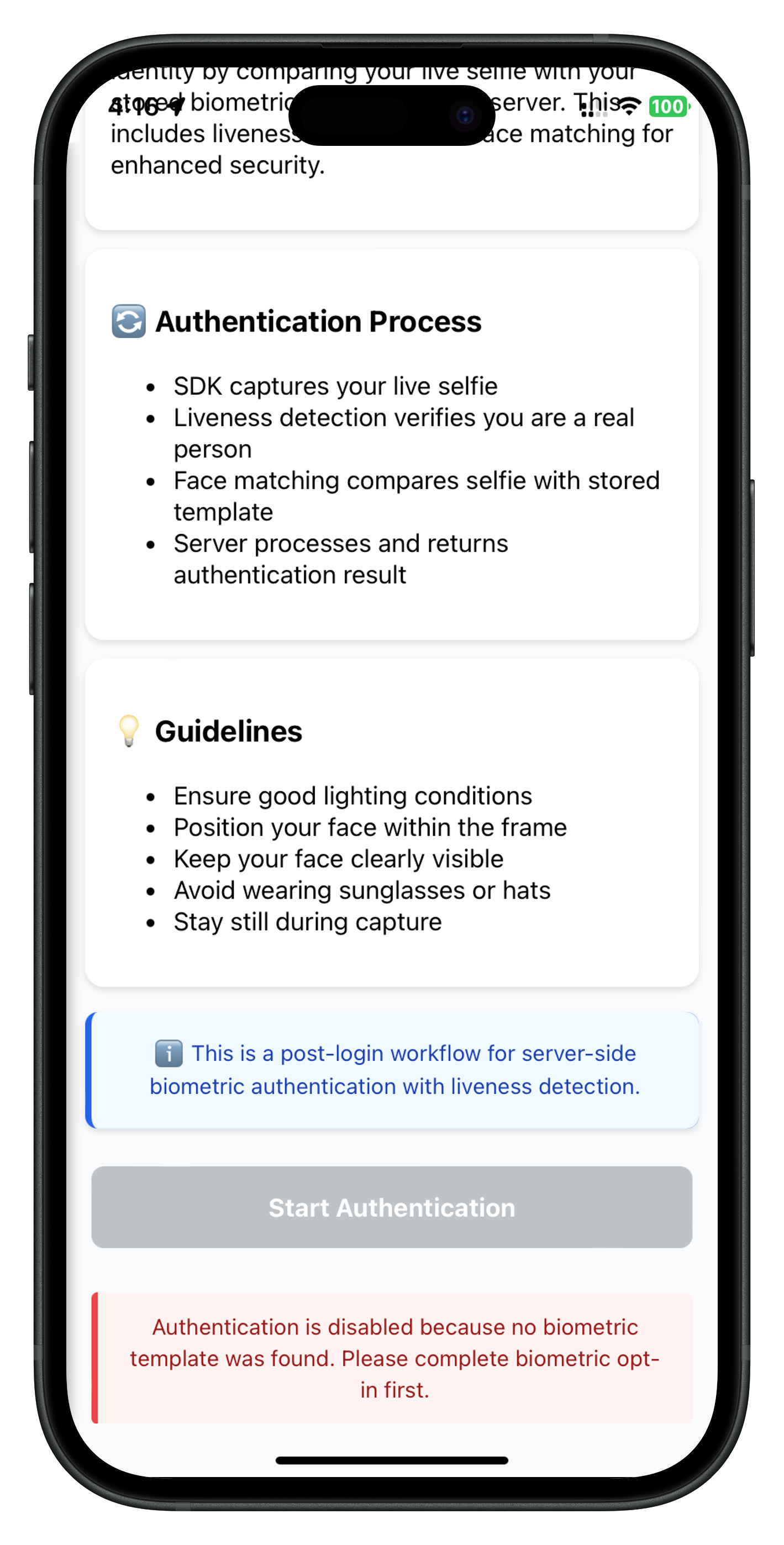
When no template is found (status code 600), a yellow banner displays "⚠️ No biometric template found on the server" with help text, and the "Start Authentication" button is disabled (grey).
Key Points
- Screen Lifecycle: Uses
onContentLoaded(params)instead of React hooks - State Management: Manual
this.stateobject instead of useState - Event Handlers: Registered in
setupEventListeners()for persistence - Template Check on Load: Automatic check ensures button state is always correct
- Navigate-Back-Before-Modal: 300ms delay for smooth modal display
- Status Code Validation: 100=enable button, 600=disable with message
- Audit Data Display: Shows status, use case, transaction ID, attempts left
- Manual DOM Updates: Direct element manipulation via
getElementById()
Add Screen Template to index.html
Add the following template to your www/index.html file:
<!-- Server Biometric Authentication Screen Template -->
<template id="ServerBiometricAuthentication-template">
  <div class="screen-container">
    <!-- Header with Menu Button -->
    <div class="dashboard-header">
      <button id="server-biometric-menu-button" class="menu-button">☰</button>
      <h2 class="dashboard-title">Biometric Authentication</h2>
      <div class="header-spacer"></div>
    </div>

    <div class="kyc-content">
      <!-- Template Status Section (hidden initially) -->
      <div id="template-status-section" class="card" style="display: none;">
        <h3 id="template-status-title" class="requirements-title">
          ✅ Biometric Template Status
        </h3>
        <p id="template-status-text" class="card-description">
          Your biometric template is stored on the server. You can proceed with authentication.
        </p>
        <p id="template-status-code" class="card-description" style="font-style: italic; color: #666;">
          Status: Ready (Code: 100)
        </p>
      </div>

      <!-- Description Section -->
      <div class="card">
        <h2 class="card-title">Server-Side Biometric Verification</h2>
        <p class="card-description">
          Server biometric authentication verifies your identity by comparing your live selfie
          with your stored biometric template on the server.
        </p>
      </div>

      <!-- Process Section -->
      <div class="card">
        <h3 class="requirements-title">🔄 Authentication Process</h3>
        <ul class="requirements-list">
          <li>SDK captures your live selfie</li>
          <li>Liveness detection verifies you are a real person</li>
          <li>Face matching compares selfie with stored template</li>
          <li>Server processes and returns authentication result</li>
        </ul>
      </div>

      <!-- Guidelines Section -->
      <div class="card">
        <h3 class="requirements-title">📋 Guidelines</h3>
        <ul class="requirements-list">
          <li>Ensure good lighting for accurate face detection</li>
          <li>Look directly at the camera</li>
          <li>Remove glasses or face coverings if requested</li>
          <li>Follow on-screen instructions during capture</li>
        </ul>
      </div>

      <!-- Start Button -->
      <div class="button-container">
        <button id="start-authentication-button" class="primary-button">
          Start Authentication
        </button>
      </div>

      <!-- Disabled Note (shown when template doesn't exist) -->
      <p id="disabled-note" class="error-note" style="display: none;">
        ⚠️ Authentication is disabled because no biometric template was found on the server.
        Please complete biometric opt-in first (e.g., KYC flow).
      </p>
    </div>
  </div>
</template>

<!-- Server Biometric Authentication Result Modal -->
<div id="server-biometric-modal" class="modal-overlay" style="display: none;">
  <div class="modal-container">
    <div class="modal-content">
      <h2 id="server-biometric-modal-title" class="modal-title"></h2>
      <p id="server-biometric-modal-message" class="modal-message"></p>
      <div class="modal-buttons">
        <button id="server-biometric-modal-ok-btn" class="primary-button">OK</button>
        <button id="server-biometric-modal-dashboard-btn" class="primary-button">
          Back to Dashboard
        </button>
      </div>
    </div>
  </div>
</div>
Add CSS Styles
Add the following styles to your www/css/index.css file:
/* Server Biometric Authentication Screen Styles */
#template-status-section {
  background-color: #d4edda;
  border: 1px solid #c3e6cb;
  border-radius: 8px;
  padding: 20px;
  margin-bottom: 20px;
}

#template-status-section.warning {
  background-color: #fff3cd;
  border-color: #ffeeba;
}

#disabled-note {
  background-color: #f8d7da;
  border: 1px solid #f5c6cb;
  border-radius: 8px;
  color: #721c24;
  padding: 15px;
  margin-top: 20px;
  text-align: center;
  font-size: 14px;
  line-height: 1.6;
}

/* Modal Styles */
.modal-overlay {
  position: fixed;
  top: 0;
  left: 0;
  right: 0;
  bottom: 0;
  background-color: rgba(0, 0, 0, 0.5);
  display: flex;
  justify-content: center;
  align-items: center;
  z-index: 1000;
}

.modal-container {
  background-color: white;
  border-radius: 12px;
  max-width: 90%;
  max-height: 80%;
  overflow-y: auto;
  box-shadow: 0 4px 6px rgba(0, 0, 0, 0.1);
}

.modal-content {
  padding: 30px;
}

.modal-title {
  font-size: 24px;
  font-weight: bold;
  margin-bottom: 20px;
  color: #2c3e50;
  text-align: center;
}

.modal-message {
  font-size: 16px;
  color: #555;
  margin-bottom: 30px;
  white-space: pre-line;
  line-height: 1.6;
  text-align: center;
  word-wrap: break-word;
  max-width: 100%;
}

.modal-buttons {
  display: flex;
  gap: 15px;
  justify-content: center;
  flex-wrap: wrap;
}

.modal-buttons .primary-button {
  min-width: 150px;
}
Key Points
- Template-Based UI: Uses template tag with ID
ServerBiometricAuthentication-template - SPA Pattern: Content cloned and swapped by NavigationService
- Conditional Display: Template status section hidden initially, shown after check
- Button State: Disabled state managed via JavaScript
- Modal Overlay: Fixed positioning with backdrop
- Responsive Design: Max-width and word-wrapping for long text
Add Route to Navigation Service
The screen is already integrated into the NavigationService via the template ID. When you call:
NavigationService.navigate('ServerBiometricAuthentication');
The NavigationService will:
- Look for template with ID
ServerBiometricAuthentication-template - Clone the template content
- Replace the app content container
- Call
window.ServerBiometricAuthenticationScreen.onContentLoaded()
Add Menu Item to Drawer
Update your drawer menu HTML in index.html:
<!-- Drawer Menu -->
<div id="drawer-menu" class="drawer-menu">
  <div class="drawer-header">
    <h2>Menu</h2>
    <button id="drawer-close-button" class="drawer-close-button">✕</button>
  </div>

  <div class="drawer-content">
    <!-- Existing menu items -->
    <button class="drawer-menu-item" onclick="NavigationService.navigate('Dashboard')">
      🏠 Dashboard
    </button>

    <!-- Server Biometric Authentication Menu Item -->
    <button class="drawer-menu-item" onclick="NavigationService.navigate('ServerBiometricAuthentication')">
      🔐 Biometric Authentication
    </button>

    <!-- Other menu items -->
  </div>
</div>
Key Points
- No Routing Configuration: Template-based navigation doesn't require route registration
- Global Screen Object: Screen exposed on
windowfor NavigationService access - Menu Integration: Simple button click navigates to screen
- Drawer Context: Navigation maintains drawer functionality throughout flow
Complete Flow Walkthrough
Test the complete server biometric authentication flow:
Step 1: Login and Navigate
1. Launch the app
2. Complete user login (activated customer)
3. Navigate to Dashboard
4. Open drawer menu (hamburger icon)
5. Select "🔐 Biometric Authentication"
Step 2: Template Status Check
1. Screen opens and automatically checks template status
2. Observe loading state: Button text changes to "Checking Template..."
3. Template status displayed:
   - ✅ If template exists (status code 100):
     - Green banner with "Your biometric template is stored on the server"
     - "Start Authentication" button enabled
   - ⚠️ If no template (status code 600):
     - Yellow banner with "No biometric template found on the server"
     - "Start Authentication" button disabled (grey)
     - Red warning note: "Authentication is disabled..."
Step 3: Start Authentication (if template exists)
1. Click "Start Authentication" button
2. Button shows loading: "Authenticating..."
3. SDK initiates workflow 8 (selfie capture)
4. Selfie confirmation screen appears (reused from IDV MFA flow)
Step 4: Selfie Capture
1. Click "Start Selfie Capture" button
   → Native camera opens with Aware FaceCapture
   → Liveness detection guides user
   → User captures selfie
   → Camera closes

2. OR Click Close button (X)
   → Error 240 triggered (user cancelled)
   → Result event fires immediately
Step 5: View Authentication Result
1. Navigation back to ServerBiometricAuthentication screen
2. 300ms delay
3. Result modal appears:

   Success Modal (audit status = SUCCESS):
   ✅ Authentication Success
   - Audit Status: SUCCESS
   - Use Case: RDNA_IDV_POSTLOGIN_IDV_SELFIE_BIOMETRIC
   - Transaction ID: [unique ID]
   - Attempts Left: [number]
   - Button: "Back to Dashboard"

   Failure Modal (audit status = FAILURE):
   ❌ Authentication Failed
   - Audit Status: FAILURE
   - Use Case: RDNA_IDV_POSTLOGIN_IDV_SELFIE_BIOMETRIC
   - Transaction ID: [unique ID]
   - Attempts Left: [number]
   - Button: "OK"

   Cancellation (error 240):
   Authentication Error
   - User Cancelled
   - Error Code: 240
   - Button: "OK"
Testing Scenarios
Scenario 1: User with Template (Happy Path)
✅ Template check returns status code 100
✅ Button enabled
✅ User clicks "Start Authentication"
✅ Selfie capture completes
✅ Authentication succeeds (audit status = SUCCESS)
✅ Success modal shown
✅ User clicks "Back to Dashboard"
✅ Navigates to Dashboard
Scenario 2: User Without Template
⚠️ Template check returns status code 600
⚠️ Button disabled (grey color)
⚠️ Yellow banner: "No biometric template found"
⚠️ Red warning note shown
⚠️ User cannot proceed with authentication
Scenario 3: User Cancels Selfie Capture
✅ Template check succeeds (status code 100)
✅ User clicks "Start Authentication"
✅ Selfie confirmation screen appears
❌ User clicks Close button (X)
❌ Error 240 triggered
❌ Navigate back to authentication screen
❌ Error modal: "User Cancelled (Error Code: 240)"
✅ User clicks "OK"
✅ Button re-enabled, can retry
Scenario 4: Authentication Failure (Server Rejection)
✅ Template check succeeds
✅ User completes selfie capture
❌ Server determines face doesn't match
❌ Audit status = FAILURE
❌ Navigate back to authentication screen
❌ Failure modal with audit data
✅ User can retry authentication
Scenario 5: Return to Screen After Authentication
✅ User completes authentication (success or failure)
✅ User navigates to Dashboard
✅ User returns to Biometric Authentication from drawer menu
✅ Screen loads → onContentLoaded() triggers
✅ Template status check runs automatically
✅ UI state reset (isAuthenticating = false)
✅ Template status displayed
✅ User can perform another authentication
Verification Checklist
Use this checklist to verify your implementation:
- [ ] Template status check runs automatically on screen load
- [ ] Status code 100 enables button with green banner
- [ ] Status code 600 disables button with yellow banner and red warning
- [ ] "Start Authentication" button shows loading state
- [ ] Selfie confirmation screen appears (workflow 8)
- [ ] Native camera opens for selfie capture
- [ ] Close button (X) triggers error 240 gracefully
- [ ] Authentication result navigates back to screen
- [ ] 300ms delay before modal appears
- [ ] Success modal shows all audit data correctly
- [ ] Failure modal shows all audit data correctly
- [ ] "Back to Dashboard" button works from success modal
- [ ] Returning to screen re-checks template status
- [ ] Menu button (hamburger) works throughout flow
- [ ] Event handlers persist during native UI (selfie capture)
- [ ] Multiple authentications work correctly
Debugging
iOS: Safari → Develop → Simulator → [Your App] Android: Chrome → chrome://inspect → Inspect
Check console logs for comprehensive debugging information including:
- Template status events
- Authentication events
- Navigation flow
- Modal display
Build and Run the Application
# Prepare platforms (copies www/ files and runs hooks)
cordova prepare

# Build for iOS
cordova build ios

# Run on iOS
cordova run ios

# Build for Android
cordova build android

# Run on Android
cordova run android
Open in IDE
# For iOS (opens in Xcode)
open platforms/ios/*.xcworkspace

# For Android (import into Android Studio)
# File → Open → select platforms/android/
Important Notes
- After code changes: Always run
cordova prepareto sync www/ files to platforms - After plugin changes: Remove and re-add plugin, then prepare:
cordova plugin remove cordova-plugin-rdna cordova plugin add ./RdnaClient cordova prepare - Clean build: If experiencing issues, remove and re-add platforms:
cordova platform remove ios
cordova platform add ios
cordova prepare ios
Common Issues and Solutions
Template Status Check Issues
Template check returns 600 but user has completed KYC
- Template may have expired or been deleted
- Solution: Complete biometric opt-in again (KYC or other flow)
Template check stuck on "Checking..."
- Event handler not registered
- Solution: Verify
setCheckUserBiometricTemplateStatusHandler()called in setupEventListeners()
Button remains disabled after template check succeeds
- UI not updated after event
- Solution: Verify
updateTemplateStatusUI()is called in event handler
Authentication Issues
Authentication fails with error 240
- User clicked Close button (X) - this is expected behavior
- Solution: Allow user to retry authentication
Authentication result never arrives
- Event handler not registered
- Solution: Verify
setServerBiometricAuthenticationResultHandler()called in setupEventListeners()
Modal doesn't appear after authentication
- Navigation timing issue
- Solution: Ensure 300ms delay exists before
showModal()call
Wrong modal buttons shown
isSuccessstate not set correctly- Solution: Verify audit status parsing:
idvResponseObj.idv_audit_info?.status === 'SUCCESS'
Navigation Issues
Screen doesn't load
- Template ID mismatch
- Solution: Verify template ID is
ServerBiometricAuthentication-templatein index.html
Drawer menu doesn't work
- Menu button onclick not registered
- Solution: Verify
setupEventListeners()registers menu button onclick handler
Navigation back doesn't work
- NavigationService not loaded
- Solution: Verify script loading order in index.html
Debugging Commands
# Check installed plugins
cordova plugin ls

# Check installed platforms
cordova platform ls

# View plugin installation details
cordova plugin ls --verbose

# Clean and rebuild
cordova clean
cordova build ios
Post-Login Server Biometric Authentication Best Practices
- Implement automatic template check - Call
checkIDVUserBiometricTemplateStatus()automatically in onContentLoaded(), not on button press - Handle template status correctly - Status code 100 = enable button, 600 = disable button with helpful message
- Use standard reason parameter - Always use "Server Biometric Authentication" as the reason string
- Display audit data comprehensively - Show status, use case, transaction ID, and attempts left in result modal
- Implement navigate-back-before-modal - Always navigate back to screen before showing result modal (300ms delay)
- Register handlers in setupEventListeners() - Ensures handlers persist during native UI workflows
- Parse idvResponse structure carefully - idv_audit_info.status determines SUCCESS/FAILURE, not error codes
- Handle missing template gracefully - Show clear message "Please complete biometric opt-in first" when status code is 600
- Enable button only when template exists - Check
templateStatus.exists && !isCheckingStatus && !isAuthenticating - Reset UI state on screen load - Reset
isAuthenticatingandisCheckingStatusto false in onContentLoaded()
Challenge Mode & Workflow Configuration
- Understand challenge mode 25 - Server biometric authentication uses challenge mode 25, different from KYC (mode 9)
- Validate workflow types - Workflow 8 (selfie capture) for server biometric authentication
- Use correct event handlers -
onIDVCheckUserBiometricTemplateStatusfor template check,onIDVServerBiometricAuthenticationResultfor auth result - Handle cancellation with error 240 - When user clicks close button on selfie confirmation screen, error 240 is triggered (expected behavior)
- Check error codes properly - Error 240 means user cancelled, handle it gracefully by showing retry option
- Parse status codes correctly - Status code 100 = template exists, 600 = no template, not error codes
Navigation & User Experience
- Maintain drawer context - Always use
NavigationService.navigate('ServerBiometricAuthentication')from result handler - Show template status prominently - Display clear message whether template exists or not with visual indicators
- Handle result modal timing - Use 300ms delay after navigation before showing modal to ensure smooth transition
- Monitor authentication success rates - Track successful authentications vs failures to optimize liveness detection settings
- Test edge cases - Camera permissions, network failures, server timeouts, template expiration
Screen-Level Event Handler Management
- Register handlers in setupEventListeners() - Ensures handlers persist during native UI workflows (selfie capture)
- Bind handler methods correctly - Use
.bind(this)when registering handlers to maintain screen context - Call setupEventListeners in onContentLoaded() - Ensures handlers are registered when screen is loaded
- Use state object for screen data - Store screen state in
this.stateobject for easy access - Clean up on navigation - Although not always needed in SPA, consider cleanup if screen is destroyed
Security & Error Handling
- Secure biometric data - Never log or expose sensitive biometric information (video frames, face data)
- Implement proper error boundaries - Catch and handle authentication errors without crashing the app
- Validate attempts left - Show user how many authentication attempts remain before lockout
- Handle server errors gracefully - Network failures, timeout errors, server unavailability
Memory Management
- Clean up event listeners in cleanup() methods
- Use singleton pattern for services
- Remove DOM listeners properly
Performance
- Minimize DOM manipulation
- Use event delegation where possible
- Load scripts efficiently in correct order
Cordova-Specific
- Use
com.uniken.rdnaplugin.RdnaClient.RDNALoggingLevel.RDNA_NO_LOGSin production - Configure Content Security Policy in index.html
- Always run
cordova prepareafter www/ file changes
🎉 Congratulations!
You've successfully implemented the REL-ID IDV Post-Login Server Biometric Authentication Flow in your Cordova application!
What You've Accomplished
✅ Template Status Validation: Implemented automatic biometric template checking with status codes 100/600
✅ Server Biometric Authentication: Built complete authentication workflow with workflow 8 and challenge mode 25
✅ Screen-Level Event Handlers: Mastered persistent event handlers during native UI workflows
✅ Navigate-Back-Before-Modal Pattern: Implemented proper navigation for result display
✅ Audit Data Display: Parsed and displayed comprehensive authentication audit information
✅ Error Handling: Gracefully handled error 240 (user cancellation) and authentication failures
✅ Production-Ready Implementation: Built robust, user-friendly biometric verification experience
Key Takeaways
- Template Check First: Always verify template existence before allowing authentication
- Workflow 8: Server biometric authentication uses selfie capture only
- Challenge Mode 25: Authentication result event identifier
- Screen-Level Handlers: Critical for persistent event handling during native UI
- Status Codes Matter: 100=enable, 600=disable with clear messaging
- Audit Data: Parse
idv_audit_info.statusfor SUCCESS/FAILURE validation - Cordova Patterns: Global plugin access, document.addEventListener, manual DOM updates
Key Cordova Patterns Learned
- Global plugin API access with
com.uniken.rdnaplugin.RdnaClient(no imports needed) - DOM events for SDK callbacks using
document.addEventListener() - FileReader API for loading local files with cordova-plugin-file
- Manual DOM updates for state changes via
getElementById() - Script loading order is critical for proper initialization
- deviceready event for app initialization
- Template-based SPA navigation with NavigationService
Next Steps
Now that you've mastered server biometric authentication, consider:
- Explore Other IDV Flows: KYC flow, Additional Document Scan flow
- Add Biometric Settings: Allow users to manage their biometric templates
- Optimize UX: Add animations, better messaging, retry logic
- Security Enhancements: Implement attempt limits, lockout policies
Resources
- REL-ID Developer Portal
- Server Biometric Authentication API Docs
- Cordova Documentation
- Cordova Plugin Development
🔐 Thank you for completing the REL-ID IDV Post-Login Server Biometric Authentication Flow codelab!
You're now equipped to implement production-ready server-side biometric verification for activated customers with stored templates, providing secure and convenient identity verification with liveness detection and comprehensive audit trails using Cordova Single Page Application architecture.