🎯 Learning Path:
- Complete REL-ID Initialization Flow Codelab
- Complete REL-ID Complete Activation & Login Flow Codelab
- Complete REL-ID Complete IDV Activation Flow Codelab
- You are here → Post-Login Additional Document Scan Implementation
Welcome to the REL-ID IDV Post-Login Additional Document Scan Flow codelab! This tutorial teaches you how to implement a streamlined additional document verification workflow for activated customers using document scanning and validation.
What You'll Build
In this codelab, you'll implement a complete post-login additional document scan workflow:
- 🏠 Drawer Menu Integration: Access Additional Document Scan from Dashboard navigation
- 🆕 Additional Document Scan Entry Screen: Scan initiation with reason parameter
- 📄 Document Scan Process: Automated document verification with workflow 7
- ✅ Document Validation Display: Comprehensive extracted data display with challenge mode 10
- 🔄 Streamlined Flow: Document-only verification (no selfie or consent requirements)
- 📱 Done Button Navigation: Proper drawer context maintenance for menu button functionality
- 🔔 Screen-Level Event Handling: Persistent handlers for validation events
Key Feature: Streamlined Document-Only Flow
This codelab demonstrates post-login additional document scan, a streamlined workflow that focuses exclusively on document verification:
Post-Login KYC Flow (Challenge Mode 9 - 7 Screens):
Dashboard → KYC → Document → Selfie → Consent → Completion

Post-Login Additional Document Scan (Challenge Mode 10 - 3 Screens - This Codelab):
Dashboard → Start Scan → Document Capture → View Results → Done
Critical Differences from KYC:
- Workflow: 7 (RDNA_IDV_ADDITIONAL_DOCUMENT_SCAN) instead of 6
- Challenge Mode: 10 (additional document scan) instead of 9 (KYC)
- Screens: 3 screens vs 7 screens (no selfie, no consent)
- Validation Event:
onIDVAdditionalDocumentScaninstead ofonActivatedCustomerKYCResponse - Use Case: Supplementary document submission vs comprehensive KYC compliance
- Entry Point: AdditionalDocumentScanScreen with scan initiation
What You'll Learn
- ✅ How to implement post-login additional document scan for activated customers
- ✅ Using workflow 7 (RDNA_IDV_ADDITIONAL_DOCUMENT_SCAN) and challenge mode 10
- ✅ Initiating additional document scan with reason parameter
- ✅ Handling
onIDVAdditionalDocumentScanvalidation event with extracted data - ✅ Displaying comprehensive document validation results
- ✅ Implementing drawer navigator pattern for menu button functionality
- ✅ Error 240 handling (user cancellation on close button)
- ✅ Streamlined document-only workflow without selfie or consent
- ✅ Supporting multiple document scans in a single session
Prerequisites
- Completion of REL-ID Initialization codelab
- Completion of REL-ID MFA Activation & Login codelab
- Understanding of post-login KYC flow (recommended)
- Basic understanding of React Native and TypeScript
- REL-ID SDK integration credentials
- Document scanning license (Regula)
- Test identity documents for scanning
Technology Stack
- React Native: 0.80.1
- TypeScript: 5.0.4
- REL-ID SDK: react-native-rdna-client (Latest)
- Regula Document Reader: For document scanning and OCR
- Navigation: React Navigation 6.x with Drawer
Post-Login Additional Document Scan Flow Diagram
Understanding the complete streamlined flow is crucial before implementation:
1. User Login (Activated Customer)
   ↓ (Existing credentials authenticated)

2. Dashboard → Open Drawer Menu
   ↓ (User navigates to Additional Document Scan option)

3. 🆕 Additional Document Scan Entry Screen
   ├─ Display document scan information and guidelines
   ├─ User clicks "Start Additional Document Scan"
   ├─ Screen-level event handler registered (persistent)
   ├─ initiateIDVAdditionalDocumentScan(reason)
   │  • reason: "Additional Document Verification"
   │  • workflow: 7 (RDNA_IDV_ADDITIONAL_DOCUMENT_SCAN)
   │  • challengeMode: 10 (additional document scan)
   └─ SDK initiates additional document scan workflow
   ↓

4. 📄 IDV Document Scan Process
   ├─ getIDVDocumentScanProcessStartConfirmation event
   │  • idvWorkflow: 7 (RDNA_IDV_ADDITIONAL_DOCUMENT_SCAN)
   ├─ Navigate to IDVDocumentProcessStartConfirmationScreen
   ├─ User clicks "Start Scan" OR Close button (X)
   │  ├─ "Start Scan": setIDVDocumentScanProcessStartConfirmation(true, 7)
   │  │   → Opens native camera with Regula SDK
   │  └─ Close button (X): setIDVDocumentScanProcessStartConfirmation(false, 7)
   │      → Triggers onIDVAdditionalDocumentScan with error 240 (User Cancelled)
   └─ Native Document Capture (Regula SDK) - only if "Start Scan" clicked
   ↓

5. ✅ Document Validation & Result Display
   ├─ onIDVAdditionalDocumentScan event triggered
   │  • challengeMode: 10 (additional document scan)
   │  • idvResponse: Contains extracted document data
   │    - identity_data: name, date_of_birth, gender, nationality
   │    - document_info: document_number, issue_date, expiry_date, issuing_authority
   │    - document_status: validation status
   │    - version: response version
   ├─ Screen-level handler receives event (even if on different screen)
   ├─ Navigate to IDVAdditionalDocumentScanResultScreen
   ├─ Display comprehensive extracted document data
   └─ User reviews identity information and document details
   ↓

6. 🔄 Completion & Retry Option
   ├─ User clicks "Done" button
   ├─ Navigate back to AdditionalDocumentScan in DrawerNavigator
   │  • navigation.navigate('DrawerNavigator', { screen: 'AdditionalDocumentScan' })
   │  • Maintains drawer context for menu button functionality
   ├─ User can perform another document scan
   └─ Menu button (hamburger icon) remains functional
IDV Workflow and Challenge Mode Values
For post-login additional document scan flow, you'll use these specific values:
Parameter | Value | Description |
idvWorkflow |
|
|
challengeMode |
| Additional document scan validation mode |
Validation Event |
| Event triggered after document capture |
Comparison with Other IDV Flows:
Aspect | Pre-Login (Activation) | Post-Login (KYC) | Additional Document Scan (This Codelab) |
Workflow | 0-5 (Activation) | 6 (RDNA_IDV_POSTLOGIN_KYC) | 7 (RDNA_IDV_ADDITIONAL_DOCUMENT_SCAN) |
Challenge Mode | 8 | 9 | 10 |
Screens | 7 screens | 7 screens | 3 screens |
Validation Event |
|
|
|
Selfie Required | Yes | Yes | No |
Selfie Consent Required | Yes | Yes | No |
Use Case | New user activation | KYC compliance | Supplementary documents |
Before You Begin
Ensure you have completed these requirements:
1. Previous Codelabs Completed
- ✅ REL-ID Initialization Flow
- ✅ REL-ID MFA Activation & Login Flow
- ✅ REL-ID IDV Post-Login KYC Flow (Recommended for IDV understanding)
2. Development Environment
# Required tools
Node.js >= 16
npm or yarn
React Native CLI
Xcode (for iOS) or Android Studio (for Android)
3. REL-ID SDK Credentials
- Connection profile configuration
- Valid REL-ID SDK license
- Document scanning license (Regula)
Get the Code from GitHub
The code to get started can be found in a GitHub repository.
You can clone the repository using the following command:
git clone https://github.com/uniken-team/relid-codelab-react-native.git
Navigate to the relid-IDV-post-login-additional-document-scan folder in the repository you cloned earlier:
cd relid-codelab-react-native/relid-IDV-post-login-additional-document-scan
Project Structure
The post-login additional document scan codelab follows this structure:
relid-IDV-post-login-additional-document-scan/
├── src/
│   ├── tutorial/
│   │   ├── screens/
│   │   │   ├── idv/                                                    # IDV Screens
│   │   │   │   ├── additionalDocumentScan/                            # 🆕 Additional Document Scan Screens
│   │   │   │   │   ├── AdditionalDocumentScanScreen.tsx               # Entry point with scan initiation
│   │   │   │   │   └── IDVAdditionalDocumentScanResultScreen.tsx      # Validation result display
│   │   │   │   ├── IDVDocumentProcessStartConfirmationScreen.tsx     # Document scan confirmation (reused)
│   │   │   │   ├── IDVConfirmDocumentDetailsScreen.tsx               # (Not used in additional scan)
│   │   │   │   ├── IDVSelfieProcessStartConfirmationScreen.tsx       # (Not used in additional scan)
│   │   │   │   ├── IDVSelfieConfirmationScreen.tsx                  # (Not used in additional scan)
│   │   │   │   ├── IDVBiometricOptInConsentScreen.tsx               # (Not used in additional scan)
│   │   │   │   └── activatedCustomerKyc/
│   │   │   │       └── ActivatedCustomerKYCScreen.tsx                # (KYC flow entry, not used here)
│   │   │   ├── mfa/                                                   # MFA Screens
│   │   │   │   ├── DashboardScreen.tsx
│   │   │   │   └── ...
│   │   │   └── components/
│   │   │       ├── DrawerContent.tsx                                  # 🆕 Additional Document Scan menu item
│   │   │       └── ...
│   │   └── navigation/
│   │       ├── AppNavigator.tsx                                       # 🆕 Additional Document Scan routes
│   │       └── DrawerNavigator.tsx                                    # 🆕 AdditionalDocumentScan in drawer
│   └── uniken/
│       ├── services/
│       │   └── idv/
│       │       ├── rdnaIDVService.ts                                  # 🆕 initiateIDVAdditionalDocumentScan()
│       │       └── rdnaIDVEventManager.ts                             # 🆕 onIDVAdditionalDocumentScan event
│       ├── types/
│       │   └── idv/
│       │       └── rdnaIDVEvents.ts                                   # 🆕 RDNAIDVAdditionalDocumentScanData
│       └── providers/
│           └── idv/
│               └── SDKIDVEventProvider.tsx                            # 🆕 Additional document scan handler
├── android/
│   └── app/src/main/
│       ├── assets/Regula/                                             # Document scanning assets
│       │   ├── db.dat                                                 # 110.5MB database
│       │   └── certificates/
│       └── res/raw/
│           └── regula.license
└── ios/
    └── idv-artifacts/                                                 # Document scanning assets
        ├── db.dat
        ├── regula.license
        └── Certificates.bundle/
IDV Assets Configuration
The project requires pre-configured IDV assets for document verification:
Android Configuration:
android/app/src/main/assets/Regula/db.dat
android/app/src/main/assets/Regula/certificates/icaopkd-002-complete-000325.ldif
android/app/src/main/res/raw/regula.license
iOS Configuration:
ios/idv-artifacts/db.dat
ios/idv-artifacts/regula.license
ios/idv-artifacts/Certificates.bundle/icaopkd-002-complete-000325.ldif
Install Dependencies and Run
# Install dependencies
npm install

# iOS additional setup
cd ios && pod install && cd ..

# Run the application
npx react-native run-android
# or
npx react-native run-ios
Understanding the IDV Service Layer
Before implementing the additional document scan flow, it's essential to understand the foundational IDV services that power all identity verification operations. These services are already implemented in the codebase from previous IDV flows and are reused for additional document scanning.
The Two Core Services
1. rdnaIDVService.ts - IDV API Service Layer
Location: src/uniken/services/idv/rdnaIDVService.ts
Purpose: Singleton service that wraps all REL-ID SDK IDV APIs with Promise-based interfaces
Key Responsibilities:
- ✅ Wraps native SDK APIs in type-safe, Promise-based methods
- ✅ Auto-initializes on module load to ensure event listeners are ready
- ✅ Provides access to the event manager instance
- ✅ Handles sync response validation (error.longErrorCode === 0)
APIs Available for Additional Document Scan Flow:
// Document Scan APIs
await rdnaIDVService.setIDVDocumentScanProcessStartConfirmation(isConfirm, idvWorkflow);

// Additional Document Scan API (🆕 Primary API for this codelab)
await rdnaIDVService.initiateIDVAdditionalDocumentScan(reason);

// Note: Selfie and Consent APIs are NOT used in additional document scan flow
// This is a streamlined document-only workflow
2. rdnaIDVEventManager.ts - Native Event Manager
Location: src/uniken/services/idv/rdnaIDVEventManager.ts
Purpose: Singleton manager that handles all native IDV SDK events
Key Responsibilities:
- ✅ Registers native event listeners on module load (auto-initialization)
- ✅ Parses JSON responses from native SDK
- ✅ Maintains callback handlers for each event type
- ✅ Provides setter methods to register event handlers
- ✅ Cleanup functionality for event listener removal
3. RDNAIDVAdditionalDocumentScanData - Event Response Interface
Location: src/uniken/types/idv/rdnaIDVEvents.ts
Purpose: TypeScript interface defining the structure of the additional document scan validation event response
Interface Definition:
export interface RDNAIDVAdditionalDocumentScanData {
  userID?: string;                    // User identifier
  sessionID?: string;                 // Session identifier
  reason?: string;                    // Reason for additional document scan
  error: RDNAError;                   // Error object (longErrorCode: 0 = success)
  challengeMode?: RDNAChallengeOpMode; // Always 10 for additional document scan
  status?: {
    statusCode?: number;              // Backend status: 100 = success, 0 or other = error
    statusMessage?: string;           // Status description
  };
  idvResponse?: Record<string, any>;  // Dynamic document data structure
}

// Error object structure
interface RDNAError {
  longErrorCode: number;    // 0 = success, 240 = user cancelled, > 0 = error
  shortErrorCode: number;
  errorString: string;      // Human-readable error description
}
Dual Validation Pattern:
The response requires checking two levels of validation:
- Sync Validation (API level):
error.longErrorCode === 0→ API call successfulerror.longErrorCode !== 0→ API call failed (network, SDK error)
- Backend Validation (Document level):
status.statusCode === 100→ Document validation successfulstatus.statusCode !== 100 && !== 0→ Document validation failed (expired, invalid, etc.)
idvResponse Structure:
When validation is successful, idvResponse contains extracted document data:
idvResponse: {
  version: "1.0",                    // Response schema version
  document_type: "PASSPORT",         // Document type scanned
  orchestration_use_case: "...",     // Backend workflow identifier

  identity_data: {                   // Extracted identity information
    full_name?: string;
    date_of_birth?: string;
    gender?: string;
    nationality?: string;
    // ... other identity fields
  },

  document_info: {                   // Document metadata
    document_number?: string;
    issue_date?: string;
    expiry_date?: string;
    issuing_authority?: string;
    // ... other document fields
  },

  document_status: {                 // Validation results
    overall_document_status: "OK" | "ERROR" | "WARNING",
    error_list?: string[];           // List of errors if any
    warning_list?: string[];         // List of warnings if any
  },

  checks_performed: {                // Detailed validation checks
    data_consistency?: boolean;      // MRZ vs Visual zone consistency
    expiry_valid?: boolean;          // Document not expired
    // ... other checks
  },

  confidence_scores: {               // AI confidence metrics
    overall_confidence?: number;     // 0-100
    authenticity_score?: number;     // 0-100
  },

  validation_results: {              // Detailed validation outcomes
    document_authenticity?: string;  // "PASS", "FAIL", "WARNING"
    data_consistency?: string;
    expiry_valid?: string;
  }
}
Usage in Event Handlers:
const handleAdditionalDocumentScanResponse = (data: RDNAIDVAdditionalDocumentScanData) => {
  // 1st Check: Sync error validation
  if (data.error.longErrorCode !== 0) {
    // Handle API/SDK errors
    if (data.error.longErrorCode === 240) {
      console.log('User cancelled document scan');
    } else {
      console.error('API error:', data.error.errorString);
    }
    return;
  }

  // 2nd Check: Backend validation
  if (data.status?.statusCode && data.status.statusCode !== 100 && data.status.statusCode !== 0) {
    // Handle document validation errors
    console.error('Validation failed:', data.status.statusMessage);
    return;
  }

  // Success: Process document data
  console.log('Document validated successfully');
  console.log('Document type:', data.idvResponse?.document_type);
  console.log('Identity data:', data.idvResponse?.identity_data);
};
Events Handled for Additional Document Scan Flow:
// Document Scan Event (Reused from previous flows)
getIDVDocumentScanProcessStartConfirmation  // Pre-scan consent (idvWorkflow: 7)

// Additional Document Scan Validation Event (🆕 Primary event for this codelab)
onIDVAdditionalDocumentScan                 // Document validation results (challengeMode: 10)

// Note: Selfie and Consent events are NOT used in additional document scan flow
The 3-Layer Architecture Pattern
The IDV implementation follows a clear 3-layer pattern that separates concerns:
┌─────────────────────────────────────────────────────┐
│  LAYER 3: UI LAYER (React Components)              │
│  • AdditionalDocumentScanScreen (entry point)      │
│  • IDVDocumentProcessStartConfirmationScreen        │
│  • IDVAdditionalDocumentScanResultScreen            │
│  • Display UI, handle user interactions            │
└─────────────────────────────────────────────────────┘
                        ↓
┌─────────────────────────────────────────────────────┐
│  LAYER 2: PROVIDER LAYER (React Context)           │
│  • SDKIDVEventProvider.tsx                          │
│  • Handles global getIDVDocumentScanStart event    │
│  • Screen-level handlers for onIDVAdditionalScan   │
└─────────────────────────────────────────────────────┘
                        ↓
┌─────────────────────────────────────────────────────┐
│  LAYER 1: SERVICE LAYER (Business Logic)           │
│  • rdnaIDVService.ts → API calls (Promise-based)   │
│  • rdnaIDVEventManager.ts → Native event handling  │
│  • rdnaIDVEvents.ts → Type definitions             │
└─────────────────────────────────────────────────────┘
                        ↓
┌─────────────────────────────────────────────────────┐
│  NATIVE LAYER (REL-ID SDK)                          │
│  • react-native-rdna-client                         │
│  • Native document scanner (Regula)                 │
└─────────────────────────────────────────────────────┘
Key Architectural Patterns
Singleton Pattern (Auto-Initialization)
Both services use singleton pattern with auto-initialization:
// rdnaIDVService.ts
export class RdnaIDVService {
  private static instance: RdnaIDVService = new RdnaIDVService();

  private constructor() {
    console.log('RdnaIDVService - Auto-initialization on module load');
    this.eventManager = RdnaIDVEventManager.getInstance();
  }

  static getInstance(): RdnaIDVService {
    return RdnaIDVService.instance;
  }
}

// Export singleton instance (auto-initialized)
export default RdnaIDVService.getInstance();
Why Singleton + Auto-Init?
- ✅ Ensures event listeners are registered BEFORE any native events fire
- ✅ Prevents race conditions where events fire before handlers are ready
- ✅ Single source of truth for all IDV operations
- ✅ No manual initialization required by screens
Screen-Level Event Handler Pattern
Unlike KYC flow which uses only global handlers, additional document scan uses screen-level handlers for the validation event:
// AdditionalDocumentScanScreen.tsx
const AdditionalDocumentScanScreen = () => {
  const navigation = useNavigation();

  // Screen-level handler for validation event
  const handleAdditionalDocumentScanResponse = useCallback((data) => {
    console.log('Validation event received at screen level');

    const errorCode = data.error?.longErrorCode;
    const statusCode = data.status?.statusCode;

    // Dual validation: check both errorCode and statusCode
    if (errorCode !== 0) {
      // Handle error (including error 240)
      navigation.navigate('DrawerNavigator', { screen: 'AdditionalDocumentScan' });
      // Show error modal...
    } else if (statusCode && statusCode !== 100 && statusCode !== 0) {
      // Handle backend validation error
      navigation.navigate('DrawerNavigator', { screen: 'AdditionalDocumentScan' });
      // Show error modal...
    } else {
      // Navigate to result screen with both params
      navigation.navigate('IDVAdditionalDocumentScanResult', {
        challengeMode: data.challengeMode,
        eventData: data,
      });
    }
  }, [navigation]);

  // Register handler on component mount (NOT on focus)
  useEffect(() => {
    const eventManager = rdnaIDVService.getEventManager();
    eventManager.setAdditionalDocumentScanHandler(handleAdditionalDocumentScanResponse);

    return () => {
      eventManager.setAdditionalDocumentScanHandler(undefined);
    };
  }, [handleAdditionalDocumentScanResponse]);

  // Separate focus effect for resetting UI state
  useFocusEffect(
    useCallback(() => {
      setIsInitiating(false);
    }, [])
  );

  return <View>...</View>;
};
Why Screen-Level Handler?
- ✅ Handler persists across navigation (uses
useEffect, notuseFocusEffect) - ✅ Receives validation event after document capture completes
- ✅ Dual validation pattern (errorCode + statusCode)
- ✅ Direct navigation control for result display
- ✅ Separate focus effect only for UI state reset
Import and Usage Pattern
// In AdditionalDocumentScanScreen
import rdnaIDVService from '../../../../uniken/services/idv/rdnaIDVService';
import { RDNASyncUtils } from '../../../../uniken/types/rdnaEvents';
import type { RDNASyncResponse } from '../../../../uniken/types/rdnaEvents';
import type { RDNAIDVAdditionalDocumentScanData } from '../../../../uniken/types/idv/rdnaIDVEvents';

// For API call with error handling
const handleStartScan = async () => {
  setIsInitiating(true);

  try {
    const reason = 'Additional Document Verification';
    const syncResponse: RDNASyncResponse = await rdnaIDVService.initiateIDVAdditionalDocumentScan(reason);
    console.log('Additional document scan initiated successfully');
  } catch (error) {
    const result: RDNASyncResponse = error as RDNASyncResponse;
    const errorMessage = RDNASyncUtils.getErrorMessage(result);
    Alert.alert('Additional Document Scan Error', `Failed to initiate: ${errorMessage}`, [{ text: 'OK' }]);
  } finally {
    setIsInitiating(false);
  }
};

// For event handling (access via rdnaIDVService.getEventManager())
useEffect(() => {
  console.log('Registering screen-level event handler');
  const eventManager = rdnaIDVService.getEventManager();
  eventManager.setAdditionalDocumentScanHandler(handleResponse);

  return () => {
    console.log('Cleaning up screen-level event handler');
    eventManager.setAdditionalDocumentScanHandler(undefined);
  };
}, [handleResponse]);
Workflow & Challenge Mode Values
For additional document scan, these specific values are used:
Parameter | Value | Description |
idvWorkflow |
|
|
challengeMode |
| Additional document scan validation mode |
What's Already Implemented
From previous IDV codelabs, the following are already implemented and available for reuse:
- ✅
rdnaIDVService.tswith document scan APIs - ✅
rdnaIDVEventManager.tswith document scan event listeners - ✅
SDKIDVEventProvider.tsxfor global event coordination - ✅
rdnaIDVEvents.tswith type definitions - ✅
IDVDocumentProcessStartConfirmationScreen(reused)
What You'll Add in This Codelab
- 🆕
initiateIDVAdditionalDocumentScan()API method tordnaIDVService.ts - 🆕
onIDVAdditionalDocumentScanevent handler tordnaIDVEventManager.ts - 🆕
RDNAIDVAdditionalDocumentScanDatatype definition - 🆕
AdditionalDocumentScanScreenas the entry point - 🆕
IDVAdditionalDocumentScanResultScreenfor displaying results - 🆕 Screen-level event handler for validation
- 🆕 Error 240 handling for user cancellation
Overview
The AdditionalDocumentScanScreen serves as the entry point for post-login additional document verification. This screen allows users to initiate the scan workflow with a reason parameter.
Key Features
- Document scan initiation with workflow 7 and reason parameter
- Persistent screen-level event handler for validation results
- Error 240 handling for user cancellation
- Drawer navigator pattern for menu button functionality
Implementation Steps
Step 1: Import Required Dependencies
import React, { useCallback, useEffect, useState } from 'react';
import { View, Text, StyleSheet, ScrollView, Alert, TouchableOpacity, Modal, StatusBar, SafeAreaView, Platform } from 'react-native';
import { useFocusEffect, useNavigation } from '@react-navigation/native';
import type { NativeStackNavigationProp } from '@react-navigation/native-stack';
import { RootStackParamList } from '../../../navigation';
import { Button, StatusBanner } from '../../components';
import rdnaIDVService from '../../../../uniken/services/idv/rdnaIDVService';
import { RDNASyncUtils } from '../../../../uniken/types/rdnaEvents';
import type { RDNASyncResponse } from '../../../../uniken/types/rdnaEvents';
import type { RDNAIDVAdditionalDocumentScanData } from '../../../../uniken/types/idv/rdnaIDVEvents';

type NavigationProp = NativeStackNavigationProp<RootStackParamList>;
Key imports:
- Alert, TouchableOpacity, Modal, StatusBar, Platform: Native components for UI and error handling
- useFocusEffect: For resetting state when screen regains focus
- RDNASyncUtils, RDNASyncResponse: For error message extraction
- Path correction:
../../../../uniken(4 levels up) not../../../uniken(3 levels up) - No direct rdnaIDVEventManager import: Access via
rdnaIDVService.getEventManager()
Step 2: Setup State Management
const navigation = useNavigation<NavigationProp>();
const [isInitiating, setIsInitiating] = useState(false);
const [showModal, setShowModal] = useState(false);
const [modalTitle, setModalTitle] = useState('');
const [modalMessage, setModalMessage] = useState('');
const [isSuccess, setIsSuccess] = useState(false);
State variables:
- isInitiating: Tracks button loading state during API call (not
isProcessing) - showModal/modalTitle/modalMessage/isSuccess: For displaying success/error modals
- No error state: Errors are shown via
Alert.alert()or modal, not inline state
Step 3: Implement Validation Event Handler
This is the critical screen-level handler that receives the onIDVAdditionalDocumentScan event with challengeMode: 10 and workflow: 7:
const handleAdditionalDocumentScanResponse = useCallback(
  (data: RDNAIDVAdditionalDocumentScanData) => {
    console.log('AdditionalDocumentScanScreen - Additional document scan response received');
    console.log('AdditionalDocumentScanScreen - User ID:', data.userID);
    console.log('AdditionalDocumentScanScreen - Session ID:', data.sessionID);
    console.log('AdditionalDocumentScanScreen - Reason:', data.reason);
    console.log('AdditionalDocumentScanScreen - Error Code:', data.error?.longErrorCode);
    console.log('AdditionalDocumentScanScreen - Status Code:', data.status?.statusCode);
    console.log('AdditionalDocumentScanScreen - Status Message:', data.status?.statusMessage);

    const errorCode = data.error?.longErrorCode;
    const statusCode = data.status?.statusCode;
    const statusMessage = data.status?.statusMessage || 'Unknown status';
    const errorString = data.error?.errorString || 'Unknown error';

    // Dual Validation Pattern:
    // 1st Check: Sync error (error.longErrorCode !== 0)
    // 2nd Check: Backend status (statusCode !== 100 && statusCode !== 0)

    if (errorCode !== 0) {
      // Sync error - API call failed
      console.log('AdditionalDocumentScanScreen - Error detected:', errorCode);

      // Navigate back to this screen in DrawerNavigator (maintains menu button functionality)
      (navigation as any).navigate('DrawerNavigator', {
        screen: 'AdditionalDocumentScan'
      });

      setTimeout(() => {
        setModalTitle('Error');
        setModalMessage(`${errorString} (Error Code: ${errorCode})`);
        setIsSuccess(false);
        setShowModal(true);
      }, 300);
    } else if (statusCode && statusCode !== 100 && statusCode !== 0) {
      // Backend error - workflow failed
      console.log('AdditionalDocumentScanScreen - Status error:', statusCode);

      // Navigate back to this screen in DrawerNavigator (maintains menu button functionality)
      (navigation as any).navigate('DrawerNavigator', {
        screen: 'AdditionalDocumentScan'
      });

      setTimeout(() => {
        setModalTitle('Error');
        setModalMessage(`${statusMessage} (Status Code: ${statusCode})`);
        setIsSuccess(false);
        setShowModal(true);
      }, 300);
    } else {
      // Success - navigate to result screen to display document data
      console.log('AdditionalDocumentScanScreen - Document scan successful, navigating to result screen');
      console.log('AdditionalDocumentScanScreen - Document Type:', data.idvResponse?.document_type);
      console.log('AdditionalDocumentScanScreen - Overall Confidence:', data.idvResponse?.confidence_scores?.overall_confidence);

      // Navigate to result screen with document data
      navigation.navigate('IDVAdditionalDocumentScanResult' as any, {
        challengeMode: data.challengeMode,
        eventData: data,
      });
    }
  },
  [navigation]
);
Step 4: Register and Cleanup Event Handler
/**
 * Register screen-level event handler on component mount
 * Uses useEffect (not useFocusEffect) to ensure handler persists across navigation
 */
useEffect(() => {
  console.log('AdditionalDocumentScanScreen - Registering screen-level event handler');
  const eventManager = rdnaIDVService.getEventManager();
  eventManager.setAdditionalDocumentScanHandler(handleAdditionalDocumentScanResponse);

  return () => {
    console.log('AdditionalDocumentScanScreen - Cleaning up screen-level event handler');
    eventManager.setAdditionalDocumentScanHandler(undefined);
  };
}, [handleAdditionalDocumentScanResponse]);

/**
 * Reset loading state when screen regains focus
 * Uses useFocusEffect separately to reset UI state
 */
useFocusEffect(
  useCallback(() => {
    console.log('AdditionalDocumentScanScreen - Screen focused, resetting loading state');
    setIsInitiating(false);
  }, [])
);
Step 5: Implement Document Scan Initiation
const handleStartAdditionalDocumentScan = async () => {
  console.log('AdditionalDocumentScanScreen - Starting additional document scan');
  setIsInitiating(true);

  try {
    const reason = 'Additional Document Verification';
    console.log('AdditionalDocumentScanScreen - Calling initiateIDVAdditionalDocumentScan with reason:', reason);

    const syncResponse: RDNASyncResponse = await rdnaIDVService.initiateIDVAdditionalDocumentScan(reason);
    console.log('AdditionalDocumentScanScreen - InitiateIDVAdditionalDocumentScan sync response successful');
    console.log('AdditionalDocumentScanScreen - Sync response:', {
      longErrorCode: syncResponse.error?.longErrorCode,
      shortErrorCode: syncResponse.error?.shortErrorCode,
      errorString: syncResponse.error?.errorString,
    });

    // Sync success means API accepted the request
    // The workflow will continue via SDK events handled by event manager
    console.log('AdditionalDocumentScanScreen - Additional document scan workflow initiated, waiting for SDK events');

  } catch (error) {
    // This catch block handles sync response errors (rejected promises)
    console.error('AdditionalDocumentScanScreen - InitiateIDVAdditionalDocumentScan sync error:', error);

    const result: RDNASyncResponse = error as RDNASyncResponse;
    const errorMessage = RDNASyncUtils.getErrorMessage(result);

    Alert.alert(
      'Additional Document Scan Error',
      `Failed to initiate additional document scan: ${errorMessage}`,
      [{ text: 'OK' }]
    );
  } finally {
    setIsInitiating(false);
  }
};
What You've Built
- ✅ Additional document scan initiation with workflow 7 and reason parameter
- ✅ Persistent screen-level event handler for challengeMode 10 validation
- ✅ Error 240 handling for user cancellation
- ✅ Drawer navigator pattern for menu button functionality
- ✅ Success navigation to result screen with extracted data
AdditionalDocumentScan Screen UI Preview
Top Portion - Header & Guidelines |
Bottom Portion - Action Button |
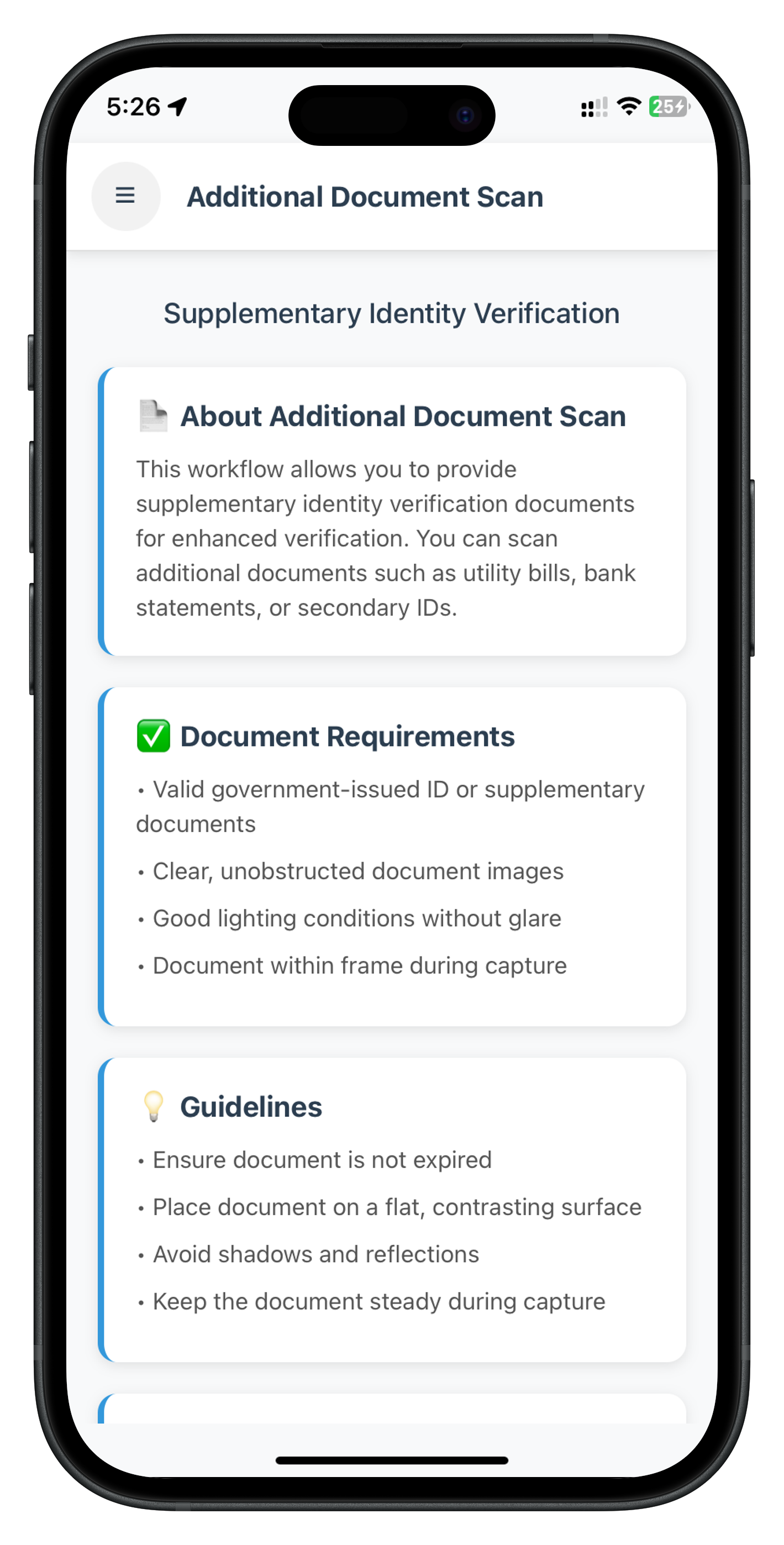
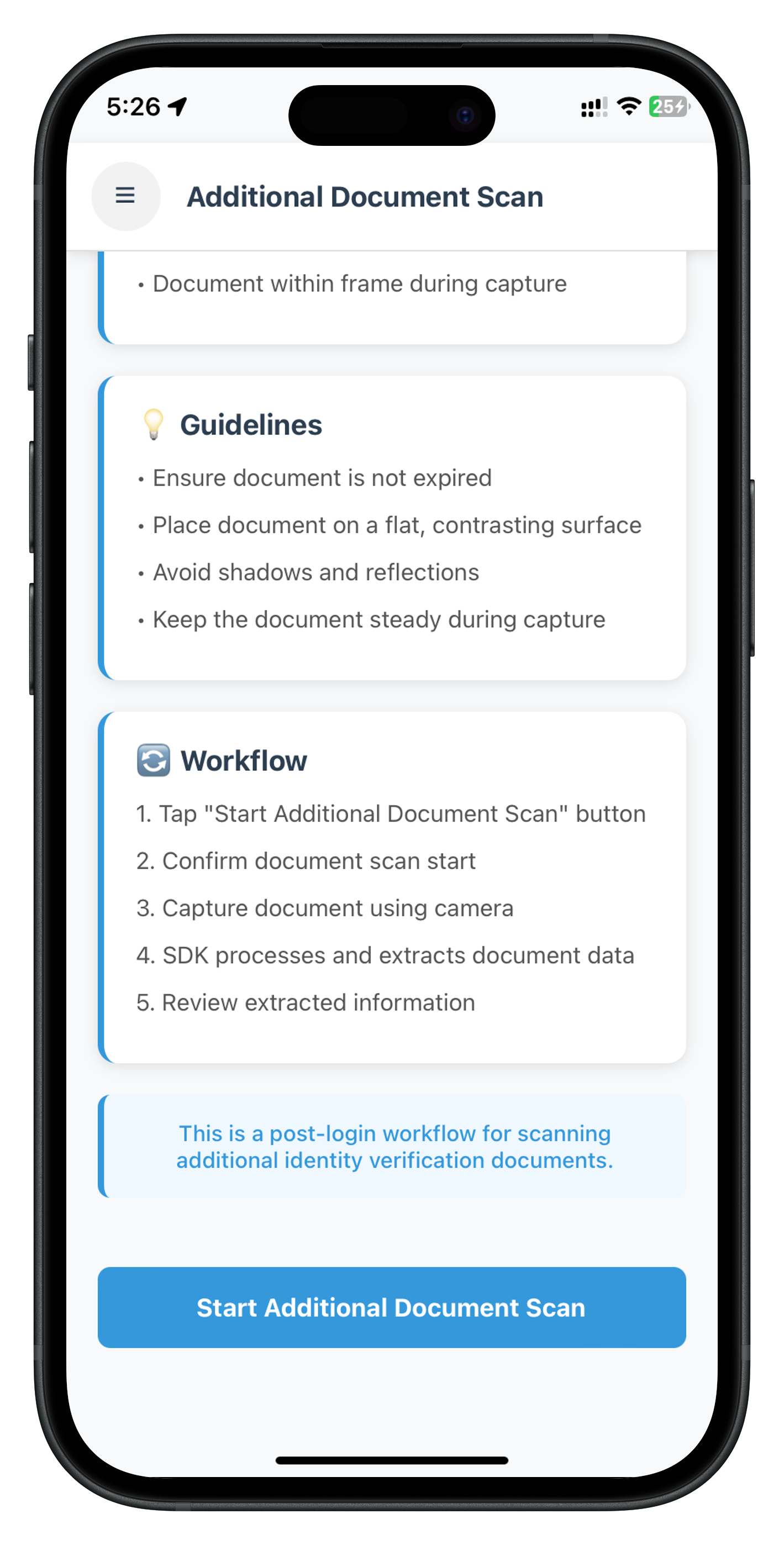
Overview
The onIDVAdditionalDocumentScan event is triggered after document capture and contains the extracted document data. This event uses challengeMode: 10 and is specific to workflow 7 (RDNA_IDV_ADDITIONAL_DOCUMENT_SCAN).
Key Validation Points:
- challengeMode: Always
10for additional document scan (vs9for KYC,8for pre-login) - error.longErrorCode:
0= API success,240= user cancelled,> 0= API error - status.statusCode:
100= validation success, other values = validation error - idvResponse.document_type: Document type extracted (e.g., "PASSPORT", "DRIVER_LICENSE")
Event Manager Setup
The event manager in rdnaIDVEventManager.ts handles the validation event:
// Event listener registration
private onIDVAdditionalDocumentScan(response: RDNAJsonResponse) {
  console.log('RdnaIDVEventManager - Additional document scan validation event received');

  try {
    const data: RDNAIDVAdditionalDocumentScanData = JSON.parse(response.response);

    console.log('RdnaIDVEventManager - User ID:', data.userID);
    console.log('RdnaIDVEventManager - Session ID:', data.sessionID);
    console.log('RdnaIDVEventManager - Challenge Mode:', data.challengeMode); // Should be 10
    console.log('RdnaIDVEventManager - Reason:', data.reason);
    console.log('RdnaIDVEventManager - Error Code:', data.error?.longErrorCode);
    console.log('RdnaIDVEventManager - Status Code:', data.status?.statusCode);
    console.log('RdnaIDVEventManager - Status Message:', data.status?.statusMessage);

    // Log extracted data structure
    if (data.idvResponse) {
      console.log('RdnaIDVEventManager - Document Type:', data.idvResponse.document_type);
      console.log('RdnaIDVEventManager - Orchestration Use Case:', data.idvResponse.orchestration_use_case);
      console.log('RdnaIDVEventManager - Overall Confidence:', data.idvResponse.confidence_scores?.overall_confidence);
      console.log('RdnaIDVEventManager - Authenticity Score:', data.idvResponse.confidence_scores?.authenticity_score);
      console.log('RdnaIDVEventManager - Document Authenticity:', data.idvResponse.validation_results?.document_authenticity);
      console.log('RdnaIDVEventManager - Data Consistency:', data.idvResponse.validation_results?.data_consistency);
      console.log('RdnaIDVEventManager - Expiry Valid:', data.idvResponse.validation_results?.expiry_valid);
    }

    // Call screen-level handler if registered
    if (this.additionalDocumentScanHandler) {
      this.additionalDocumentScanHandler(data);
    } else {
      console.warn('RdnaIDVEventManager - No handler registered for additional document scan');
    }
  } catch (error) {
    console.error('RdnaIDVEventManager - Failed to parse additional document scan:', error);
  }
}

// Register event listener in constructor
this.listeners.push(
  this.rdnaEmitter.addListener(
    'onIDVAdditionalDocumentScan',
    this.onIDVAdditionalDocumentScan.bind(this)
  )
);

// Setter for screen-level handler
setAdditionalDocumentScanHandler(
  handler: ((data: RDNAIDVAdditionalDocumentScanData) => void) | undefined
) {
  console.log('RdnaIDVEventManager - Setting additional document scan handler');
  this.additionalDocumentScanHandler = handler;
}
Processing Validation Results
The screen-level handler processes the validation event (this is the same code as Step 3 above, shown here for reference):
const handleAdditionalDocumentScanResponse = useCallback(
  (data: RDNAIDVAdditionalDocumentScanData) => {
    console.log('AdditionalDocumentScanScreen - Additional document scan response received');
    console.log('AdditionalDocumentScanScreen - User ID:', data.userID);
    console.log('AdditionalDocumentScanScreen - Session ID:', data.sessionID);
    console.log('AdditionalDocumentScanScreen - Reason:', data.reason);
    console.log('AdditionalDocumentScanScreen - Error Code:', data.error?.longErrorCode);
    console.log('AdditionalDocumentScanScreen - Status Code:', data.status?.statusCode);
    console.log('AdditionalDocumentScanScreen - Status Message:', data.status?.statusMessage);

    const errorCode = data.error?.longErrorCode;
    const statusCode = data.status?.statusCode;
    const statusMessage = data.status?.statusMessage || 'Unknown status';
    const errorString = data.error?.errorString || 'Unknown error';

    // Dual Validation Pattern:
    // 1st Check: Sync error (error.longErrorCode !== 0)
    // 2nd Check: Backend status (statusCode !== 100 && statusCode !== 0)

    if (errorCode !== 0) {
      // Sync error - API call failed
      console.log('AdditionalDocumentScanScreen - Error detected:', errorCode);

      // Navigate back to this screen in DrawerNavigator (maintains menu button functionality)
      (navigation as any).navigate('DrawerNavigator', {
        screen: 'AdditionalDocumentScan'
      });

      setTimeout(() => {
        setModalTitle('Error');
        setModalMessage(`${errorString} (Error Code: ${errorCode})`);
        setIsSuccess(false);
        setShowModal(true);
      }, 300);
    } else if (statusCode && statusCode !== 100 && statusCode !== 0) {
      // Backend error - workflow failed
      console.log('AdditionalDocumentScanScreen - Status error:', statusCode);

      // Navigate back to this screen in DrawerNavigator (maintains menu button functionality)
      (navigation as any).navigate('DrawerNavigator', {
        screen: 'AdditionalDocumentScan'
      });

      setTimeout(() => {
        setModalTitle('Error');
        setModalMessage(`${statusMessage} (Status Code: ${statusCode})`);
        setIsSuccess(false);
        setShowModal(true);
      }, 300);
    } else {
      // Success - navigate to result screen to display document data
      console.log('AdditionalDocumentScanScreen - Document scan successful, navigating to result screen');
      console.log('AdditionalDocumentScanScreen - Document Type:', data.idvResponse?.document_type);
      console.log('AdditionalDocumentScanScreen - Overall Confidence:', data.idvResponse?.confidence_scores?.overall_confidence);

      // Navigate to result screen with document data
      navigation.navigate('IDVAdditionalDocumentScanResult' as any, {
        challengeMode: data.challengeMode,
        eventData: data,
      });
    }
  },
  [navigation]
);
What You've Learned
- ✅ onIDVAdditionalDocumentScan event structure with challengeMode 10
- ✅ Extracted data structure (identity_data, document_info, document_status)
- ✅ Event manager registration and handler setup
- ✅ Error code handling (0 = success, 240 = cancelled)
- ✅ Navigation patterns for different validation outcomes
Overview
The IDVAdditionalDocumentScanResultScreen displays the comprehensive document data extracted during the scan. This screen receives the validation event data with challengeMode: 10 and presents it in an organized, user-friendly format.
Screen Implementation
Step 1: Import and Type Definitions
import React, { useState, useEffect } from 'react';
import {
  View,
  Text,
  StyleSheet,
  StatusBar,
  SafeAreaView,
  ScrollView,
  Image,
  Dimensions,
  Platform,
} from 'react-native';
import { useRoute, useNavigation } from '@react-navigation/native';
import type { RouteProp } from '@react-navigation/native';
import type { NativeStackNavigationProp } from '@react-navigation/native-stack';
import { Button } from '../../components';
import type { RootStackParamList } from '../../../navigation/AppNavigator';

const { width: SCREEN_WIDTH } = Dimensions.get('window');

type IDVAdditionalDocumentScanResultRouteProp = RouteProp<RootStackParamList, 'IDVAdditionalDocumentScanResult'>;
type NavigationProp = NativeStackNavigationProp<RootStackParamList>;
Key imports:
- useState, useEffect: For state management and side effects
- Image, Dimensions: For displaying document and portrait images
- Platform: For platform-specific styling
- NativeStackNavigationProp: For type-safe navigation
- Path correction:
../../componentsand../../../navigation/AppNavigator
Step 2: Extract Validation Data
const IDVAdditionalDocumentScanResultScreen: React.FC = () => {
  const route = useRoute<IDVAdditionalDocumentScanResultRouteProp>();
  const navigation = useNavigation<NavigationProp>();

  const {
    challengeMode,
    eventData,
  } = route.params || {};

  const idvResponse = eventData?.idvResponse;

  /**
   * Log screen mount and parameters
   */
  useEffect(() => {
    console.log('IDVAdditionalDocumentScanResult - Screen mounted with params:', {
      challengeMode,
      idvResponse,
    });
  }, [challengeMode, idvResponse]);
Step 3: Implement Done Button Navigation
  /**
   * Handle Done Button
   * Navigates back to AdditionalDocumentScan screen in DrawerNavigator
   */
  const handleDone = () => {
    console.log('IDVAdditionalDocumentScanResult - Done button pressed, navigating to AdditionalDocumentScan in DrawerNavigator');
    navigation.navigate('DrawerNavigator', {
      screen: 'AdditionalDocumentScan'
    } as any);
  };
Step 4: Implement Helper Functions
The actual implementation uses several helper functions to render different sections dynamically:
  /**
   * Get status color based on status value
   */
  const getStatusColor = (status: string): string => {
    switch (status) {
      case 'OK': return '#27ae60';
      case 'ERROR': return '#e74c3c';
      case 'WARNING': return '#f39c12';
      case 'NOT DONE': return '#f39c12';
      default: return '#7f8c8d';
    }
  };
Step 5: Implement Render Functions
The screen uses multiple render functions to display different data sections:
  /**
   * Render personal info header with portrait and signature
   */
  const renderPersonalInfoHeader = () => {
    const fullName = idvResponse?.identity_data?.['Surname and given names'] ||
                     `${idvResponse?.identity_data?.['Given name'] || ''} ${idvResponse?.identity_data?.Surname || ''}`.trim();
    const portraitImage = idvResponse?.document_info?.document_images?.portrait_image;
    const signatureImage = idvResponse?.document_info?.document_images?.signature_image;

    if (!fullName && !portraitImage && !signatureImage) return null;

    return (
      <View style={styles.personalInfoContainer}>
        <View style={styles.personalInfoContent}>
          <View style={styles.personalInfoText}>
            {fullName && <Text style={styles.nameText}>{fullName}</Text>}
            {signatureImage && (
              <View style={styles.signatureContainer}>
                <Text style={styles.imageLabel}>Signature</Text>
                <Image
                  source={{ uri: `data:image/jpg;base64,${signatureImage}` }}
                  style={styles.signatureImage}
                  resizeMode="contain"
                />
              </View>
            )}
          </View>
          {portraitImage && (
            <View style={styles.portraitContainer}>
              <Image
                source={{ uri: `data:image/jpg;base64,${portraitImage}` }}
                style={styles.portraitImage}
                resizeMode="cover"
              />
            </View>
          )}
        </View>
      </View>
    );
  };

  /**
   * Render document metadata and overall status
   */
  const renderDocumentMetadata = () => {
    const documentInfo = idvResponse?.document_info;
    const documentStatus = idvResponse?.document_status;
    const version = idvResponse?.version;

    const hasMetadata = documentInfo || documentStatus || version;
    if (!hasMetadata) return null;

    const overallStatus = documentStatus?.overall_document_status;
    const statusColor = getStatusColor(overallStatus || '');

    return (
      <View style={styles.section}>
        <Text style={styles.sectionTitle}>Document Information</Text>
        <View style={styles.dataContainer}>
          {overallStatus && (
            <View style={styles.dataRow}>
              <Text style={styles.dataLabel}>Document Status</Text>
              <Text style={[styles.dataValue, { color: statusColor, fontWeight: 'bold' }]}>
                {overallStatus}
              </Text>
            </View>
          )}
          {documentInfo?.document_names && documentInfo.document_names[0] && (
            <View style={styles.dataRow}>
              <Text style={styles.dataLabel}>Document Name</Text>
              <Text style={styles.dataValue}>{documentInfo.document_names[0]}</Text>
            </View>
          )}
          {documentInfo?.document_type && documentInfo.document_type[0] && (
            <View style={styles.dataRow}>
              <Text style={styles.dataLabel}>Document Type</Text>
              <Text style={styles.dataValue}>{documentInfo.document_type[0]}</Text>
            </View>
          )}
          {documentInfo?.field_count !== undefined && (
            <View style={styles.dataRow}>
              <Text style={styles.dataLabel}>Fields Extracted</Text>
              <Text style={styles.dataValue}>{documentInfo.field_count}</Text>
            </View>
          )}
          {version && (
            <View style={styles.dataRow}>
              <Text style={styles.dataLabel}>Schema Version</Text>
              <Text style={styles.dataValue}>{version}</Text>
            </View>
          )}
        </View>
      </View>
    );
  };

  /**
   * Render identity data fields dynamically
   */
  const renderIdentityData = () => {
    const identityData = idvResponse?.identity_data;
    if (!identityData || Object.keys(identityData).length === 0) return null;

    return (
      <View style={styles.section}>
        <Text style={styles.sectionTitle}>Extracted Information</Text>
        <View style={styles.dataContainer}>
          {Object.entries(identityData).map(([key, value]) => (
            <View key={key} style={styles.dataRow}>
              <Text style={styles.dataLabel}>
                {key.replace(/_/g, ' ').replace(/\b\w/g, l => l.toUpperCase())}
              </Text>
              <Text style={styles.dataValue}>{String(value)}</Text>
            </View>
          ))}
        </View>
      </View>
    );
  };

  /**
   * Render error list
   */
  const renderErrorList = () => {
    const errorList = idvResponse?.document_status?.error_list;
    if (!errorList || errorList.length === 0) return null;

    return (
      <View style={styles.section}>
        <Text style={[styles.sectionTitle, { color: '#e74c3c' }]}>Validation Errors</Text>
        <View style={[styles.listContainer, { borderLeftColor: '#e74c3c' }]}>
          {errorList.map((error: string, index: number) => (
            <View key={index} style={styles.listItem}>
              <Text style={styles.listBullet}>•</Text>
              <Text style={styles.listText}>{error}</Text>
            </View>
          ))}
        </View>
      </View>
    );
  };

  /**
   * Render warning list
   */
  const renderWarningList = () => {
    const warningList = idvResponse?.document_status?.warning_list;
    if (!warningList || warningList.length === 0) return null;

    return (
      <View style={styles.section}>
        <Text style={[styles.sectionTitle, { color: '#f39c12' }]}>Warnings</Text>
        <View style={[styles.listContainer, { borderLeftColor: '#f39c12' }]}>
          {warningList.map((warning: string, index: number) => (
            <View key={index} style={styles.listItem}>
              <Text style={styles.listBullet}>•</Text>
              <Text style={styles.listText}>{warning}</Text>
            </View>
          ))}
        </View>
      </View>
    );
  };

  /**
   * Render document images (front and back pages)
   */
  const renderDocumentImages = () => {
    const frontPage = idvResponse?.document_info?.document_images?.front_page;
    const backPage = idvResponse?.document_info?.document_images?.back_page;

    if (!frontPage && !backPage) return null;

    return (
      <View style={styles.section}>
        <Text style={styles.sectionTitle}>Document Images</Text>
        {frontPage && (
          <View style={styles.documentImageContainer}>
            <Text style={styles.imageLabel}>Front Page</Text>
            <Image
              source={{ uri: `data:image/jpg;base64,${frontPage}` }}
              style={styles.documentImage}
              resizeMode="contain"
            />
          </View>
        )}
        {backPage && (
          <View style={styles.documentImageContainer}>
            <Text style={styles.imageLabel}>Back Page</Text>
            <Image
              source={{ uri: `data:image/jpg;base64,${backPage}` }}
              style={styles.documentImage}
              resizeMode="contain"
            />
          </View>
        )}
      </View>
    );
  };

  /**
   * Render detailed validation checks
   */
  const renderChecksPerformed = () => {
    const checksPerformed = idvResponse?.document_status?.checks_performed;
    if (!checksPerformed || checksPerformed.length === 0) return null;

    return (
      <View style={styles.section}>
        <Text style={styles.sectionTitle}>Validation Checks</Text>
        <View style={styles.checksContainer}>
          {checksPerformed.map((check: any, index: number) => {
            const checkStatusColor = getStatusColor(check.check_status);

            return (
              <View key={index} style={styles.checkGroup}>
                <View style={styles.checkHeader}>
                  <Text style={styles.checkName}>{check.check_name}</Text>
                  <Text style={[styles.checkStatus, { color: checkStatusColor }]}>
                    {check.check_status}
                  </Text>
                </View>
                <Text style={styles.checkCategory}>Category: {check.check_category}</Text>
                {check.check_detail && check.check_detail.length > 0 && (
                  <View style={styles.checkDetailsContainer}>
                    {check.check_detail.map((detail: any, detailIndex: number) => {
                      const detailStatusColor = getStatusColor(detail.status);
                      return (
                        <View key={detailIndex} style={styles.checkDetail}>
                          <Text style={styles.checkDetailElement}>
                            {detail.element || 'Check'}
                          </Text>
                          <Text style={[styles.checkDetailStatus, { color: detailStatusColor }]}>
                            {detail.status}
                          </Text>
                        </View>
                      );
                    })}
                  </View>
                )}
              </View>
            );
          })}
        </View>
      </View>
    );
  };
Step 6: Implement Main Render
  return (
    <SafeAreaView style={styles.safeArea}>
      <StatusBar barStyle="dark-content" backgroundColor="#f8f9fa" />

      <ScrollView
        style={styles.scrollView}
        contentContainerStyle={styles.scrollContent}
        showsVerticalScrollIndicator={true}
      >
        <View style={styles.content}>
          {/* Title Section */}
          <Text style={styles.title}>Additional Document Scan Result</Text>
          <Text style={styles.subtitle}>
            Review the extracted information from your additional document
          </Text>

          {/* Personal Info Header (Portrait + Signature) */}
          {renderPersonalInfoHeader()}

          {/* Document Metadata and Status */}
          {renderDocumentMetadata()}

          {/* Error List */}
          {renderErrorList()}

          {/* Warning List */}
          {renderWarningList()}

          {/* Identity Data */}
          {renderIdentityData()}

          {/* Document Images */}
          {renderDocumentImages()}

          {/* Validation Checks */}
          {renderChecksPerformed()}

          {/* Done Button */}
          <Button
            title="Done"
            onPress={handleDone}
            variant="primary"
            style={styles.doneButton}
          />
        </View>
      </ScrollView>
    </SafeAreaView>
  );
};
Styling
const styles = StyleSheet.create({
  safeArea: {
    flex: 1,
    backgroundColor: '#f8f9fa',
  },
  container: {
    flex: 1,
  },
  content: {
    padding: 20,
  },
  title: {
    fontSize: 28,
    fontWeight: 'bold',
    color: '#2c3e50',
    textAlign: 'center',
    marginBottom: 8,
  },
  subtitle: {
    fontSize: 14,
    color: '#7f8c8d',
    textAlign: 'center',
    marginBottom: 24,
  },
  section: {
    backgroundColor: '#ffffff',
    borderRadius: 12,
    padding: 16,
    marginBottom: 16,
    shadowColor: '#000',
    shadowOffset: { width: 0, height: 2 },
    shadowOpacity: 0.1,
    shadowRadius: 4,
    elevation: 3,
  },
  sectionTitle: {
    fontSize: 18,
    fontWeight: 'bold',
    color: '#2c3e50',
    marginBottom: 12,
  },
  infoRow: {
    flexDirection: 'row',
    paddingVertical: 8,
    borderBottomWidth: 1,
    borderBottomColor: '#ecf0f1',
  },
  infoLabel: {
    flex: 1,
    fontSize: 14,
    color: '#7f8c8d',
    fontWeight: '600',
  },
  infoValue: {
    flex: 2,
    fontSize: 14,
    color: '#2c3e50',
  },
  button: {
    marginTop: 16,
  },
});
What You've Built
- ✅ Comprehensive result display with challengeMode 10 validation data
- ✅ Organized sections for identity, document details, and status
- ✅ Conditional field rendering for different document types
- ✅ Drawer navigator pattern for menu button functionality
- ✅ Clean, user-friendly interface for reviewing extracted data
IDVAdditionalDocumentScanResult Screen UI Preview
Top Portion - Identity Information |
Bottom Portion - Document Details & Status |
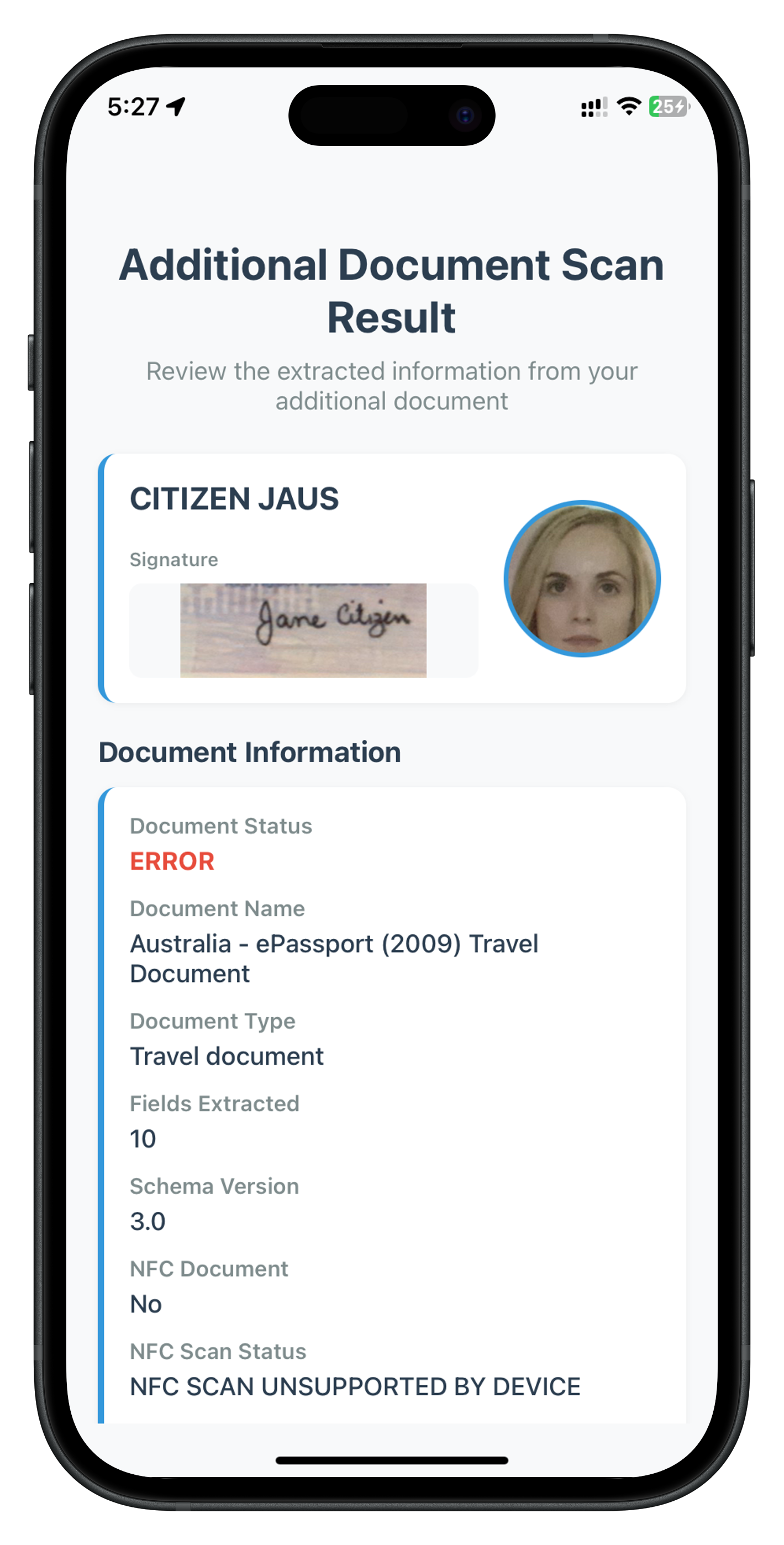
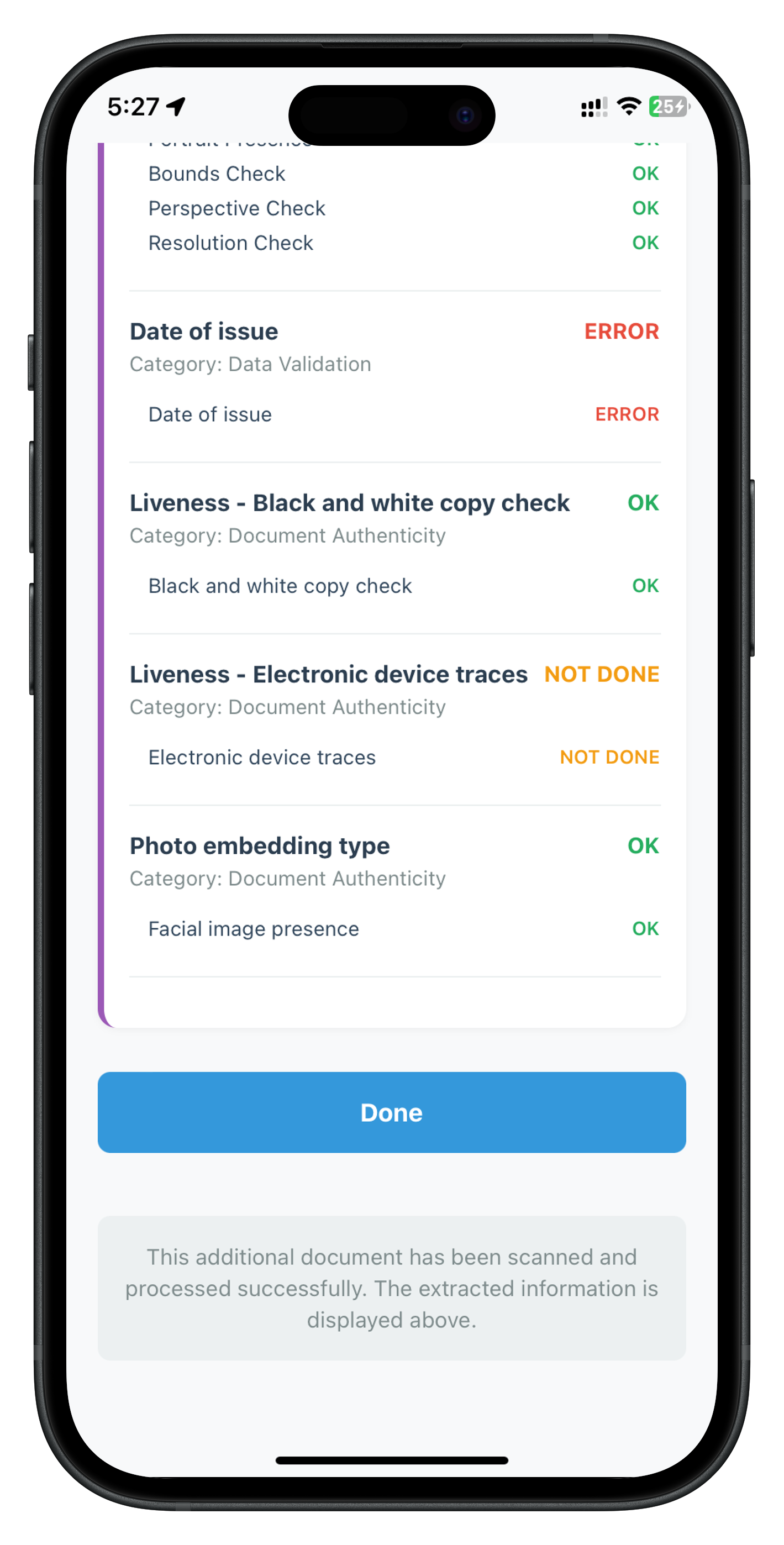
Overview
Proper navigation is critical for maintaining menu button (hamburger icon) functionality throughout the additional document scan flow. Screens that need drawer functionality must be registered in the Drawer Navigator and accessed using the drawer navigator pattern.
The Navigation Problem
When screens are registered in both Stack Navigator and Drawer Navigator, React Navigation finds the Stack version first during direct navigation, which loses the drawer context and breaks the menu button.
App Structure:
├─ Stack Navigator (Root)
   ├─ Screen: Login
   ├─ Screen: Dashboard
   └─ Screen: DrawerNavigator (Nested)
       ├─ Screen: Dashboard
       ├─ Screen: AdditionalDocumentScan ← Registered here
       └─ Screen: ActivatedCustomerKYC
Problem: If AdditionalDocumentScan is also registered in Stack Navigator, calling navigation.navigate('AdditionalDocumentScan') finds the Stack version first, losing drawer context.
Solution: Register AdditionalDocumentScan ONLY in Drawer Navigator, and always use the drawer navigator pattern.
Drawer Menu UI Preview
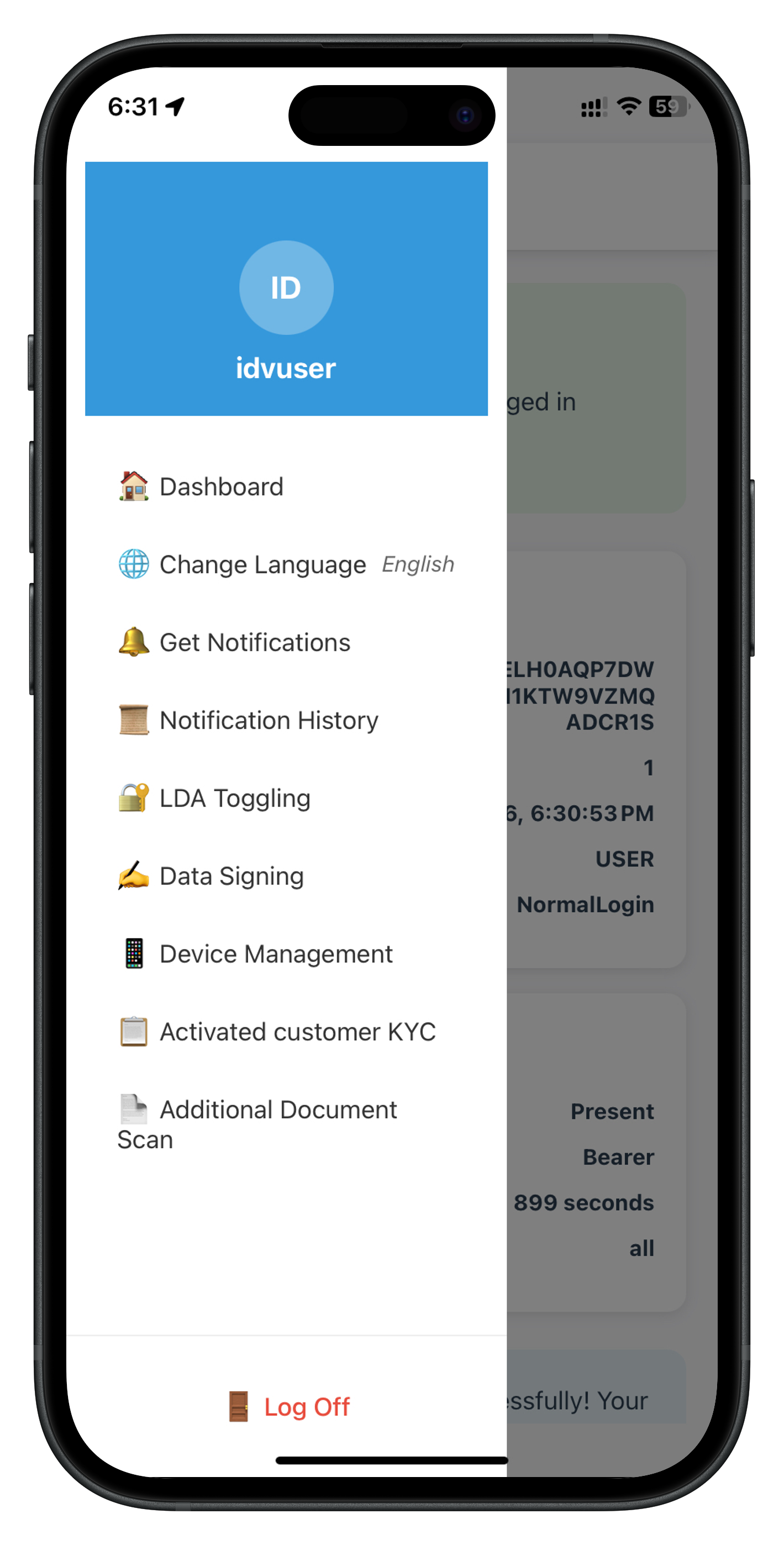
Correct Navigation Pattern
Always navigate to drawer screens using this pattern:
// ✅ CORRECT: Explicitly navigate through DrawerNavigator
navigation.navigate('DrawerNavigator', {
  screen: 'AdditionalDocumentScan'
} as any);
// ❌ WRONG: Direct navigation loses drawer context
navigation.navigate('AdditionalDocumentScan');
Implementation in Result Screen
const handleDone = () => {
  console.log('IDVAdditionalDocumentScanResult - Done button pressed');
  console.log('Navigating to AdditionalDocumentScan in DrawerNavigator');

  // Navigate back to entry screen while maintaining drawer context
  (navigation as any).navigate('DrawerNavigator', {
    screen: 'AdditionalDocumentScan'
  });

  // Menu button will continue to work on the entry screen
};
Implementation in Entry Screen Event Handler
const handleAdditionalDocumentScanResponse = useCallback(
  (data: RDNAIDVAdditionalDocumentScanData) => {
    const errorCode = data.error?.longErrorCode;

    if (errorCode === 240) {
      // User cancelled - navigate back using drawer pattern
      (navigation as any).navigate('DrawerNavigator', {
        screen: 'AdditionalDocumentScan'
      });

      // Show cancellation message
      setTimeout(() => {
        setShowModal(true);
        setModalMessage('Document scan was cancelled.');
      }, 300);

    } else if (errorCode !== 0) {
      // Error - navigate back using drawer pattern
      (navigation as any).navigate('DrawerNavigator', {
        screen: 'AdditionalDocumentScan'
      });

      // Show error message
      setTimeout(() => {
        setShowModal(true);
        setModalMessage(`Error: ${data.error?.errorString}`);
      }, 300);
    }
  },
  [navigation]
);
Drawer Navigator Configuration
Ensure the screen is registered in DrawerNavigator.tsx:
// DrawerNavigator.tsx
import AdditionalDocumentScanScreen from '../screens/idv/additionalDocumentScan/AdditionalDocumentScanScreen';

const Drawer = createDrawerNavigator();

function DrawerNavigator() {
  return (
    <Drawer.Navigator
      drawerContent={(props) => <DrawerContent {...props} />}
      screenOptions={{
        headerShown: true,
        drawerPosition: 'left',
      }}
    >
      <Drawer.Screen
        name="Dashboard"
        component={DashboardScreen}
        options={{ title: 'Dashboard' }}
      />

      {/* Additional Document Scan Screen - Registered in Drawer */}
      <Drawer.Screen
        name="AdditionalDocumentScan"
        component={AdditionalDocumentScanScreen}
        options={{ title: 'Additional Document Scan' }}
      />

      <Drawer.Screen
        name="ActivatedCustomerKYC"
        component={ActivatedCustomerKYCScreen}
        options={{ title: 'KYC Verification' }}
      />
    </Drawer.Navigator>
  );
}
Menu Button Verification
After implementing the drawer navigator pattern, verify menu button functionality:
1. Complete a document scan flow
2. Click "Done" button on result screen
3. Verify you're back on AdditionalDocumentScan screen
4. Click the menu button (hamburger icon) in the header
5. Drawer menu should open smoothly
6. Select another menu item (e.g., Dashboard)
7. Menu navigation should work correctly
What You've Learned
- ✅ Why drawer navigator pattern is required for menu button functionality
- ✅ Correct navigation pattern:
navigation.navigate('DrawerNavigator', { screen: 'ScreenName' }) - ✅ Where to apply drawer navigation (result screen, error handlers, cancellation handlers)
- ✅ How to register screens in Drawer Navigator only
- ✅ How to verify menu button functionality after navigation
Overview
Error 240 is a special error code that occurs when users click the close button (X) on the document scan confirmation screen. It's not a system error but rather expected user behavior that should be handled gracefully.
When Error 240 Occurs
User Flow Leading to Error 240:
1. User clicks "Start Additional Document Scan"
2. initiateIDVAdditionalDocumentScan() called successfully
3. SDK triggers getIDVDocumentScanProcessStartConfirmation event (workflow 7)
4. User navigated to IDVDocumentProcessStartConfirmationScreen
5. User clicks close button (X) instead of "Start Scan"
6. setIDVDocumentScanProcessStartConfirmation(false, 7) called
7. SDK cancels workflow
8. onIDVAdditionalDocumentScan event triggered with error 240
Error 240 Event Structure
// Event data when error 240 occurs
{
  userID: "user@example.com",
  sessionID: "session-12345",
  challengeMode: 10,  // Still challenge mode 10
  reason: "Additional Document Verification",
  documentType: "PASSPORT",
  error: {
    longErrorCode: 240,  // User cancelled
    errorString: "User Cancelled"
  },
  idvResponse: undefined  // No document data when cancelled
}
Understanding Error 240
Error 240 indicates the user cancelled the document scan workflow by clicking the close button (X) on the confirmation screen. This is expected user behavior, not a system error.
Current Implementation Status:
The current implementation treats error 240 the same as other errors (shows "Error" modal). While this works functionally, best practice would be to handle error 240 specially with friendly "Cancelled" messaging.
Best Practice Approach (not currently implemented):
const handleAdditionalDocumentScanResponse = useCallback(
  (data: RDNAIDVAdditionalDocumentScanData) => {
    const errorCode = data.error?.longErrorCode;
    const errorString = data.error?.errorString;

    // Check for error 240 specifically
    if (errorCode === 240) {
      console.log('User cancelled document scan (error 240) - expected behavior');

      (navigation as any).navigate('DrawerNavigator', {
        screen: 'AdditionalDocumentScan'
      });

      setTimeout(() => {
        setModalTitle('Cancelled');  // Friendly title, not "Error"
        setModalMessage('Document scan was cancelled. Click "Start Additional Document Scan" to retry.');
        setIsSuccess(false);
        setShowModal(true);
      }, 300);
      return;
    }

    // Handle actual errors
    if (errorCode !== 0) {
      console.error('Actual error detected:', errorCode);
      // ... error handling
    }
  },
  [navigation]
);
Close Button Implementation
The close button on the document scan confirmation screen triggers error 240:
// IDVDocumentProcessStartConfirmationScreen.tsx
const handleClose = async () => {
  console.log('Document scan confirmation - Close button clicked');
  console.log('Calling setIDVDocumentScanProcessStartConfirmation(false, 7)');

  try {
    const idvWorkflow = 7;  // RDNA_IDV_ADDITIONAL_DOCUMENT_SCAN
    const isConfirm = false;  // User is cancelling

    // This will trigger onIDVAdditionalDocumentScan with error 240
    await rdnaIDVService.setIDVDocumentScanProcessStartConfirmation(
      isConfirm,
      idvWorkflow
    );

    console.log('Cancellation API called - validation event will fire with error 240');
  } catch (error) {
    console.error('Failed to cancel document scan:', error);
  }
};
Testing Error 240 Flow
Verify error 240 behavior works correctly:
1. Navigate to Additional Document Scan screen
2. Click "Start Additional Document Scan"
3. Wait for document scan confirmation screen to appear
4. Click the close button (X) in the top-right corner
5. Verify:
   - Console shows "error 240" logs
   - User returns to entry screen
   - "Error" modal appears with error code 240 message
   - "Start Additional Document Scan" button is available for retry
   - User can click button to retry workflow
   - Menu button still works correctly
Key Takeaways
- Error 240 = User Cancellation: Not a system failure, but expected behavior when user clicks X button
- Current Implementation: Treats error 240 same as other errors (functional but not ideal UX)
- Best Practice: Special handling with friendly messaging (can be added as improvement)
- Button State: The
isInitiatingstate is automatically reset by navigation flow, keeping button available for retry
What You've Learned
- ✅ Error 240 is user-initiated cancellation, not a system error
- ✅ Triggered by
setIDVDocumentScanProcessStartConfirmation(false, 7) - ✅ Should be handled with friendly messaging and retry option
- ✅ Validation event still uses challengeMode 10 even with error 240
- ✅ Button must be re-enabled after cancellation for user retry
Overview
Comprehensive testing ensures the additional document scan flow works correctly with workflow 7 and challenge mode 10 across all scenarios.
Complete Flow Testing
Test 1: Successful Document Scan
Steps:
1. Login with activated credentials
2. Navigate to Dashboard → Open Drawer → Select "Additional Document Scan"
3. Verify: Entry screen displays with scan initiation button
4. Click "Start Additional Document Scan"
5. Verify: Console shows "initiateIDVAdditionalDocumentScan" called with reason
6. Verify: Navigation to document scan confirmation screen (workflow 7)
7. Click "Start Scan" button
8. Verify: Native camera opens for document capture
9. Scan a valid document
10. Verify: Console shows "onIDVAdditionalDocumentScan event received"
11. Verify: Console shows "Challenge Mode: 10"
12. Verify: Navigation to result screen with extracted data
13. Verify: Identity information displayed (name, DOB, nationality, etc.)
14. Verify: Document details displayed (document number, issue/expiry dates, etc.)
15. Verify: Validation status displayed (version, document status)
16. Click "Done" button
17. Verify: Navigation back to entry screen using drawer pattern
18. Verify: Menu button (hamburger icon) still works
19. Click menu button
20. Verify: Drawer menu opens successfully
Test 2: User Cancellation (Error 240)
Steps:
1. Navigate to Additional Document Scan screen
2. Click "Start Additional Document Scan"
3. Wait for document scan confirmation screen
4. Click close button (X) in top-right corner
5. Verify: Console shows "setIDVDocumentScanProcessStartConfirmation(false, 7)"
6. Verify: Console shows "onIDVAdditionalDocumentScan event with error 240"
7. Verify: Navigation back to entry screen
8. Verify: Friendly "Cancelled" modal appears (not "Error" modal)
9. Verify: Modal message includes retry instructions
10. Click "OK" on modal
11. Verify: "Start Additional Document Scan" button is re-enabled
12. Verify: User can retry the scan
13. Verify: Menu button still works
Test 3: Multiple Document Scans
Steps:
1. Complete successful document scan (Test 1)
2. Click "Done" to return to entry screen
3. Click "Start Additional Document Scan" again
4. Complete another document scan
5. Verify: New validation event received with challengeMode 10
6. Verify: Result screen shows extracted document data
7. Click "Done"
8. Verify: Back at entry screen with button enabled
9. Verify: Can perform third scan if desired
Menu Button Functionality Verification
After each test above, verify:
1. Menu button (hamburger icon) is visible in header
2. Clicking menu button opens drawer menu
3. Drawer menu shows all navigation items
4. Selecting "Dashboard" from drawer navigates correctly
5. Selecting "Additional Document Scan" again from drawer works
6. Menu button continues working after navigation
Console Log Verification
During testing, verify these key console logs appear:
For successful flow:
✓ "AdditionalDocumentScan - Starting document scan"
✓ "RdnaIDVService - Initiating additional document scan"
✓ "RdnaIDVEventManager - Additional document scan validation event received"
✓ "Challenge Mode: 10"
✓ "RdnaIDVEventManager - Identity Data: {...}"
✓ "RdnaIDVEventManager - Document Info: {...}"
✓ "AdditionalDocumentScanScreen - Document scan successful"
✓ "Navigating to AdditionalDocumentScan in DrawerNavigator"

For error 240:
✓ "setIDVDocumentScanProcessStartConfirmation(false, 7)"
✓ "onIDVAdditionalDocumentScan event with error 240"
✓ "User cancelled document scan (error 240)"
✓ "This is expected behavior when close button is clicked"
Error Handling Tests
Test 4: Network Failure During Initiation
Steps:
1. Disable network connection
2. Navigate to Additional Document Scan
3. Click "Start Additional Document Scan"
4. Verify: Error displayed on entry screen
5. Verify: Button remains enabled for retry
6. Re-enable network
7. Retry scan
8. Verify: Scan proceeds normally
Test 5: Poor Quality Document
Steps:
1. Start document scan with valid document type
2. In camera view, scan a blurry or partially obscured document
3. Verify: Validation event received but may contain incomplete data
4. Verify: Result screen displays available fields dynamically
5. Verify: Missing or undefined fields are not rendered (render functions handle this)
6. Click "Done"
7. Verify: Can retry with better quality document
Performance Testing
- Scan Duration: Document capture to result display should complete in < 5 seconds
- Navigation Smoothness: All screen transitions should be smooth without lag
- Event Handler Responsiveness: Validation event should trigger result navigation immediately
- Memory Usage: Multiple scans should not cause memory leaks (verify event handler cleanup)
What You've Verified
- ✅ Complete document scan flow with workflow 7 and challengeMode 10
- ✅ Error 240 handling with friendly cancellation messaging
- ✅ Multiple consecutive document scans in one session
- ✅ Menu button functionality throughout entire flow
- ✅ Drawer navigator pattern maintains drawer context
- ✅ Extracted data display with different document types
- ✅ Error handling for network failures and poor quality scans
- ✅ Console logging for debugging and verification
Congratulations!
You've successfully implemented the REL-ID IDV Post-Login Additional Document Scan Flow for React Native! 🎉
What You've Accomplished
In this codelab, you've built a complete, production-ready additional document verification system:
- ✅ Additional Document Scan Initiation:
initiateIDVAdditionalDocumentScanAPI with workflow 7 and reason parameter - ✅ Document Scan Process: Native camera integration with workflow 7 (RDNA_IDV_ADDITIONAL_DOCUMENT_SCAN)
- ✅ Validation Event Handling:
onIDVAdditionalDocumentScanwith challengeMode 10 - ✅ Comprehensive Result Display: Extracted identity data, document info, and validation status
- ✅ Drawer Navigator Pattern: Proper navigation maintaining menu button functionality
- ✅ Error 240 Handling: User-friendly cancellation messaging with retry option
- ✅ Multiple Scans Support: Users can scan multiple documents in one session
- ✅ Streamlined Flow: Document-only verification (no selfie or consent required)
Key Technical Achievements
You now understand:
- Workflow 7: RDNA_IDV_ADDITIONAL_DOCUMENT_SCAN for supplementary document verification
- Challenge Mode 10: Additional document scan specific validation mode
- Event-Driven Architecture: Screen-level handlers with
useFocusEffectfor persistent event handling - Drawer Navigation: Proper pattern to maintain menu button functionality
- Error 240: User cancellation is expected behavior, not a system error
- Dynamic Data Structures: Handling different document types with varying extracted fields
Next Steps
Now that you've mastered additional document scan, consider:
- Explore Biometric Opt-In ann Opt-Out
Thank you for completing the REL-ID IDV Post-Login Additional Document Scan Flow codelab!