🎯 Learning Path:
- Complete REL-ID Initialization Flow Codelab
- Complete REL-ID Complete Activation & Login Flow Codelab
- Complete REL-ID IDV MFA Activation Flow Codelab (Recommended)
- You are here → Post-Login KYC Flow Implementation
Welcome to the REL-ID IDV Post-Login KYC Flow codelab! This tutorial teaches you how to implement comprehensive Know Your Customer (KYC) identity verification for activated customers using document scanning, facial recognition, and biometric authentication.
What You'll Build
In this codelab, you'll implement a complete post-login KYC workflow for activated customers:
- 🏠 Drawer Menu Integration: Access KYC from Dashboard navigation
- 🆕 Activated Customer KYC Screen: Entry point for post-login KYC initiation
- 📄 Document Scan Process: Automated document verification with workflow 6
- 📸 Document Details Confirmation: Interactive OCR data validation with challenge mode 9
- 🤳 Selfie Capture Process: Live selfie capture with liveness detection
- ✅ Selfie Biometric Verification: Face matching with challenge mode 9 navigation
- 🔐 Biometric Consent Management: Template storage consent with mode-based behavior
- 🔔 Persistent Event Handling: Screen-level handlers that remain active
- ✅ Dual Validation Pattern: Two-tier error checking for robust validation
Key Difference: Post-Login KYC vs Pre-Login IDV
This codelab demonstrates post-login KYC for activated customers, where identity verification occurs after user login for compliance purposes:
Pre-Login IDV Flow (Challenge Mode 8):
Activation Code → IDV (Document → Selfie → Consent) → Password Setup → Dashboard

Post-Login KYC Flow (Challenge Mode 9 - This Codelab):
Login → Dashboard → Navigate to KYC → IDV (Document → Selfie → Consent) → Completion
Critical Differences:
- Workflow: 6 (RDNA_IDV_POSTLOGIN_KYC) instead of 0-5
- Challenge Mode: 9 (post-login) instead of 8 (pre-login)
- Entry Point: ActivatedCustomerKYCScreen (drawer menu) instead of activation flow
- Event Handling: Persistent screen-level handlers instead of global-only handlers
- Close Button: Challenge mode-based navigation (mode 9 uses cancel APIs or direct navigation)
- Validation: Dual validation pattern (SDK sync error + backend status code)
What You'll Learn
- ✅ How to implement post-login KYC workflow for activated customers
- ✅ Using workflow 6 (RDNA_IDV_POSTLOGIN_KYC) and challenge mode 9
- ✅ Implementing persistent event handlers that stay active across screens
- ✅ Managing drawer menu navigation for KYC access
- ✅ Document scanning with challenge mode 9 validation
- ✅ Selfie capture with challenge mode 9 navigation patterns
- ✅ Handling biometric consent with response structure differences
- ✅ Implementing dual validation pattern (sync error + backend status)
- ✅ Challenge mode-based close button behaviors
- ✅ Completing KYC with onActivatedCustomerKYCResponse event
Prerequisites
- Completion of REL-ID Initialization codelab
- Completion of REL-ID MFA Activation & Login codelab
- Understanding of pre-login IDV flow (recommended)
- Basic understanding of React Native and TypeScript
- REL-ID SDK integration credentials
- Document scanning license (Regula)
- Test identity documents for scanning
Technology Stack
- React Native: 0.80.1
- TypeScript: 5.0.4
- REL-ID SDK: react-native-rdna-client (Latest)
- Regula Document Reader: For document scanning and OCR
- Navigation: React Navigation 6.x with Drawer
Post-Login KYC Flow Diagram
Understanding the complete flow is crucial before implementation:
1. User Login (Activated Customer)
   ↓ (Existing credentials authenticated)

2. Dashboard → Open Drawer Menu
   ↓ (User navigates to KYC option)

3. 🆕 Activated Customer KYC Screen
   ├─ Display KYC information and requirements
   ├─ User clicks "Start KYC Verification"
   ├─ Screen-level event handler registered (persistent)
   ├─ initiateActivatedCustomerKYC("Post Login KYC")
   │  • workflow: 6 (RDNA_IDV_POSTLOGIN_KYC)
   │  • challengeMode: 9 (post-login)
   └─ SDK initiates post-login KYC workflow
   ↓

4. 📄 IDV Document Scan Process
   ├─ getIDVDocumentScanProcessStartConfirmation event
   │  • idvWorkflow: 6 (RDNA_IDV_POSTLOGIN_KYC)
   ├─ setIDVDocumentScanProcessStartConfirmation(true, 6)
   ├─ Native Document Capture (Regula SDK)
   ├─ getIDVConfirmDocumentDetails event
   │  • challengeMode: 9
   │  • response_data: OCR-extracted document fields
   │  • Close button: cancel API (mode 9) → triggers onActivatedCustomerKYCResponse
   └─ setIDVConfirmDocumentDetails(true, 9)
   ↓

5. 🤳 IDV Selfie Capture Process
   ├─ getIDVSelfieProcessStartConfirmation event
   │  • idvWorkflow: 6 (RDNA_IDV_POSTLOGIN_KYC)
   ├─ setIDVSelfieProcessStartConfirmation(true, false, 6)
   ├─ Native Selfie Capture (Liveness Detection)
   ├─ getIDVSelfieConfirmation event
   │  • challengeMode: 9
   │  • response_data: Biometric match results
   │  • Close button: navigate directly (mode 9) → no cancel API
   └─ setIDVSelfieConfirmation("true", 9)
   ↓

6. 🔐 IDV Biometric Consent
   ├─ getIDVBiometricOptInConsent event
   │  • challengeMode: 9
   │  • status at root level (no challengeResponse for mode 9)
   │  • Close button: navigate directly (mode 9)
   └─ setIDVBiometricOptInConsent(true, 9)
   ↓

7. ✅ KYC Completion
   ├─ onActivatedCustomerKYCResponse event triggered
   ├─ Screen-level handler receives event (even if on different screen)
   ├─ Handler navigates back to ActivatedCustomerKYCScreen via DrawerNavigator
   │  • navigation.navigate('DrawerNavigator', { screen: 'ActivatedCustomerKYC' })
   ├─ Dual validation performed:
   │  • Check error.longErrorCode (0 = OK, 240 = User Cancelled)
   │  • Check status.statusCode (100 or 0 = success)
   ├─ Success/Error modal shown
   └─ User clicks "Go to Dashboard" → Navigate to Dashboard
IDV Workflow and Challenge Mode Values
For post-login KYC flow, you'll use these specific values:
Parameter | Value | Description |
idvWorkflow |
|
|
challengeMode |
| Post-login challenge mode |
Comparison with Pre-Login Flow:
Aspect | Pre-Login (Activation) | Post-Login (KYC) |
Workflow | 0-5 (Activation workflows) | 6 (RDNA_IDV_POSTLOGIN_KYC) |
Challenge Mode | 8 | 9 |
Entry Point | ActivationCodeScreen | ActivatedCustomerKYCScreen (drawer menu) |
Close Button (Document Confirm) | resetAuthState() | cancel API → triggers event |
Close Button (Selfie Confirm) | resetAuthState() | Direct navigation |
Close Button (Biometric Consent) | resetAuthState() | Direct navigation |
Response Structure | challengeResponse.status | status at root level |
Event Handler | Global provider only | Screen-level + global provider |
Before You Begin
Ensure you have completed these requirements:
1. Previous Codelabs Completed
- ✅ REL-ID Initialization Flow
- ✅ REL-ID MFA Activation & Login Flow
- ✅ REL-ID IDV MFA Activation Flow (Recommended for IDV understanding)
2. Development Environment
# Required tools
Node.js >= 16
npm or yarn
React Native CLI
Xcode (for iOS) or Android Studio (for Android)
3. REL-ID SDK Credentials
- Connection profile configuration
- Valid REL-ID SDK license
- Document scanning license (Regula)
Get the Code from GitHub
The code to get started can be found in a GitHub repository.
You can clone the repository using the following command:
git clone https://github.com/uniken-team/relid-codelab-react-native.git
Navigate to the relid-IDV-post-login-kyc folder in the repository you cloned earlier:
cd relid-codelab-react-native/relid-IDV-post-login-kyc
Project Structure
The post-login KYC codelab follows this structure:
relid-IDV-post-login-kyc/
├── src/
│   ├── tutorial/
│   │   ├── screens/
│   │   │   ├── idv/                                      # IDV Screens
│   │   │   │   ├── activatedCustomerKyc/                # 🆕 KYC Entry Point
│   │   │   │   │   └── ActivatedCustomerKYCScreen.tsx   # Post-login KYC initiation
│   │   │   │   ├── IDVDocumentProcessStartConfirmationScreen.tsx
│   │   │   │   ├── IDVConfirmDocumentDetailsScreen.tsx
│   │   │   │   ├── IDVSelfieProcessStartConfirmationScreen.tsx
│   │   │   │   ├── IDVSelfieConfirmationScreen.tsx
│   │   │   │   ├── IDVBiometricOptInConsentScreen.tsx
│   │   │   │   └── index.ts
│   │   │   ├── mfa/                                      # MFA Screens
│   │   │   │   ├── DashboardScreen.tsx
│   │   │   │   └── ...
│   │   │   └── components/
│   │   │       ├── DrawerContent.tsx                     # 🆕 KYC menu item
│   │   │       └── ...
│   │   └── navigation/
│   │       ├── AppNavigator.tsx                          # 🆕 KYC route added
│   │       └── DrawerNavigator.tsx
│   └── uniken/
│       ├── services/
│       │   └── idv/
│       │       ├── rdnaIDVService.ts                     # 🆕 initiateActivatedCustomerKYC()
│       │       └── rdnaIDVEventManager.ts                # 🆕 onActivatedCustomerKYCResponse event
│       ├── types/
│       │   └── idv/
│       │       └── rdnaIDVEvents.ts                      # 🆕 RDNAIDVActivatedCustomerKYCResponseData
│       └── providers/
│           └── idv/
│               └── SDKIDVEventProvider.tsx               # 🆕 KYC response handler
├── android/
│   └── app/src/main/
│       ├── assets/Regula/                                # Document scanning assets
│       │   ├── db.dat                                    # 110.5MB database
│       │   └── certificates/
│       └── res/raw/
│           └── regula.license
└── ios/
    └── idv-artifacts/                                    # Document scanning assets
        ├── db.dat
        ├── regula.license
        └── Certificates.bundle/
IDV Assets Configuration
The project requires pre-configured IDV assets for document verification:
Android Configuration:
android/app/src/main/assets/Regula/db.dat
android/app/src/main/assets/Regula/certificates/icaopkd-002-complete-000325.ldif
android/app/src/main/res/raw/regula.license
iOS Configuration:
ios/idv-artifacts/db.dat
ios/idv-artifacts/regula.license
ios/idv-artifacts/Certificates.bundle/icaopkd-002-complete-000325.ldif
Overview
Before implementing the KYC screen, you need to add the initiateActivatedCustomerKYC() API method to the IDV service layer. This method initiates the post-login KYC workflow and returns a promise.
Implement initiateActivatedCustomerKYC API
Add the following method to rdnaIDVService.ts:
// src/uniken/services/idv/rdnaIDVService.ts

import RdnaClient from 'react-native-rdna-client/src/index';
import type { RDNASyncResponse } from '../../types/rdnaEvents';

class RdnaIDVService {
  // ... existing methods (document scan, selfie, consent methods)

  /**
   * Initiate Activated Customer KYC
   *
   * Initiates post-login KYC workflow for already activated customers.
   * This API triggers the complete IDV flow with workflow 6 (RDNA_IDV_POSTLOGIN_KYC)
   * and challenge mode 9 (post-login).
   *
   * @param reason - Reason for KYC initiation (e.g., "Post Login KYC", "Compliance Verification")
   * @returns Promise that resolves with sync response on successful initiation
   * @throws Promise that rejects with sync response on failure
   *
   * Flow:
   * 1. SDK initiates post-login KYC workflow (workflow 6, mode 9)
   * 2. SDK automatically triggers IDV workflow events:
   *    - getIDVDocumentScanProcessStartConfirmation
   *    - getIDVConfirmDocumentDetails
   *    - getIDVSelfieProcessStartConfirmation
   *    - getIDVSelfieConfirmation
   *    - getIDVBiometricOptInConsent
   * 3. After completion or cancellation, SDK triggers:
   *    - onActivatedCustomerKYCResponse event
   *
   * Success Response:
   * - error.longErrorCode = 0
   *
   * Error Responses:
   * - Sync error: error.longErrorCode !== 0
   * - Backend error: Received in onActivatedCustomerKYCResponse event
   */
  async initiateActivatedCustomerKYC(reason: string): Promise<RDNASyncResponse> {
    return new Promise((resolve, reject) => {
      console.log('RdnaIDVService - Initiating activated customer KYC');
      console.log('RdnaIDVService - Reason:', reason);

      RdnaClient.initiateActivatedCustomerKYC(
        reason,
        (response) => {
          console.log('RdnaIDVService - initiateActivatedCustomerKYC sync callback received');

          const result: RDNASyncResponse = response;

          // Check sync error
          if (result.error && result.error.longErrorCode === 0) {
            console.log('RdnaIDVService - Activated customer KYC initiated successfully');
            console.log('RdnaIDVService - SDK will trigger IDV workflow events');
            console.log('RdnaIDVService - Workflow: 6 (RDNA_IDV_POSTLOGIN_KYC)');
            console.log('RdnaIDVService - Challenge Mode: 9 (post-login)');
            resolve(result);
          } else {
            console.error('RdnaIDVService - Activated customer KYC initiation failed');
            console.error('RdnaIDVService - Error Code:', result.error?.longErrorCode);
            console.error('RdnaIDVService - Error String:', result.error?.errorString);
            reject(result);
          }
        }
      );
    });
  }

  // ... other existing methods
}

export default new RdnaIDVService();
Key Points
- Workflow 6: The API automatically uses
RDNA_IDV_POSTLOGIN_KYCworkflow - Challenge Mode 9: All subsequent IDV events will use post-login challenge mode
- Sync Callback: Immediate response confirming KYC initiation started
- Async Event: Final result comes via
onActivatedCustomerKYCResponseevent - Promise Pattern: Returns promise for easy async/await usage
Overview
Add the TypeScript interface for the onActivatedCustomerKYCResponse event data. This event is triggered after KYC completion or cancellation.
Implement RDNAIDVActivatedCustomerKYCResponseData Interface
Add the following type definition to rdnaIDVEvents.ts:
// src/uniken/types/idv/rdnaIDVEvents.ts

import { RDNAIDVWorkflow, RDNAChallengeOpMode } from 'react-native-rdna-client/src/index';
import type { RDNAError, RDNAChallengeResponse } from '../rdnaEvents';

// ... existing IDV event types (document scan, selfie, consent)

// ================================================================================================
// IDV ACTIVATED CUSTOMER KYC EVENT TYPES
// ================================================================================================

/**
 * RDNA IDV Activated Customer KYC Response Event Data
 * Response event triggered after initiateActivatedCustomerKYC API call
 *
 * This event is triggered when:
 * 1. KYC workflow completes successfully (all IDV steps done)
 * 2. User cancels during IDV flow (error 240 - User Cancelled)
 * 3. Backend returns an error during KYC initiation or processing
 *
 * Response Structure:
 * - error: SDK sync error information
 *   - longErrorCode: 0 = success, 240 = user cancelled, others = specific errors
 *   - errorString: Human-readable error message
 * - status: Backend status information
 *   - statusCode: 100 or 0 = success, others = backend errors
 *   - statusMessage: Backend status message
 *
 * Validation Pattern (Dual Validation):
 * 1. Check error.longErrorCode first (SDK level)
 * 2. Then check status.statusCode (Backend level)
 * 3. Success only if BOTH are valid
 *
 * Application should:
 * - Navigate back to ActivatedCustomerKYCScreen (even if on different screen)
 * - Perform dual validation (error.longErrorCode + status.statusCode)
 * - Show success/error modal with appropriate message
 * - Provide Dashboard navigation option
 *
 * Response: No API response needed - this is a completion event
 */
export interface RDNAIDVActivatedCustomerKYCResponseData {
  /** User ID of the customer completing KYC */
  userID?: string;

  /** Session ID for the KYC workflow */
  sessionID?: string;

  /** Reason provided when initiating KYC (e.g., "Post Login KYC") */
  reason?: string;

  /** SDK error information */
  error: RDNAError;

  /** Backend status information (at root level for post-login, mode 9) */
  status?: {
    statusCode?: number;
    statusMessage?: string;
  };

  /** Optional KYC workflow status details */
  kycWorkflowStatus?: {
    initiated: boolean;
    workflow: string;
    nextStep?: string;
  };

  /**
   * Challenge response (optional, primarily for pre-login flows)
   * For post-login (mode 9), status is typically at root level
   * For pre-login (mode 8), status may be in challengeResponse
   */
  challengeResponse?: RDNAChallengeResponse;
}

/**
 * IDV Activated Customer KYC Response Callback
 */
export type RDNAIDVActivatedCustomerKYCResponseCallback = (
  data: RDNAIDVActivatedCustomerKYCResponseData
) => void;
Key Type Features
- Error Codes: 0 = success, 240 = user cancelled, others = specific errors
- Status Codes: 100 or 0 = success, others = backend errors
- Response Structure: Status at root level for post-login (mode 9)
- Optional Fields: Many fields may be undefined depending on workflow state
- Callback Type: Typed function signature for event handlers
Overview
Implement the event listener and handler for onActivatedCustomerKYCResponse in the IDV event manager. This handles the native event from the SDK and invokes the registered callback.
Implement onActivatedCustomerKYCResponse Event Handler
Update rdnaIDVEventManager.ts to add the KYC response event:
// src/uniken/services/idv/rdnaIDVEventManager.ts

import { NativeModules, NativeEventEmitter, EmitterSubscription } from 'react-native';
import type {
  RDNAIDVGetDocumentScanStartConfirmationCallback,
  RDNAIDVGetConfirmDocumentDetailsCallback,
  RDNAIDVGetSelfieProcessStartConfirmationCallback,
  RDNAIDVGetSelfieConfirmationCallback,
  RDNAIDVGetBiometricOptInConsentCallback,
  RDNAIDVActivatedCustomerKYCResponseCallback, // 🆕 Add this import
  RDNAIDVActivatedCustomerKYCResponseData,     // 🆕 Add this import
} from '../../types/idv/rdnaIDVEvents';

interface RDNAJsonResponse {
  response: string;
}

export class RdnaIDVEventManager {
  private listeners: EmitterSubscription[] = [];
  private rdnaEmitter: NativeEventEmitter;

  // Event handler functions
  private getDocumentScanStartConfirmationHandler?: RDNAIDVGetDocumentScanStartConfirmationCallback;
  private getConfirmDocumentDetailsHandler?: RDNAIDVGetConfirmDocumentDetailsCallback;
  private getSelfieProcessStartConfirmationHandler?: RDNAIDVGetSelfieProcessStartConfirmationCallback;
  private getSelfieConfirmationHandler?: RDNAIDVGetSelfieConfirmationCallback;
  private getBiometricOptInConsentHandler?: RDNAIDVGetBiometricOptInConsentCallback;
  private activatedCustomerKYCResponseHandler?: RDNAIDVActivatedCustomerKYCResponseCallback; // 🆕 Add this handler

  constructor() {
    this.rdnaEmitter = new NativeEventEmitter(NativeModules.RdnaClient);
    this.registerEventListeners();
  }

  // ... existing handler setters (document scan, selfie, consent)

  /**
   * Set handler for activated customer KYC response event
   *
   * This handler will be invoked when the SDK triggers onActivatedCustomerKYCResponse event.
   *
   * @param handler - Callback function to handle KYC response event, or undefined to unregister
   */
  setActivatedCustomerKYCResponseHandler(
    handler: RDNAIDVActivatedCustomerKYCResponseCallback | undefined
  ): void {
    console.log('RdnaIDVEventManager - Setting activated customer KYC response handler');
    this.activatedCustomerKYCResponseHandler = handler;
  }

  /**
   * Handle onActivatedCustomerKYCResponse event from SDK
   *
   * This event is triggered when:
   * 1. KYC workflow completes successfully (all IDV steps completed)
   * 2. User cancels during IDV flow (error code 240 - User Cancelled)
   * 3. Backend returns an error during KYC initiation or processing
   *
   * Event Flow:
   * - SDK → Native Bridge → JavaScript Event Emitter → This Handler → Registered Callback
   *
   * Handler Responsibilities:
   * 1. Parse JSON response from native SDK
   * 2. Log key fields (userID, sessionID, error, status)
   * 3. Invoke registered callback with parsed data
   * 4. Warn if no callback registered
   */
  private onActivatedCustomerKYCResponse(response: RDNAJsonResponse) {
    console.log('RdnaIDVEventManager - Activated customer KYC response event received');

    try {
      // Parse JSON response from native SDK
      const data: RDNAIDVActivatedCustomerKYCResponseData = JSON.parse(response.response);

      // Log event data for debugging
      console.log('RdnaIDVEventManager - User ID:', data.userID);
      console.log('RdnaIDVEventManager - Session ID:', data.sessionID);
      console.log('RdnaIDVEventManager - Reason:', data.reason);
      console.log('RdnaIDVEventManager - Error Code:', data.error?.longErrorCode);
      console.log('RdnaIDVEventManager - Error String:', data.error?.errorString);
      console.log('RdnaIDVEventManager - Status Code:', data.status?.statusCode);
      console.log('RdnaIDVEventManager - Status Message:', data.status?.statusMessage);

      // Invoke registered callback if exists
      if (this.activatedCustomerKYCResponseHandler) {
        console.log('RdnaIDVEventManager - Invoking activated customer KYC response handler');
        this.activatedCustomerKYCResponseHandler(data);
      } else {
        console.warn('RdnaIDVEventManager - No handler registered for activated customer KYC response');
        console.warn('RdnaIDVEventManager - Event data will be lost if not handled');
      }
    } catch (error) {
      console.error('RdnaIDVEventManager - Failed to parse activated customer KYC response:', error);
      console.error('RdnaIDVEventManager - Raw response:', response.response);
    }
  }

  /**
   * Register all IDV event listeners
   *
   * Subscribes to native SDK events via NativeEventEmitter.
   * All listeners are stored for cleanup on service destruction.
   */
  private registerEventListeners(): void {
    console.log('RdnaIDVEventManager - Registering event listeners');

    // Document scan events
    this.listeners.push(
      this.rdnaEmitter.addListener(
        'getIDVDocumentScanProcessStartConfirmation',
        this.onGetDocumentScanStartConfirmation.bind(this)
      )
    );

    this.listeners.push(
      this.rdnaEmitter.addListener(
        'getIDVConfirmDocumentDetails',
        this.onGetConfirmDocumentDetails.bind(this)
      )
    );

    // Selfie capture events
    this.listeners.push(
      this.rdnaEmitter.addListener(
        'getIDVSelfieProcessStartConfirmation',
        this.onGetSelfieProcessStartConfirmation.bind(this)
      )
    );

    this.listeners.push(
      this.rdnaEmitter.addListener(
        'getIDVSelfieConfirmation',
        this.onGetSelfieConfirmation.bind(this)
      )
    );

    // Biometric consent event
    this.listeners.push(
      this.rdnaEmitter.addListener(
        'getIDVBiometricOptInConsent',
        this.onGetBiometricOptInConsent.bind(this)
      )
    );

    // 🆕 Activated customer KYC response event
    this.listeners.push(
      this.rdnaEmitter.addListener(
        'onActivatedCustomerKYCResponse',
        this.onActivatedCustomerKYCResponse.bind(this)
      )
    );

    console.log('RdnaIDVEventManager - All event listeners registered successfully');
  }

  /**
   * Cleanup all event listeners
   *
   * Should be called when the service is being destroyed to prevent memory leaks.
   */
  cleanup(): void {
    console.log('RdnaIDVEventManager - Cleaning up event listeners');
    this.listeners.forEach(listener => listener.remove());
    this.listeners = [];
    console.log('RdnaIDVEventManager - Cleanup completed');
  }

  // ... existing event handler methods (onGetDocumentScanStartConfirmation, etc.)
}

export default new RdnaIDVEventManager();
Event Manager Features
- Event Listener Registration: Subscribes to
onActivatedCustomerKYCResponsenative event - JSON Parsing: Parses native response into TypeScript interface
- Comprehensive Logging: Logs all key fields for debugging
- Handler Invocation: Calls registered callback with parsed data
- Error Handling: Catches and logs parsing errors
- Cleanup Support: Properly removes listeners to prevent memory leaks
Register Global Handler in Provider (Optional)
Optionally add a global handler in SDKIDVEventProvider.tsx:
// src/uniken/providers/idv/SDKIDVEventProvider.tsx

import { RDNAIDVActivatedCustomerKYCResponseData } from '../../types/idv/rdnaIDVEvents';

export const SDKIDVEventProvider: React.FC<SDKIDVEventProviderProps> = ({ children }) => {
  // ... existing handlers

  /**
   * Global handler for activated customer KYC response (optional)
   *
   * This global handler can be used for:
   * - Centralized logging
   * - Analytics tracking
   * - Global state updates
   *
   * Note: Screen-level handlers will handle navigation and UI.
   * Both global and screen-level handlers can coexist.
   */
  const handleActivatedCustomerKYCResponse = useCallback(
    (data: RDNAIDVActivatedCustomerKYCResponseData) => {
      console.log('SDKIDVEventProvider - Activated customer KYC response received');
      console.log('SDKIDVEventProvider - User ID:', data.userID);
      console.log('SDKIDVEventProvider - Session ID:', data.sessionID);
      console.log('SDKIDVEventProvider - KYC Reason:', data.reason);
      console.log('SDKIDVEventProvider - Error Code:', data.error?.longErrorCode);
      console.log('SDKIDVEventProvider - Status Code:', data.status?.statusCode);
      console.log('SDKIDVEventProvider - Status Message:', data.status?.statusMessage);

      // Global handler - used for logging/analytics only
      // Screen-level handler will handle navigation and UI
      console.log('SDKIDVEventProvider - KYC workflow event logged, screen-level handler will handle navigation');
    },
    []
  );

  useEffect(() => {
    console.log('SDKIDVEventProvider - Registering IDV event handlers');

    const eventManager = rdnaIDVService.getEventManager();

    // Register all IDV event handlers
    eventManager.setGetDocumentScanStartConfirmationHandler(handleGetDocumentScanStartConfirmation);
    eventManager.setGetConfirmDocumentDetailsHandler(handleGetConfirmDocumentDetails);
    eventManager.setGetSelfieProcessStartConfirmationHandler(handleGetSelfieProcessStartConfirmation);
    eventManager.setGetSelfieConfirmationHandler(handleGetSelfieConfirmation);
    eventManager.setGetBiometricOptInConsentHandler(handleGetBiometricOptInConsent);
    eventManager.setActivatedCustomerKYCResponseHandler(handleActivatedCustomerKYCResponse); // 🆕 Add this

    console.log('SDKIDVEventProvider - IDV event handlers registered successfully');

    return () => {
      console.log('SDKIDVEventProvider - Cleaning up IDV event handlers');
      eventManager.setGetDocumentScanStartConfirmationHandler(undefined);
      eventManager.setGetConfirmDocumentDetailsHandler(undefined);
      eventManager.setGetSelfieProcessStartConfirmationHandler(undefined);
      eventManager.setGetSelfieConfirmationHandler(undefined);
      eventManager.setGetBiometricOptInConsentHandler(undefined);
      eventManager.setActivatedCustomerKYCResponseHandler(undefined); // 🆕 Add this
      console.log('SDKIDVEventProvider - IDV event handlers cleanup completed');
    };
  }, [
    handleGetDocumentScanStartConfirmation,
    handleGetConfirmDocumentDetails,
    handleGetSelfieProcessStartConfirmation,
    handleGetSelfieConfirmation,
    handleGetBiometricOptInConsent,
    handleActivatedCustomerKYCResponse, // 🆕 Add this dependency
  ]);

  // ... rest of provider implementation
};
Complete DrawerContent.tsx Implementation
Implement the complete drawer component with the KYC menu item:
// src/tutorial/screens/components/DrawerContent.tsx

import React from 'react';
import {
  View,
  Text,
  TouchableOpacity,
  StyleSheet,
  ScrollView,
  SafeAreaView,
} from 'react-native';
import {
  DrawerContentScrollView,
  DrawerContentComponentProps,
} from '@react-navigation/drawer';
import Icon from 'react-native-vector-icons/MaterialIcons';

interface DrawerItem {
  key: string;
  title: string;
  icon: string;
  route: string;
  isDivider?: boolean;
}

const DrawerContent: React.FC<DrawerContentComponentProps> = (props) => {
  const { navigation } = props;

  // Define drawer menu items
  const drawerItems: DrawerItem[] = [
    {
      key: 'dashboard',
      title: 'Dashboard',
      icon: 'home',
      route: 'Dashboard',
    },
    {
      key: 'device-management',
      title: 'Device Management',
      icon: 'devices',
      route: 'DeviceManagement',
    },
    // 🆕 Add KYC menu item
    {
      key: 'activated-customer-kyc',
      title: 'Activated Customer KYC',
      icon: 'verified-user',
      route: 'ActivatedCustomerKYC',
    },
    {
      key: 'settings',
      title: 'Settings',
      icon: 'settings',
      route: 'Settings',
    },
    {
      key: 'about',
      title: 'About',
      icon: 'info',
      route: 'About',
    },
  ];

  const handleNavigation = (route: string) => {
    navigation.navigate(route);
  };

  return (
    <SafeAreaView style={styles.container}>
      <DrawerContentScrollView {...props} contentContainerStyle={styles.scrollView}>
        {/* User Info Header */}
        <View style={styles.userInfoSection}>
          <Text style={styles.appTitle}>REL-ID</Text>
          <Text style={styles.userEmail}>user@example.com</Text>
        </View>

        {/* Divider */}
        <View style={styles.divider} />

        {/* Menu Items */}
        <View style={styles.menuSection}>
          {drawerItems.map((item) => (
            <TouchableOpacity
              key={item.key}
              style={styles.drawerItem}
              onPress={() => handleNavigation(item.route)}
            >
              <Icon name={item.icon} size={24} color="#2c3e50" style={styles.icon} />
              <Text style={styles.drawerItemText}>{item.title}</Text>
            </TouchableOpacity>
          ))}
        </View>

        {/* Bottom Divider */}
        <View style={styles.divider} />

        {/* Logout Button */}
        <TouchableOpacity
          style={[styles.drawerItem, styles.logoutItem]}
          onPress={() => {
            // Handle logout
            console.log('Logout pressed');
          }}
        >
          <Icon name="exit-to-app" size={24} color="#e74c3c" style={styles.icon} />
          <Text style={[styles.drawerItemText, styles.logoutText]}>Logout</Text>
        </TouchableOpacity>
      </DrawerContentScrollView>
    </SafeAreaView>
  );
};

const styles = StyleSheet.create({
  container: {
    flex: 1,
    backgroundColor: '#ffffff',
  },
  scrollView: {
    flex: 1,
  },
  userInfoSection: {
    paddingHorizontal: 20,
    paddingVertical: 20,
    backgroundColor: '#f8f9fa',
  },
  appTitle: {
    fontSize: 24,
    fontWeight: 'bold',
    color: '#2c3e50',
    marginBottom: 4,
  },
  userEmail: {
    fontSize: 14,
    color: '#7f8c8d',
  },
  divider: {
    height: 1,
    backgroundColor: '#ecf0f1',
    marginVertical: 8,
  },
  menuSection: {
    paddingVertical: 8,
  },
  drawerItem: {
    flexDirection: 'row',
    alignItems: 'center',
    paddingHorizontal: 20,
    paddingVertical: 12,
  },
  icon: {
    marginRight: 16,
  },
  drawerItemText: {
    fontSize: 16,
    color: '#2c3e50',
    fontWeight: '500',
  },
  logoutItem: {
    marginTop: 'auto',
  },
  logoutText: {
    color: '#e74c3c',
  },
});

export default DrawerContent;
Complete AppNavigator.tsx Setup
Update your navigation stack to include the KYC screen:
// src/tutorial/navigation/AppNavigator.tsx

import React from 'react';
import { createStackNavigator } from '@react-navigation/stack';
import { createDrawerNavigator } from '@react-navigation/drawer';

// MFA Screens
import DashboardScreen from '../screens/mfa/DashboardScreen';
import DeviceManagementScreen from '../screens/mfa/DeviceManagementScreen';
import SettingsScreen from '../screens/mfa/SettingsScreen';
import AboutScreen from '../screens/mfa/AboutScreen';

// 🆕 IDV Post-Login KYC Screen (imported in DrawerNavigator only)
import ActivatedCustomerKYCScreen from '../screens/idv/activatedCustomerKyc/ActivatedCustomerKYCScreen';

// IDV Screens (from previous codelab)
import IDVDocumentProcessStartConfirmationScreen from '../screens/idv/IDVDocumentProcessStartConfirmationScreen';
import IDVConfirmDocumentDetailsScreen from '../screens/idv/IDVConfirmDocumentDetailsScreen';
import IDVSelfieProcessStartConfirmationScreen from '../screens/idv/IDVSelfieProcessStartConfirmationScreen';
import IDVSelfieConfirmationScreen from '../screens/idv/IDVSelfieConfirmationScreen';
import IDVBiometricOptInConsentScreen from '../screens/idv/IDVBiometricOptInConsentScreen';

// Drawer Content
import DrawerContent from '../screens/components/DrawerContent';

// Define navigation types
export type RootStackParamList = {
  // Main Drawer Navigator
  DrawerNavigator: NavigatorScreenParams<DrawerParamList>;

  // IDV Screens (Modal/Full Screen in Stack)
  IDVDocumentScanStart: {
    idvWorkflow: number;
    eventData: any;
  };
  IDVConfirmDocumentDetails: {
    challengeMode: number;
    eventData: any;
  };
  IDVSelfieProcessStart: {
    idvWorkflow: number;
    eventData: any;
  };
  IDVSelfieConfirmation: {
    challengeMode: number;
    eventData: any;
  };
  IDVBiometricOptInConsent: {
    challengeMode: number;
    eventData: any;
  };
};

// Drawer param list (screens with menu button access)
export type DrawerParamList = {
  Dashboard: undefined;
  DeviceManagement: undefined;
  Settings: undefined;
  About: undefined;
  ActivatedCustomerKYC: undefined; // 🆕 KYC Screen in Drawer Navigator only
};

const Stack = createStackNavigator<RootStackParamList>();
const Drawer = createDrawerNavigator<DrawerParamList>();

// Drawer Navigator with main screens
function DrawerNavigator() {
  return (
    <Drawer.Navigator
      drawerContent={(props) => <DrawerContent {...props} />}
      screenOptions={{
        drawerStyle: {
          width: 280,
        },
        headerShown: true,
      }}
    >
      <Drawer.Screen
        name="Dashboard"
        component={DashboardScreen}
        options={{ title: 'Dashboard' }}
      />
      <Drawer.Screen
        name="DeviceManagement"
        component={DeviceManagementScreen}
        options={{ title: 'Device Management' }}
      />
      {/* 🆕 KYC Screen in Drawer (ensures menu button works) */}
      <Drawer.Screen
        name="ActivatedCustomerKYC"
        component={ActivatedCustomerKYCScreen}
        options={{
          title: 'KYC Verification',
          headerShown: false, // Custom header with menu button in screen
        }}
      />
      <Drawer.Screen
        name="Settings"
        component={SettingsScreen}
        options={{ title: 'Settings' }}
      />
      <Drawer.Screen
        name="About"
        component={AboutScreen}
        options={{ title: 'About' }}
      />
    </Drawer.Navigator>
  );
}

// Main App Navigator
function AppNavigator() {
  return (
    <Stack.Navigator
      screenOptions={{
        headerShown: false,
      }}
    >
      {/* Drawer Navigator as root */}
      <Stack.Screen name="DrawerNavigator" component={DrawerNavigator} />

      {/* IDV Screens (Modal/Full Screen) - NOT included in Drawer */}
      <Stack.Screen
        name="IDVDocumentScanStart"
        component={IDVDocumentProcessStartConfirmationScreen}
        options={{
          presentation: 'modal',
          headerShown: false,
        }}
      />
      <Stack.Screen
        name="IDVConfirmDocumentDetails"
        component={IDVConfirmDocumentDetailsScreen}
        options={{
          presentation: 'modal',
          headerShown: false,
        }}
      />
      <Stack.Screen
        name="IDVSelfieProcessStart"
        component={IDVSelfieProcessStartConfirmationScreen}
        options={{
          presentation: 'modal',
          headerShown: false,
        }}
      />
      <Stack.Screen
        name="IDVSelfieConfirmation"
        component={IDVSelfieConfirmationScreen}
        options={{
          presentation: 'modal',
          headerShown: false,
        }}
      />
      <Stack.Screen
        name="IDVBiometricOptInConsent"
        component={IDVBiometricOptInConsentScreen}
        options={{
          presentation: 'modal',
          headerShown: false,
        }}
      />
    </Stack.Navigator>
  );
}

export default AppNavigator;
Verify Drawer Menu Implementation
Test the complete drawer menu integration:
- Login with activated credentials → Navigate to Dashboard
- Open drawer menu → Swipe from left edge OR tap hamburger icon (☰) in header
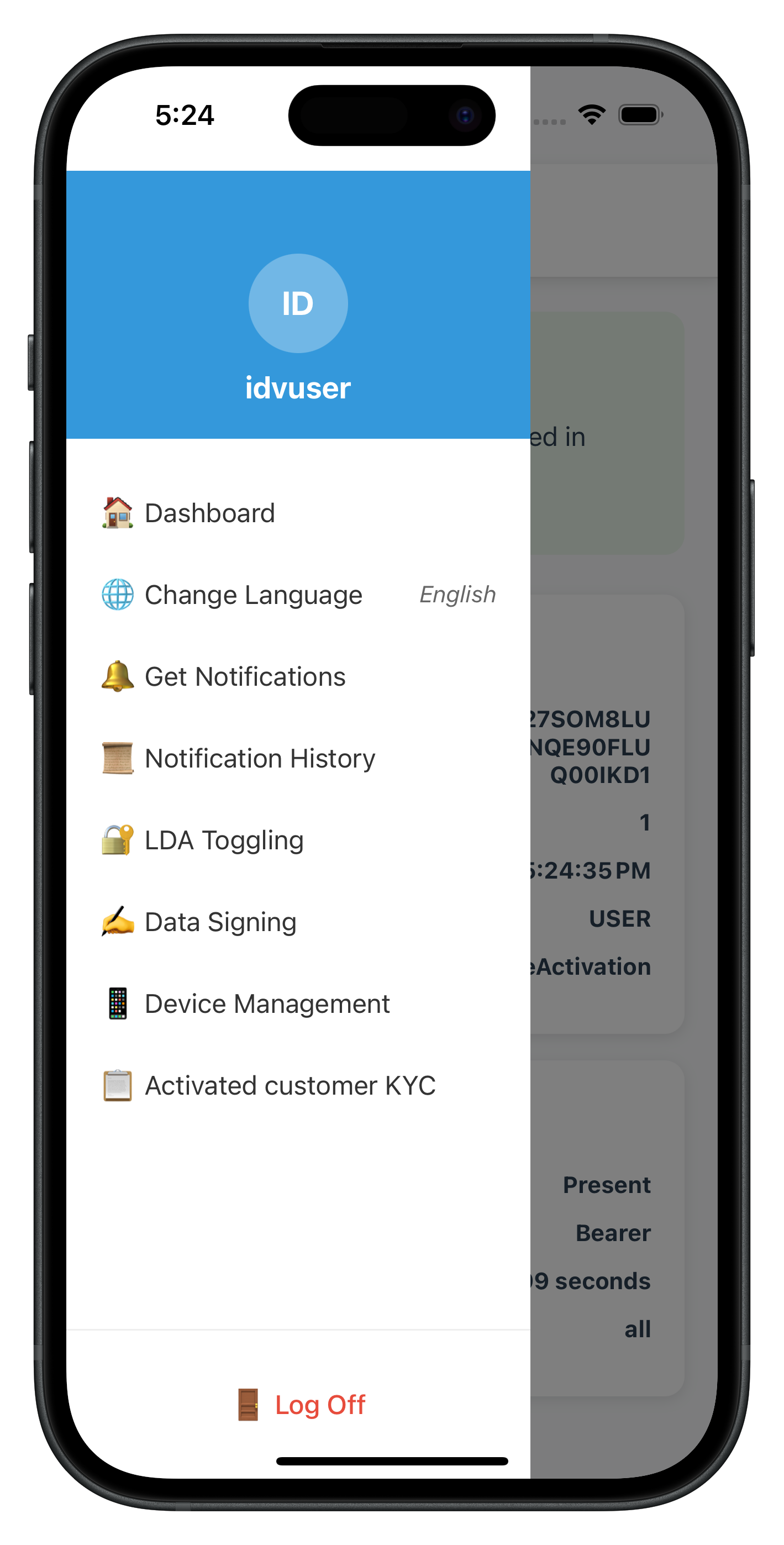
- Verify drawer opens → Drawer slides in from left showing user info and menu items
- Locate KYC menu item → "Activated Customer KYC" with verified-user icon (✓)
- Verify item position → Between "Device Management" and "Settings"
- Tap KYC menu item → Should navigate to ActivatedCustomerKYCScreen
- Verify navigation → Drawer closes, KYC screen displays
- Check console → Should show "Registering persistent event handler"
- Test menu button → Tap hamburger icon (☰) in KYC screen header
- Verify drawer opens → Drawer slides in showing menu (confirms drawer context works)
Test After KYC Flow:
- Complete KYC flow → Start KYC, complete all steps, see success modal
- Return to KYC screen → Handler navigates back to ActivatedCustomerKYCScreen
- Test menu button again → Tap hamburger icon (☰)
- Verify drawer still works → Drawer opens properly (confirms DrawerNavigator pattern works)
Drawer Menu UI Preview
Overview
The ActivatedCustomerKYCScreen is the entry point for post-login KYC verification. It demonstrates the persistent event handler pattern and dual validation.
Key Features
- KYC Initiation:
initiateActivatedCustomerKYC()API with workflow 6 - Persistent Event Handler: Screen-level handler using
useEffect(stays active when unfocused) - UI State Reset: Separate
useFocusEffectfor button and error state - Dual Validation: Two-tier validation checking both sync error and backend status
- Navigation Back: Handler always navigates back to KYC screen before showing modal
- Success/Error Modals: Clear feedback with Dashboard navigation option
Implement ActivatedCustomerKYCScreen.tsx
// src/tutorial/screens/idv/activatedCustomerKyc/ActivatedCustomerKYCScreen.tsx

import React, { useState, useCallback } from 'react';
import { View, Text, StyleSheet, ScrollView, SafeAreaView, Alert } from 'react-native';
import { useNavigation, useFocusEffect } from '@react-navigation/native';
import { Button, StatusBanner } from '../../components';
import rdnaIDVService from '../../../../uniken/services/idv/rdnaIDVService';
import type { RDNAIDVActivatedCustomerKYCResponseData } from '../../../../uniken/types/idv/rdnaIDVEvents';
import { RDNASyncUtils } from '../../../../uniken/types/rdnaEvents';

const ActivatedCustomerKYCScreen: React.FC = () => {
  const navigation = useNavigation();

  const [isProcessing, setIsProcessing] = useState<boolean>(false);
  const [hasReceivedResponse, setHasReceivedResponse] = useState<boolean>(false);
  const [error, setError] = useState<string>('');

  /**
   * Handle onActivatedCustomerKYCResponse event
   *
   * This handler receives the event when:
   * 1. KYC workflow completes successfully
   * 2. User cancels during IDV flow (error 240)
   * 3. Backend returns an error
   *
   * Key Implementation:
   * - Navigate back to ActivatedCustomerKYC screen first
   * - Perform dual validation (sync error + backend status)
   * - Show success/error modal with Dashboard navigation
   */
  const handleActivatedCustomerKYCResponse = useCallback(
    (data: RDNAIDVActivatedCustomerKYCResponseData) => {
      console.log('ActivatedCustomerKYC - onActivatedCustomerKYCResponse event received');
      console.log('ActivatedCustomerKYC - Error Code:', data.error?.longErrorCode);
      console.log('ActivatedCustomerKYC - Status Code:', data.status?.statusCode);

      // Reset button state to allow retry
      setHasReceivedResponse(false);
      setIsProcessing(false);

      // Navigate back to ActivatedCustomerKYC screen in DrawerNavigator
      (navigation as any).navigate('DrawerNavigator', {
        screen: 'ActivatedCustomerKYC'
      });

      // Small delay to ensure navigation completes before showing modal
      setTimeout(() => {
        const errorCode = data.error?.longErrorCode;
        const errorString = data.error?.errorString;
        const statusCode = data.status?.statusCode;
        const statusMessage = data.status?.statusMessage;

        // Dual validation pattern:
        // 1. Check SDK sync error first (0 = success, 240 = user cancelled, others = error)
        if (errorCode !== 0) {
          console.log('ActivatedCustomerKYC - Sync error detected:', errorCode);
          Alert.alert(
            'Error',
            `KYC initiation failed: ${errorString} (${errorCode})`,
            [{ text: 'Go to Dashboard', onPress: () => (navigation as any).navigate('Dashboard') }]
          );
        }
        // 2. Check backend status code (100 or 0 = success, others = error)
        else if (statusCode && statusCode !== 100 && statusCode !== 0) {
          console.log('ActivatedCustomerKYC - Backend status error detected:', statusCode);
          Alert.alert(
            'Error',
            `KYC initiation failed: ${statusMessage} (${statusCode})`,
            [{ text: 'Go to Dashboard', onPress: () => (navigation as any).navigate('Dashboard') }]
          );
        }
        // 3. Success case (errorCode === 0 AND statusCode === 100 or 0)
        else {
          console.log('ActivatedCustomerKYC - KYC completed successfully');
          Alert.alert(
            'Success',
            `The KYC process has been completed successfully. ${statusMessage || ''}`,
            [{ text: 'Go to Dashboard', onPress: () => (navigation as any).navigate('Dashboard') }]
          );
        }
      }, 300);
    },
    [navigation]
  );

  /**
   * Register persistent event handler (mount/unmount only)
   *
   * This handler MUST persist when user navigates to IDV screens.
   * It will receive the onActivatedCustomerKYCResponse event even
   * when the ActivatedCustomerKYC screen is unfocused.
   */
  React.useEffect(() => {
    console.log('ActivatedCustomerKYC - Registering persistent event handler');
    const eventManager = rdnaIDVService.getEventManager();
    eventManager.setActivatedCustomerKYCResponseHandler(handleActivatedCustomerKYCResponse);

    return () => {
      console.log('ActivatedCustomerKYC - Cleaning up event handler');
      eventManager.setActivatedCustomerKYCResponseHandler(undefined);
    };
  }, [handleActivatedCustomerKYCResponse]);

  /**
   * Reset UI state on screen focus (focus/unfocus)
   *
   * This is SEPARATE from event handler registration.
   * Resets button and error state when user returns to screen.
   */
  useFocusEffect(
    useCallback(() => {
      console.log('ActivatedCustomerKYC - Screen focused, resetting UI state');
      setHasReceivedResponse(false);
      setError('');
    }, [])
  );

  /**
   * Handle "Start KYC Verification" button press
   */
  const handleStartKYC = async () => {
    if (isProcessing || hasReceivedResponse) return;

    setIsProcessing(true);
    setError('');

    try {
      console.log('ActivatedCustomerKYC - Initiating post-login KYC');
      const reason = 'Post Login KYC';

      await rdnaIDVService.initiateActivatedCustomerKYC(reason);

      console.log('ActivatedCustomerKYC - KYC initiated successfully');
      console.log('ActivatedCustomerKYC - SDK will trigger IDV workflow events (workflow 6, mode 9)');

      // Mark that we've received initial response
      setHasReceivedResponse(true);
    } catch (error: any) {
      console.error('ActivatedCustomerKYC - Failed to initiate KYC:', error);
      const errorMessage = RDNASyncUtils.getErrorMessage(error);
      setError(errorMessage);
    } finally {
      setIsProcessing(false);
    }
  };

  return (
    <SafeAreaView style={styles.safeArea}>
      <ScrollView style={styles.container}>
        <View style={styles.content}>
          <Text style={styles.title}>Activated Customer KYC</Text>
          <Text style={styles.subtitle}>Identity Verification</Text>

          {/* KYC Information */}
          <View style={styles.infoContainer}>
            <Text style={styles.infoTitle}>What is KYC Verification?</Text>
            <Text style={styles.infoText}>
              KYC (Know Your Customer) is a mandatory identity verification process required for
              compliance and security purposes.
            </Text>

            <Text style={styles.infoSubtitle}>This verification includes:</Text>
            <View style={styles.bulletContainer}>
              <Text style={styles.bulletPoint}>• Document scanning (ID or Passport)</Text>
              <Text style={styles.bulletPoint}>• Selfie capture with liveness detection</Text>
              <Text style={styles.bulletPoint}>• Face matching verification</Text>
              <Text style={styles.bulletPoint}>• Biometric template consent</Text>
            </View>

            <Text style={styles.infoNote}>
              This process typically takes 2-3 minutes to complete.
            </Text>
          </View>

          {/* Error Display */}
          {error && (
            <StatusBanner
              type="error"
              message={error}
            />
          )}

          {/* Start Button */}
          <Button
            title={isProcessing ? 'Initiating...' : 'Start KYC Verification'}
            onPress={handleStartKYC}
            loading={isProcessing}
            disabled={isProcessing || hasReceivedResponse}
            variant="primary"
            style={styles.button}
          />

          {/* Help Text */}
          <View style={styles.helpContainer}>
            <Text style={styles.helpText}>
              By starting KYC verification, you consent to the collection and processing of your
              identity information for verification purposes in accordance with our privacy policy.
            </Text>
          </View>
        </View>
      </ScrollView>
    </SafeAreaView>
  );
};

const styles = StyleSheet.create({
  safeArea: {
    flex: 1,
    backgroundColor: '#f8f9fa',
  },
  container: {
    flex: 1,
  },
  content: {
    flex: 1,
    padding: 20,
  },
  title: {
    fontSize: 28,
    fontWeight: 'bold',
    color: '#2c3e50',
    textAlign: 'center',
    marginBottom: 8,
  },
  subtitle: {
    fontSize: 16,
    color: '#7f8c8d',
    textAlign: 'center',
    marginBottom: 24,
  },
  infoContainer: {
    backgroundColor: '#e8f4f8',
    borderLeftColor: '#3498db',
    borderLeftWidth: 4,
    borderRadius: 8,
    padding: 16,
    marginBottom: 24,
  },
  infoTitle: {
    fontSize: 16,
    fontWeight: 'bold',
    color: '#2c3e50',
    marginBottom: 8,
  },
  infoText: {
    fontSize: 14,
    color: '#2c3e50',
    lineHeight: 20,
    marginBottom: 12,
  },
  infoSubtitle: {
    fontSize: 14,
    fontWeight: '600',
    color: '#2c3e50',
    marginBottom: 8,
  },
  bulletContainer: {
    marginLeft: 8,
    marginBottom: 12,
  },
  bulletPoint: {
    fontSize: 14,
    color: '#2c3e50',
    lineHeight: 22,
  },
  infoNote: {
    fontSize: 13,
    color: '#7f8c8d',
    fontStyle: 'italic',
  },
  button: {
    marginVertical: 16,
  },
  helpContainer: {
    backgroundColor: '#ecf0f1',
    borderRadius: 8,
    padding: 16,
    marginTop: 8,
  },
  helpText: {
    fontSize: 13,
    color: '#7f8c8d',
    textAlign: 'center',
    lineHeight: 18,
  },
});

export default ActivatedCustomerKYCScreen;
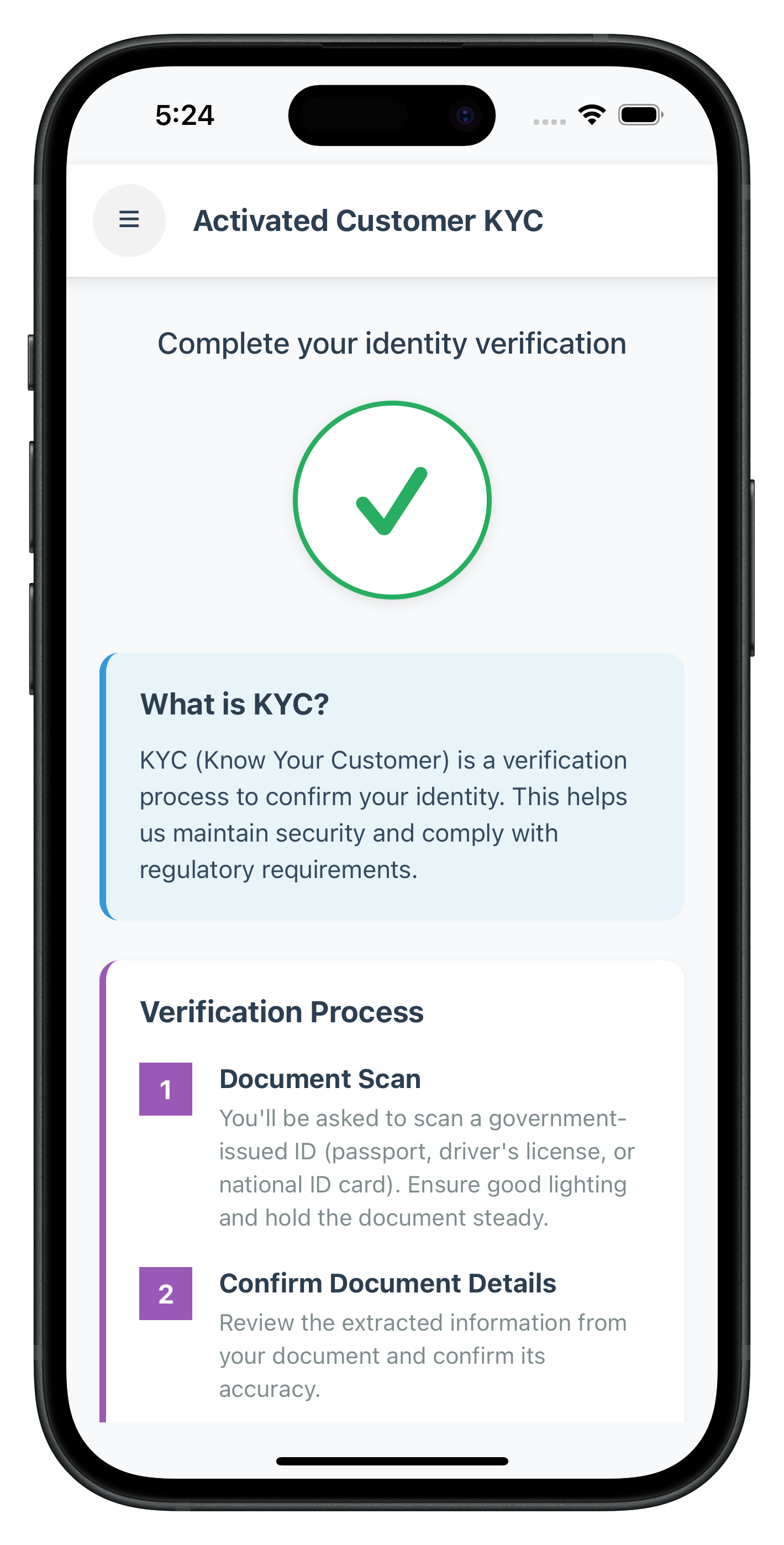
ActivatedCustomerKYC Screen UI Preview
Activated Customer KYC Screen |
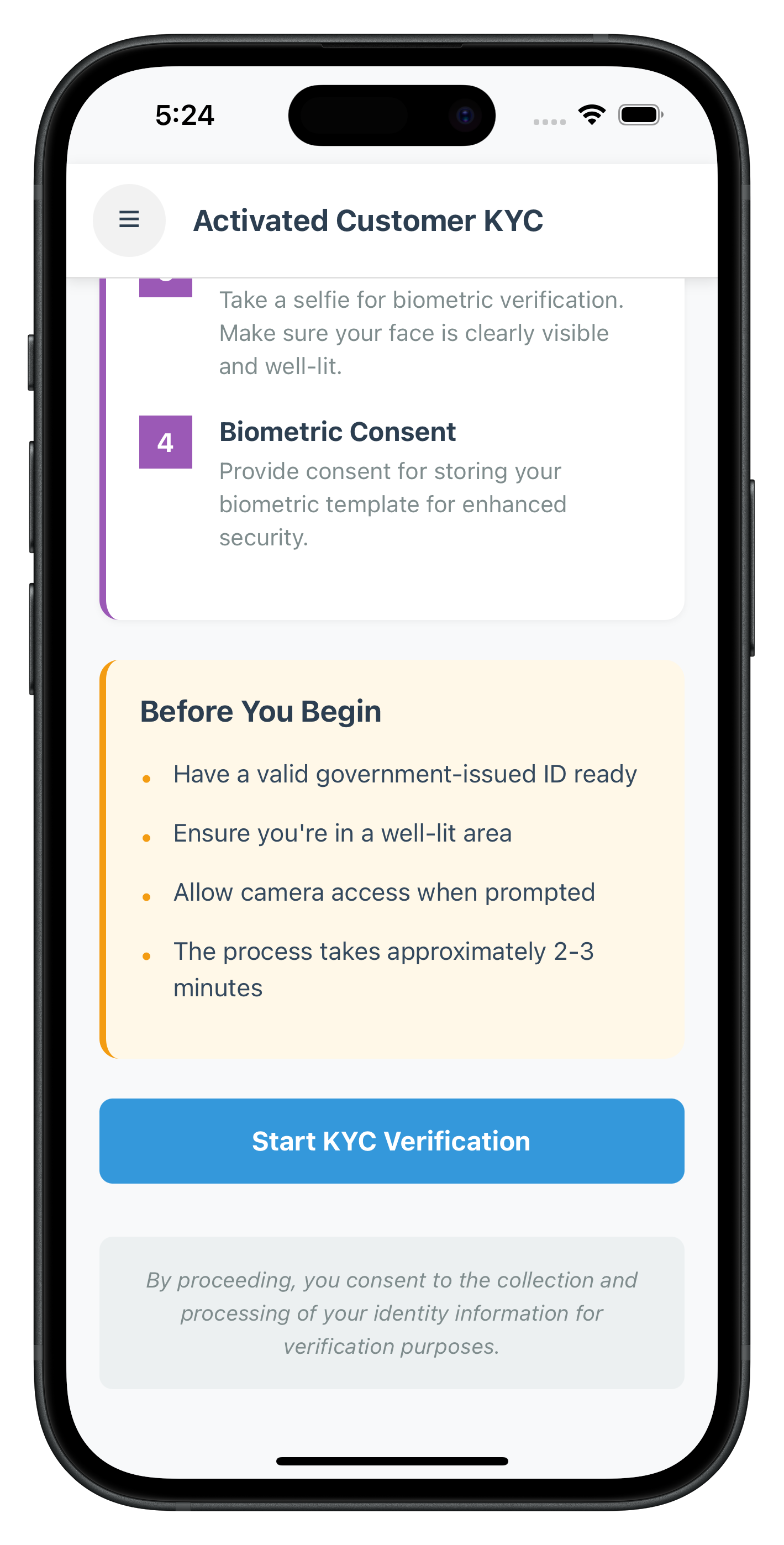
Activated Customer KYC Screen |
Key Implementation Patterns
1. Persistent Event Handler Registration
// Registered ONCE on mount, cleaned up on unmount
React.useEffect(() => {
  const eventManager = rdnaIDVService.getEventManager();
  eventManager.setActivatedCustomerKYCResponseHandler(handler);

  return () => {
    eventManager.setActivatedCustomerKYCResponseHandler(undefined);
  };
}, [handler]);
2. UI State Reset (Separate from Handler)
// Reset UI state on focus/unfocus
useFocusEffect(
  useCallback(() => {
    setHasReceivedResponse(false);
    setError('');
  }, [])
);
3. Dual Validation Pattern
// 1. Check sync error first
if (errorCode !== 0) {
  // Show sync error
}
// 2. Check backend status code
else if (statusCode && statusCode !== 100 && statusCode !== 0) {
  // Show backend error
}
// 3. Success
else {
  // Show success
}
Testing ActivatedCustomerKYC Screen
Verify the implementation:
- Navigate from drawer → Open drawer, tap "Activated Customer KYC"
- View KYC information → Screen displays requirements and bullet points
- Click "Start KYC Verification" → Button shows "Initiating..." state
- Handler registered → Console shows "Registering persistent event handler"
- SDK initiates workflow → Document scan event should trigger next
Test Success Flow:
- Complete all IDV steps → Document scan, selfie capture, consent
- Wait for completion → onActivatedCustomerKYCResponse event triggered
- Verify modal → Success modal appears with "Go to Dashboard" button
- Tap button → Navigate to Dashboard, KYC completed
Test Cancellation Flow:
- Cancel during IDV → Close button on any IDV screen
- Verify event → onActivatedCustomerKYCResponse with error 240
- Verify navigation → Screen navigates back to ActivatedCustomerKYC
- Verify modal → Error modal shows "User Cancelled (240)"
- Verify retry → Button re-enabled, can start KYC again
Overview
The document scan process for post-login KYC uses workflow 6 (RDNA_IDV_POSTLOGIN_KYC) and challenge mode 9. The close button behavior is different from pre-login flow.
Document Scan Start Confirmation
When SDK triggers getIDVDocumentScanProcessStartConfirmation event:
IDVDocumentProcessStartConfirmationScreen.tsx Key Changes
// Event handler receives workflow 6
const { idvWorkflow, eventData } = route.params || {};
// idvWorkflow = 6 for post-login KYC

// User confirms to start document scan
const handleStartDocumentScan = async () => {
  try {
    console.log('IDVDocumentProcessStart - Starting document scan with workflow:', idvWorkflow);

    // Pass workflow 6 to SDK
    await rdnaIDVService.setIDVDocumentScanProcessStartConfirmation(
      true, // isConfirm
      idvWorkflow // 6 for post-login KYC
    );

    console.log('IDVDocumentProcessStart - Document scan initiated');
    // SDK will open native camera for document capture
  } catch (error) {
    console.error('IDVDocumentProcessStart - Error:', error);
  }
};

// Close button behavior: resetAuthState for pre-login, cancel API for post-login
const handleClose = async () => {
  try {
    if (idvWorkflow === 0 || idvWorkflow === 5) {
      // Pre-login flow: Call resetAuthState
      await rdnaService.resetAuthState();
    } else {
      // Post-login flow (workflow 6): Call cancel API
      console.log('IDVDocumentProcessStart - Post-login flow, calling cancel API');
      await rdnaIDVService.setIDVDocumentScanProcessStartConfirmation(
        false, // isConfirm = false
        idvWorkflow // 6
      );
      // This triggers onActivatedCustomerKYCResponse event with error 240 (User Cancelled)
    }
  } catch (error) {
    console.error('IDVDocumentProcessStart - Close error:', error);
  }
};
Document Details Confirmation
After document capture, SDK triggers getIDVConfirmDocumentDetails event with challenge mode 9:
IDVConfirmDocumentDetailsScreen.tsx Key Changes
// Event handler receives challenge mode 9
const { challengeMode, eventData } = route.params || {};
// challengeMode = 9 for post-login KYC

// User confirms document details are correct
const handleConfirmDocument = async () => {
  try {
    console.log('IDVConfirmDocumentDetails - Confirming document with mode:', challengeMode);

    await rdnaIDVService.setIDVConfirmDocumentDetails(
      true, // isConfirm
      challengeMode // 9 for post-login
    );

    console.log('IDVConfirmDocumentDetails - Document confirmed, waiting for selfie event');
  } catch (error) {
    console.error('IDVConfirmDocumentDetails - Error:', error);
  }
};

// Close button: Challenge mode-based navigation
const handleClose = async () => {
  if (!challengeMode && challengeMode !== 0) {
    setError('Invalid challenge mode. Unable to close.');
    return;
  }

  setIsProcessing(true);
  setError('');

  try {
    if (challengeMode === 8) {
      // Pre-login flow: Call resetAuthState
      console.log('IDVConfirmDocumentDetails - Pre-login flow, calling resetAuthState');
      await rdnaService.resetAuthState();
    } else {
      // Post-login flow (mode 9): Call cancel API
      console.log('IDVConfirmDocumentDetails - Post-login flow, calling cancel API');
      await rdnaIDVService.setIDVConfirmDocumentDetails(
        false, // isConfirm = false
        challengeMode // 9
      );
      // This triggers onActivatedCustomerKYCResponse event
      // Persistent handler navigates back to ActivatedCustomerKYC screen
    }
  } catch (error) {
    console.error('IDVConfirmDocumentDetails - Close error:', error);
    const result: RDNASyncResponse = error as RDNASyncResponse;
    const errorMessage = RDNASyncUtils.getErrorMessage(result);
    setError(errorMessage);
  } finally {
    setIsProcessing(false);
  }
};
Document Flow Testing
Test the document scan process:
- Start KYC → Click "Start KYC Verification" on ActivatedCustomerKYCScreen
- Document scan start → Navigate to IDVDocumentProcessStartConfirmationScreen
- Verify workflow → Console shows "workflow: 6"
- Start document scan → Native camera opens for document capture
- Capture document → Scan ID or passport
- Document confirmation → Navigate to IDVConfirmDocumentDetailsScreen with OCR data
- Verify challenge mode → Console shows "challengeMode: 9"
- Confirm document → Click confirm to proceed to selfie
Test Close Button:
- Click close button → Cancel API called (mode 9)
- Event triggered →
onActivatedCustomerKYCResponseevent with error 240 - Navigate back → Handler navigates to ActivatedCustomerKYCScreen
- Error modal shown → "KYC initiation failed: User Cancelled (240)"
Overview
The selfie capture process for post-login KYC also uses workflow 6 and challenge mode 9, with different close button navigation patterns.
Selfie Process Start Confirmation
When SDK triggers getIDVSelfieProcessStartConfirmation event:
IDVSelfieProcessStartConfirmationScreen.tsx Key Changes
// Event handler receives workflow 6
const { idvWorkflow, eventData } = route.params || {};
// idvWorkflow = 6 for post-login KYC

// User confirms to start selfie capture
const handleStartSelfieCapture = async () => {
  try {
    console.log('IDVSelfieProcessStart - Starting selfie capture with workflow:', idvWorkflow);

    await rdnaIDVService.setIDVSelfieProcessStartConfirmation(
      true, // isConfirm
      false, // useDeviceBackCamera (false = front camera for selfies)
      idvWorkflow // 6 for post-login KYC
    );

    console.log('IDVSelfieProcessStart - Selfie capture initiated');
    // SDK will open native camera for selfie with liveness detection
  } catch (error) {
    console.error('IDVSelfieProcessStart - Error:', error);
  }
};

// Close button behavior based on workflow
const handleClose = async () => {
  try {
    if (idvWorkflow === 0 || idvWorkflow === 5) {
      // Pre-login flow: Call resetAuthState
      await rdnaService.resetAuthState();
    } else {
      // Post-login flow (workflow 6): Call cancel API
      console.log('IDVSelfieProcessStart - Post-login flow, calling cancel API');
      await rdnaIDVService.setIDVSelfieProcessStartConfirmation(
        false, // isConfirm = false
        false,
        idvWorkflow // 6
      );
      // This triggers onActivatedCustomerKYCResponse event with error 240
    }
  } catch (error) {
    console.error('IDVSelfieProcessStart - Close error:', error);
  }
};
Selfie Confirmation
After selfie capture, SDK triggers getIDVSelfieConfirmation event with challenge mode 9:
IDVSelfieConfirmationScreen.tsx Key Changes
// Event handler receives challenge mode 9
const { challengeMode, eventData } = route.params || {};
// challengeMode = 9 for post-login KYC

// User confirms selfie biometric results
const handleConfirmSelfie = async () => {
  try {
    console.log('IDVSelfieConfirmation - Confirming selfie with mode:', challengeMode);

    await rdnaIDVService.setIDVSelfieConfirmation(
      "true", // action (string value)
      challengeMode // 9 for post-login
    );

    console.log('IDVSelfieConfirmation - Selfie confirmed, waiting for consent event');
  } catch (error) {
    console.error('IDVSelfieConfirmation - Error:', error);
  }
};

// Close button: Challenge mode-based navigation
// Important: No cancel API available for selfie confirmation!
const handleClose = async () => {
  if (!challengeMode && challengeMode !== 0) {
    setError('Invalid challenge mode. Unable to close.');
    return;
  }

  setIsProcessing(true);
  setError('');

  try {
    if (challengeMode === 8) {
      // Pre-login flow: Call resetAuthState
      console.log('IDVSelfieConfirmation - Pre-login flow, calling resetAuthState');
      await rdnaService.resetAuthState();
      console.log('IDVSelfieConfirmation - ResetAuthState successful');
    } else {
      // Post-login flow (mode 9): Navigate directly to ActivatedCustomerKYC in DrawerNavigator
      // No cancel API available for selfie confirmation
      console.log('IDVSelfieConfirmation - Post-login flow, navigating to ActivatedCustomerKYC in DrawerNavigator');
      (navigation as any).navigate('DrawerNavigator', {
        screen: 'ActivatedCustomerKYC'
      });
      console.log('IDVSelfieConfirmation - Navigated to ActivatedCustomerKYC, button will be auto-enabled');
    }
  } catch (error) {
    console.error('IDVSelfieConfirmation - Close error:', error);
    const result: RDNASyncResponse = error as RDNASyncResponse;
    const errorMessage = RDNASyncUtils.getErrorMessage(result);
    setError(errorMessage);
  } finally {
    setIsProcessing(false);
  }
};
Selfie Flow Testing
Test the selfie capture process:
- Document confirmed → After document confirmation, navigate to IDVSelfieProcessStartConfirmationScreen
- Verify workflow → Console shows "workflow: 6"
- Start selfie capture → Native camera opens with liveness detection
- Capture selfie → Follow on-screen instructions for liveness check
- Selfie confirmation → Navigate to IDVSelfieConfirmationScreen with biometric results
- Verify challenge mode → Console shows "challengeMode: 9"
- Review biometric scores → Face match score and liveness score displayed
- Confirm selfie → Click confirm to proceed to biometric consent
Test Close Button:
- Click close button → Direct navigation (mode 9, no cancel API)
- Navigate back → Navigate to ActivatedCustomerKYCScreen directly
- Button re-enabled → useFocusEffect resets button state
- No modal shown → No event triggered, user can retry from beginning
Overview
The biometric consent for post-login KYC uses challenge mode 9 with a different response structure compared to pre-login flow.
Key Differences in Response Structure
Aspect | Pre-Login (Mode 8) | Post-Login (Mode 9) |
challengeResponse | Present | Optional/Absent |
status location |
| Root level |
status access |
|
|
Biometric Opt-In Consent
When SDK triggers getIDVBiometricOptInConsent event with challenge mode 9:
IDVBiometricOptInConsentScreen.tsx Key Changes
// Event handler receives challenge mode 9
const { challengeMode, eventData } = route.params || {};
// challengeMode = 9 for post-login KYC

// User accepts or rejects biometric template storage
const handleConsentAction = async (isOptIn: boolean) => {
  if (!challengeMode && challengeMode !== 0) {
    setError('Invalid challenge mode. Unable to process consent.');
    return;
  }

  setIsProcessing(true);
  setError('');

  try {
    console.log('IDVBiometricOptInConsent - Processing consent with mode:', challengeMode, 'isOptIn:', isOptIn);

    await rdnaIDVService.setIDVBiometricOptInConsent(
      isOptIn, // true = accept, false = reject
      challengeMode // 9 for post-login
    );

    console.log('IDVBiometricOptInConsent - Consent processed successfully');
    // SDK will trigger onActivatedCustomerKYCResponse event with completion status
  } catch (error) {
    console.error('IDVBiometricOptInConsent - Error:', error);
    const result: RDNASyncResponse = error as RDNASyncResponse;
    const errorMessage = RDNASyncUtils.getErrorMessage(result);
    setError(errorMessage);
  } finally {
    setIsProcessing(false);
  }
};

// Close button: Challenge mode-based navigation
const handleClose = async () => {
  if (isProcessing) return;

  if (!challengeMode && challengeMode !== 0) {
    setError('Invalid challenge mode. Unable to close.');
    return;
  }

  setIsProcessing(true);
  setError('');

  try {
    if (challengeMode === 8) {
      // Pre-login flow: Call resetAuthState
      console.log('IDVBiometricOptInConsent - Pre-login flow, calling resetAuthState');
      await rdnaService.resetAuthState();
      console.log('IDVBiometricOptInConsent - ResetAuthState successful');
    } else {
      // Post-login flow (mode 9): Navigate directly to ActivatedCustomerKYC in DrawerNavigator
      console.log('IDVBiometricOptInConsent - Post-login flow, navigating to ActivatedCustomerKYC in DrawerNavigator');
      (navigation as any).navigate('DrawerNavigator', {
        screen: 'ActivatedCustomerKYC'
      });
      console.log('IDVBiometricOptInConsent - Navigated to ActivatedCustomerKYC, button will be auto-enabled');
    }
  } catch (error) {
    console.error('IDVBiometricOptInConsent - Close error:', error);
    const result: RDNASyncResponse = error as RDNASyncResponse;
    const errorMessage = RDNASyncUtils.getErrorMessage(result);
    setError(errorMessage);
  } finally {
    setIsProcessing(false);
  }
};
Handling Response Structure Differences
In the IDV event manager, use optional chaining to handle both structures:
rdnaIDVEventManager.ts
private onGetBiometricOptInConsent(response: RDNAJsonResponse) {
  console.log('RdnaIDVEventManager - Biometric opt-in consent event received');

  try {
    const data: RDNAIDVGetBiometricOptInConsentData = JSON.parse(response.response);
    console.log('RdnaIDVEventManager - User ID:', data.userID);
    console.log('RdnaIDVEventManager - Challenge Mode:', data.challengeMode);

    // Handle both response structures:
    // Pre-login (mode 8): status in challengeResponse.status
    // Post-login (mode 9): status at root level
    const statusCode = data.challengeResponse?.status?.statusCode || data.status?.statusCode;
    const statusMessage = data.challengeResponse?.status?.statusMessage || data.status?.statusMessage;

    console.log('RdnaIDVEventManager - Status Code:', statusCode);
    console.log('RdnaIDVEventManager - Status Message:', statusMessage);

    // Pre-login specific data (may not exist for post-login)
    if (data.challengeResponse) {
      console.log('RdnaIDVEventManager - Session ID:', data.challengeResponse.session?.sessionID);
      console.log('RdnaIDVEventManager - Current Workflow:', data.challengeResponse.additionalInfo?.currentWorkFlow);
    }

    if (this.getBiometricOptInConsentHandler) {
      this.getBiometricOptInConsentHandler(data);
    } else {
      console.warn('RdnaIDVEventManager - No handler registered for biometric opt-in consent');
    }
  } catch (error) {
    console.error('RdnaIDVEventManager - Failed to parse biometric opt-in consent:', error);
  }
}
Biometric Consent Testing
Test the biometric consent process:
- Selfie confirmed → After selfie confirmation, navigate to IDVBiometricOptInConsentScreen
- Verify challenge mode → Console shows "challengeMode: 9"
- Review consent information → Biometric template storage explanation displayed
- Accept consent → Click "Approve" button
- SDK processes consent →
setIDVBiometricOptInConsent(true, 9)called - KYC completes → SDK triggers
onActivatedCustomerKYCResponseevent - Handler receives event → Persistent handler on ActivatedCustomerKYCScreen catches event
- Success modal shown → "KYC process completed successfully"
Test Close Button:
- Click close button → Direct navigation (mode 9)
- Navigate back → Navigate to ActivatedCustomerKYCScreen directly
- Button re-enabled → useFocusEffect resets button state
Test Reject Consent:
- Click "Reject" →
setIDVBiometricOptInConsent(false, 9)called - KYC still completes → Rejection doesn't fail KYC, just doesn't store template
- Success modal shown → "KYC process completed successfully"
Overview
Now that you've implemented all the components, let's understand how they work together in the complete KYC flow.
Complete Flow Architecture
1. User Action (ActivatedCustomerKYCScreen)
   ├─ User clicks "Start KYC Verification"
   ├─ Screen calls: rdnaIDVService.initiateActivatedCustomerKYC("Post Login KYC")
   └─ Screen registers persistent handler: eventManager.setActivatedCustomerKYCResponseHandler()

2. Service Layer (rdnaIDVService.ts)
   ├─ Calls native SDK: RdnaClient.initiateActivatedCustomerKYC(reason, callback)
   ├─ SDK returns sync response (immediate)
   ├─ Sync success: error.longErrorCode = 0
   └─ SDK initiates IDV workflow (workflow 6, mode 9)

3. IDV Workflow Events (SDK → Event Manager → Screens)
   ├─ getIDVDocumentScanProcessStartConfirmation → Document Scan
   ├─ getIDVConfirmDocumentDetails → Document Validation
   ├─ getIDVSelfieProcessStartConfirmation → Selfie Capture
   ├─ getIDVSelfieConfirmation → Selfie Verification
   └─ getIDVBiometricOptInConsent → Biometric Consent

4. KYC Completion (onActivatedCustomerKYCResponse)
   ├─ SDK triggers event (after all steps complete or cancellation)
   ├─ Native Bridge → Event Emitter → Event Manager
   ├─ Event Manager: onActivatedCustomerKYCResponse() parses JSON
   ├─ Event Manager: Invokes registered handlers (global + screen-level)
   ├─ Global Handler (SDKIDVEventProvider): Logs for analytics
   └─ Screen Handler (ActivatedCustomerKYCScreen): Navigation + UI

5. Screen Handler Processing
   ├─ Navigate back to ActivatedCustomerKYCScreen via DrawerNavigator
   │  • navigation.navigate('DrawerNavigator', { screen: 'ActivatedCustomerKYC' })
   │  • Ensures menu button (hamburger icon) continues to work
   ├─ Dual Validation:
   │  ├─ Check error.longErrorCode (0 = OK, 240 = cancelled, others = error)
   │  └─ Check status.statusCode (100/0 = OK, others = backend error)
   ├─ Show Success/Error Modal
   └─ Provide Dashboard navigation
Handler Coexistence Pattern
Both global (provider) and screen-level handlers work together:
Handler | Location | Purpose | Lifecycle |
Global | SDKIDVEventProvider | Logging, analytics, global state | App-wide (mount to unmount) |
Screen | ActivatedCustomerKYCScreen | Navigation, UI, modals | Screen-specific (persistent when unfocused) |
Completion Flow Testing
Test the complete KYC completion flow:
- Complete all IDV steps → Document scan, document confirm, selfie capture, selfie confirm, biometric consent
- Biometric consent processed →
setIDVBiometricOptInConsent(true, 9)called - SDK triggers event →
onActivatedCustomerKYCResponseevent triggered - Global handler logs → Console shows "SDKIDVEventProvider - KYC response received"
- Screen handler executes → Console shows "ActivatedCustomerKYC - event received"
- Navigate back →
navigation.navigate('DrawerNavigator', { screen: 'ActivatedCustomerKYC' })called - Dual validation → Check error.longErrorCode and status.statusCode
- Success modal shown → "KYC process completed successfully"
- User clicks button → Navigate to Dashboard
Test Cancellation:
- Cancel at any IDV step → Click close button
- Cancellation event →
onActivatedCustomerKYCResponsewith error 240 - Screen handler executes → Persistent handler catches event
- Navigate back → Navigate to ActivatedCustomerKYCScreen
- Error modal shown → "KYC initiation failed: User Cancelled (240)"
- User can retry → Button re-enabled, can start KYC again
Complete Flow Testing
Test the entire post-login KYC workflow end-to-end:
1. Initial Setup
# Ensure app is running
npx react-native run-android
# or
npx react-native run-ios
2. Login and Navigate to KYC
- ✅ Login with activated credentials
- ✅ Reach Dashboard screen
- ✅ Open drawer menu (swipe from left or tap hamburger)
- ✅ Verify "Activated Customer KYC" menu item visible
- ✅ Tap menu item and navigate to ActivatedCustomerKYCScreen
3. Start KYC Verification
- ✅ View KYC information and requirements
- ✅ Tap "Start KYC Verification" button
- ✅ Button shows "Initiating..." state
- ✅ Console shows "Registering persistent event handler"
- ✅ Console shows "Workflow: 6, Challenge Mode: 9"
4. Document Scan Process
- ✅ Navigate to IDVDocumentProcessStartConfirmationScreen
- ✅ Console shows "idvWorkflow: 6"
- ✅ Tap "Start Document Scan" button
- ✅ Native camera opens for document capture
- ✅ Scan identity document (ID or passport)
- ✅ Navigate to IDVConfirmDocumentDetailsScreen
- ✅ Console shows "challengeMode: 9"
- ✅ Review OCR-extracted data
- ✅ Tap "Confirm" button
5. Selfie Capture Process
- ✅ Navigate to IDVSelfieProcessStartConfirmationScreen
- ✅ Console shows "idvWorkflow: 6"
- ✅ Tap "Start Selfie Capture" button
- ✅ Native camera opens with liveness detection
- ✅ Capture selfie following on-screen instructions
- ✅ Navigate to IDVSelfieConfirmationScreen
- ✅ Console shows "challengeMode: 9"
- ✅ Review biometric match scores
- ✅ Tap "Confirm" button
6. Biometric Consent
- ✅ Navigate to IDVBiometricOptInConsentScreen
- ✅ Console shows "challengeMode: 9"
- ✅ Review consent information
- ✅ Tap "Approve" button
- ✅ Console shows "setIDVBiometricOptInConsent(true, 9) called"
7. KYC Completion
- ✅ Console shows "onActivatedCustomerKYCResponse event triggered"
- ✅ Global handler logs event
- ✅ Screen-level handler executes
- ✅ Navigate back to ActivatedCustomerKYCScreen
- ✅ Dual validation performed (errorCode = 0, statusCode = 100)
- ✅ Success modal shown: "KYC process completed successfully"
- ✅ Tap "Go to Dashboard" button
- ✅ Navigate to Dashboard
Error Scenarios Testing
User Cancellation at Document Scan Start
- ✅ Start KYC verification
- ✅ Navigate to IDVDocumentProcessStartConfirmationScreen
- ✅ Tap close button
- ✅ Console shows "Post-login flow, calling cancel API"
- ✅
setIDVDocumentScanProcessStartConfirmation(false, 6)called - ✅
onActivatedCustomerKYCResponseevent with error 240 - ✅ Navigate back to ActivatedCustomerKYCScreen
- ✅ Error modal: "KYC initiation failed: User Cancelled (240)"
- ✅ Button re-enabled for retry
User Cancellation at Document Confirmation (Mode 9)
- ✅ Complete document scan
- ✅ Navigate to IDVConfirmDocumentDetailsScreen
- ✅ Tap close button
- ✅ Console shows "Post-login flow (mode 9), calling cancel API"
- ✅
setIDVConfirmDocumentDetails(false, 9)called - ✅
onActivatedCustomerKYCResponseevent triggered - ✅ Navigate back to ActivatedCustomerKYCScreen
- ✅ Error modal shown
- ✅ Button re-enabled for retry
User Cancellation at Selfie Confirmation (Mode 9)
- ✅ Complete document and selfie capture
- ✅ Navigate to IDVSelfieConfirmationScreen
- ✅ Tap close button
- ✅ Console shows "Post-login flow (mode 9), navigating directly"
- ✅ Navigate to ActivatedCustomerKYCScreen directly
- ✅ No event triggered (no cancel API for selfie confirmation)
- ✅ Button re-enabled by useFocusEffect
Backend Error During KYC Initiation
- ✅ Start KYC verification
- ✅ Backend returns error (statusCode = 400)
- ✅
onActivatedCustomerKYCResponseevent: error.longErrorCode = 0, status.statusCode = 400 - ✅ Dual validation detects backend error
- ✅ Error modal: "KYC initiation failed: (400)"
- ✅ Navigate to Dashboard
Console Verification
Check console logs for proper workflow and challenge mode values:
✅ "Workflow: 6 (RDNA_IDV_POSTLOGIN_KYC)"
✅ "Challenge Mode: 9 (post-login)"
✅ "Registering persistent event handler"
✅ "onActivatedCustomerKYCResponse event received"
✅ "Dual validation - errorCode: 0, statusCode: 100"
What You've Accomplished
Congratulations! You've successfully implemented a complete post-login KYC workflow for activated customers with REL-ID SDK. You now have:
- ✅ Drawer Menu Integration - KYC access from Dashboard navigation
- ✅ Activated Customer KYC Screen - Entry point with persistent event handlers
- ✅ Document Scan Process - Document capture with workflow 6 and challenge mode 9
- ✅ Document Validation - OCR data confirmation with challenge mode-based close button
- ✅ Selfie Capture - Biometric selfie with liveness detection
- ✅ Selfie Verification - Face matching results with challenge mode 9 navigation
- ✅ Biometric Consent - Template storage with response structure handling
- ✅ KYC Completion - onActivatedCustomerKYCResponse event with dual validation
- ✅ Error Handling - Robust validation and user cancellation support
Key Learnings
You've mastered these advanced IDV patterns:
- Workflow 6 & Challenge Mode 9 - Post-login KYC parameters
- Persistent Event Handlers - Screen-level handlers that stay active
- Dual Validation Pattern - Two-tier error checking (sync + backend)
- Challenge Mode-Based Navigation - Different behaviors for mode 8 vs 9
- Response Structure Differences - Optional chaining for flexible parsing
- Cancel API Patterns - When to use cancel APIs vs direct navigation
- Drawer Navigator Pattern - Critical navigation structure for menu button functionality
Critical Navigation Pattern
Why This Matters:
- Screens in Drawer Navigator have access to drawer context (menu button works)
- If registered in both, Stack Navigator is found first (menu button fails)
- All navigation to
ActivatedCustomerKYCmust use:navigation.navigate('DrawerNavigator', { screen: 'ActivatedCustomerKYC' })
Correct Pattern:
// ✅ CORRECT: Navigate to screen in Drawer Navigator
(navigation as any).navigate('DrawerNavigator', {
  screen: 'ActivatedCustomerKYC'
});
Incorrect Pattern:
// ❌ WRONG: Direct navigation (loses drawer context)
(navigation as any).navigate('ActivatedCustomerKYC');
This pattern applies to ALL screens that need menu button functionality (hamburger icon to open drawer).
Next Steps
Continue your REL-ID SDK journey:
- Advanced IDV Flows - Multi-document verification, document type selection
- Production Optimization - Error analytics, completion rate tracking
Resources
- REL-ID Developer Portal - Complete API documentation
- Post-Login KYC Guide - Detailed KYC implementation guide
🎉 Congratulations on completing the REL-ID IDV Post-Login KYC Flow codelab!